
Editing existing tests in the Test Wizard
Tests can be edited from the Item Authoring screen using the Test Wizard.
In This Article
1. Go to your subject
In your subject, select Tests to open the Test Wizard menu.

2. Edit your test
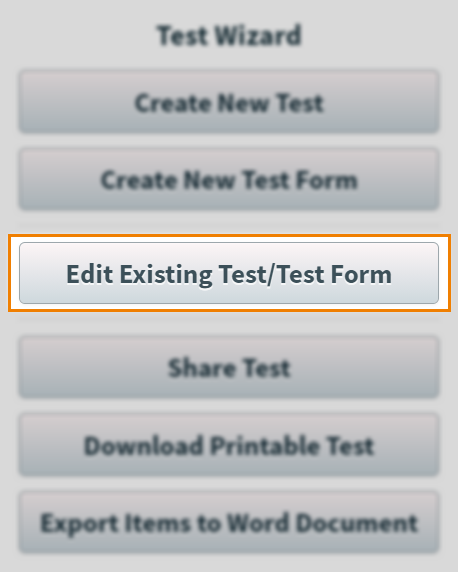
Select Edit Existing Test/Test Form to select the test you wish to edit.
3. Choose your test
Select the existing test that you want to edit. You can also search by test name and reference by using the entry field provided.
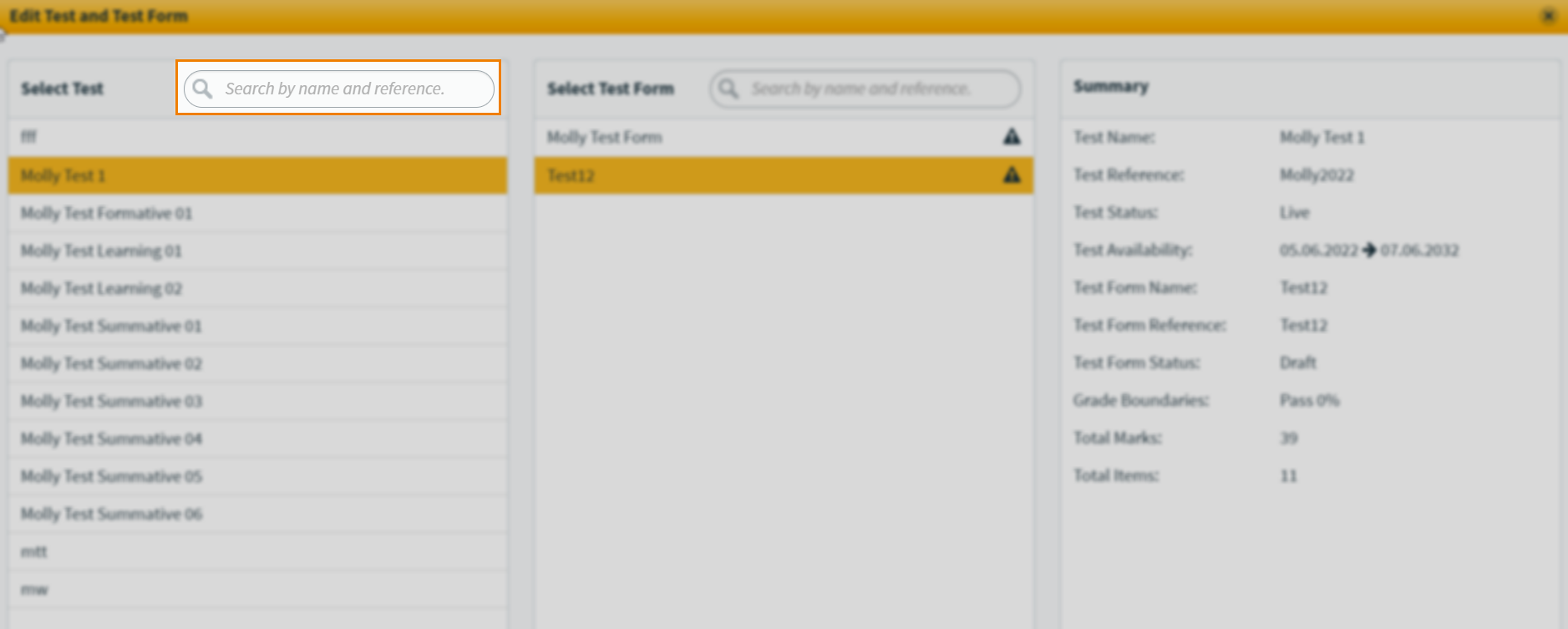
All of the selected test’s test forms are listed in the Select Test Form panel. You can view a summary of the selected test and test form in the Summary panel.
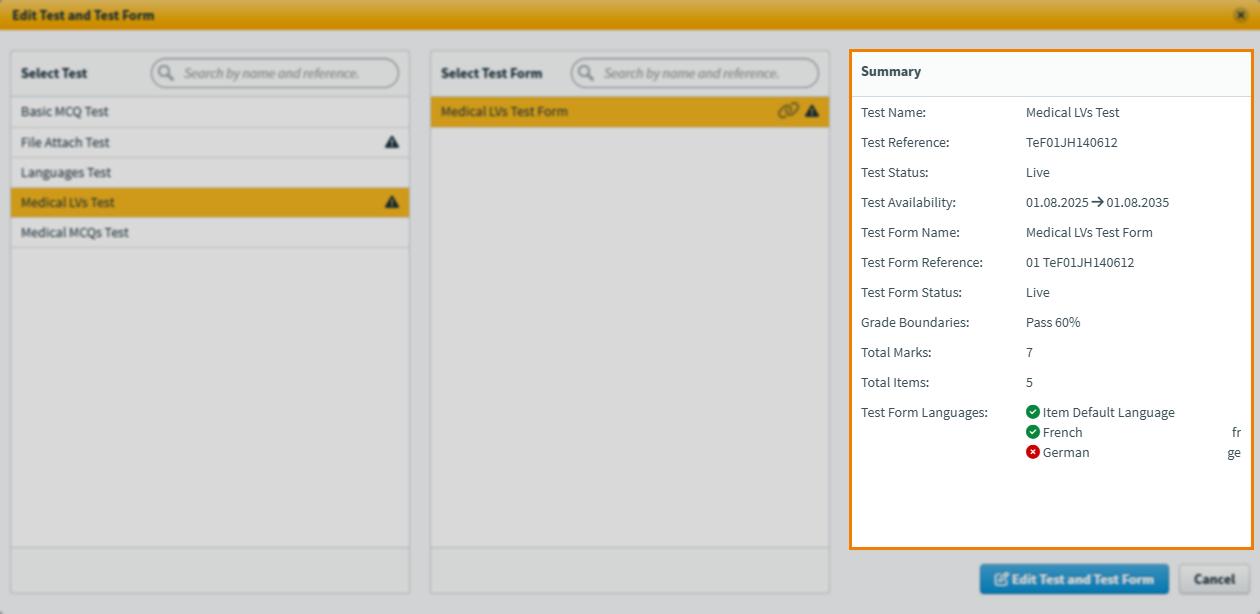
Select Edit Test and Test Form to edit the selected test.

4. Edit your settings
When you have confirmed your choices you can, edit your test settings, rechoose your items/basic pages, and review your test as normal. For more information on test/test form settings in the Test Wizard read, About test settings in the Test Wizard and About test form settings in the Test Wizard.
Further reading
Now you know how to edit existing tests/test forms with the Test Wizard, read the following articles to learn more: