
About the Surpass media library
All of your subject’s media (images, videos, audio files, and source material) are stored in a subject-specific repository called the media library.
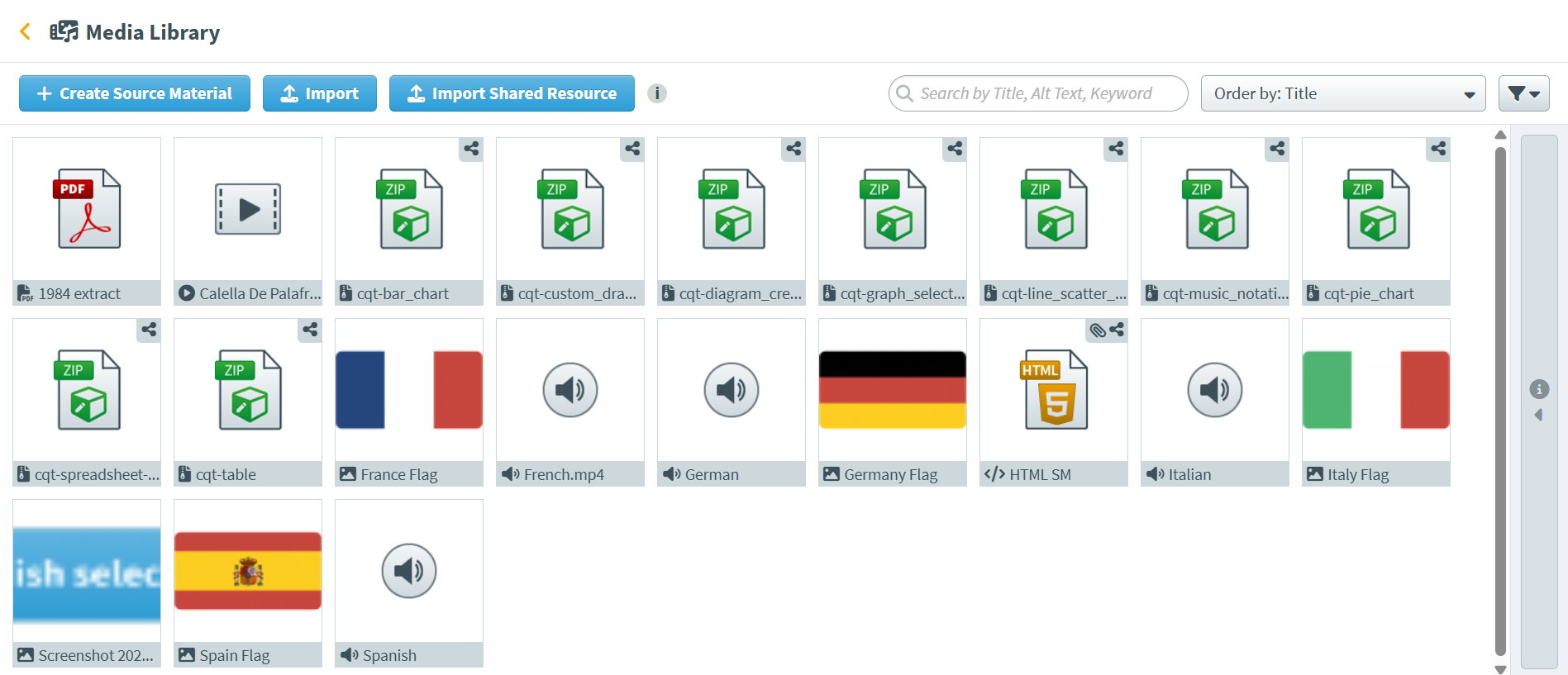
This article explains the basic functionality of the media library.
In this article
What can the media library contain?
The media library can contain the following types of media. Follow the links to learn more about each type.
| Detail | Description |
|---|---|
| Source Material |
Files that candidates need to refer to when answering a question. Source material is added to the question stem and is not visible until candidates select a button. You can use the following media as source material:
IMPORTANT: Linearized PDF files are not compatible and can not be used as source material.
For more information, read About source material. |
| Images |
Static graphics that appear on the item. Images can be used to support question content or as decoration. Accepted file types are BMP, GIF, JPEG, PNG, and SVG. For more information, read About images. |
| Audio |
Sound files that appear on the item. Audio can be used to support question content. Accepted file types are MP3 and WAV. For more information, read About audio. |
| Video |
Audio-visual files that appear on the item. Video can be used to support question content. Accepted file types are AVI, MOV, MP4, MPEG, and WMV. For more information, read About video. |
| CQT Packages |
Custom Question Types are ZIP files containing custom question content in Surpass. For more information, read Creating Custom Question Types. |
How to find the media library
In your subject, select Media Library to open the subject’s media library.

Adding media
There are three ways to add media to the media library (plus importing custom question types).
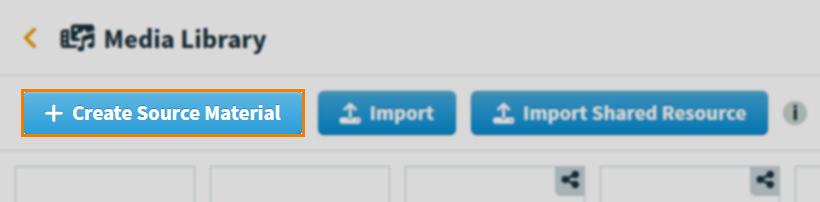
Create Source Material
Use Create Source Material to create HTML source material and URL source material directly in the media library. For more information, read Creating HTML source material and Creating URL source material.
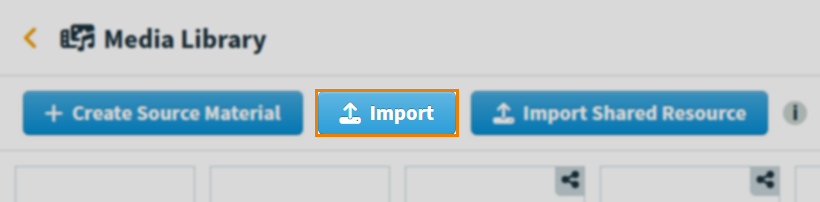
Import
Use Import to upload images, video, and audio files to the media library. For more information, read Importing files to the media library.
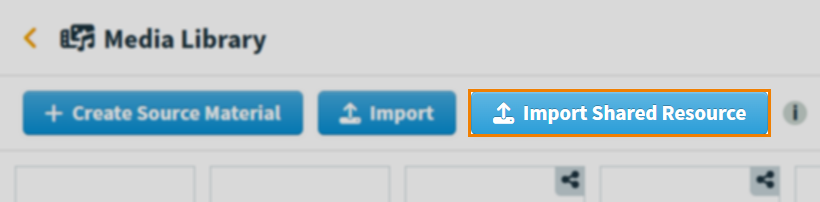
Import Shared Resource
Use Import Shared Resource to upload media you want to use on multiple items in the same test. If these items are next to each other in the test, the source material stays open as candidates move through the items.
Import Custom Question Type packages
Use Import Shared Resource to upload custom question type packages into the media library.
Select Import Shared Resource and then select your package file.
Select Custom Question Type.
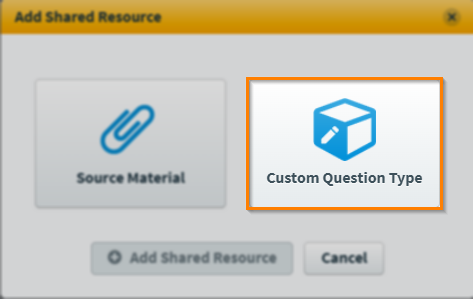
Select Add Shared Resource.
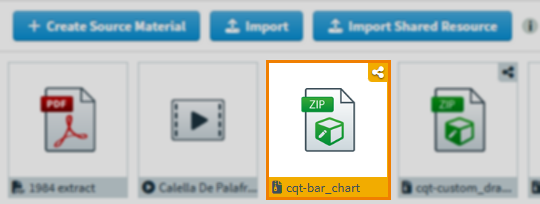
Your custom question type package is added to the media library as a ZIP file and can be added to items.
Finding media
By default, media in the media library are ordered alphabetically by title. There are four ways to find media in the media library.
Search
Enter a text string in the search field to filter the visible media items based on their title.

Order
Use the Order by drop-down menu to re-order the media list alphabetically by name (Title), chronologically by the most recently updated (Last Updated), or alphabetically by file type (Type).

Filter
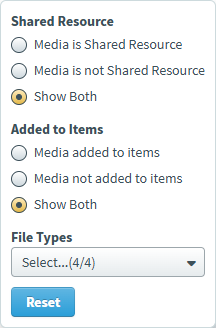
Use the Filter options to filter the media list.

Media can be filtered by file type, whether it is a shared resource, or has been added to items.
Managing media
Select a media item to open the media side panel, where you can edit, replace, preview, download, duplicate, and delete the selected media. For more information on how to use the side panel, read Managing media in the media library side panel.
Grouping media
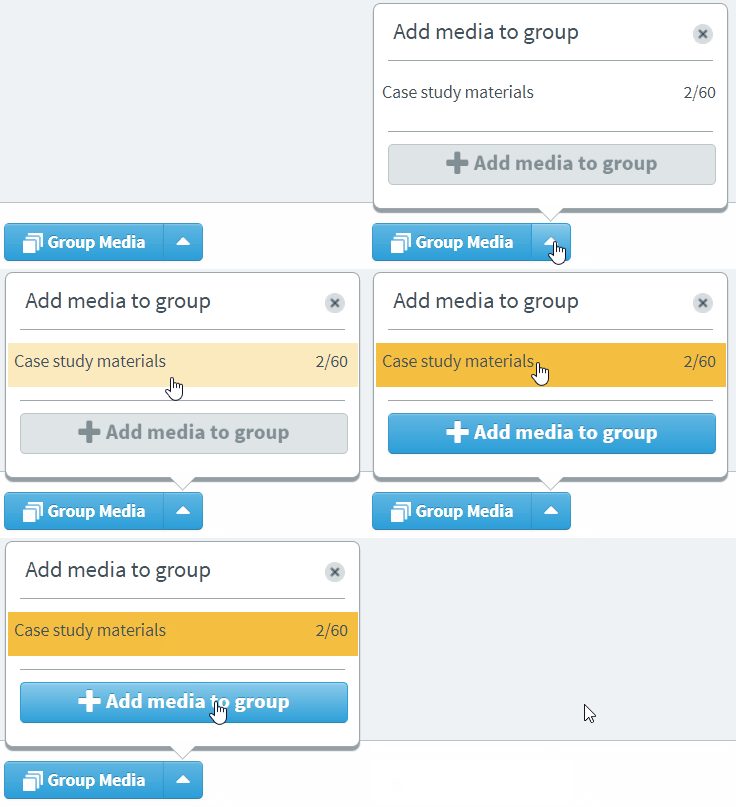
Select Group Media to add images or PDFs to a group. Grouped media are always delivered together.
Grouped images can be used with the high-fidelity image viewer and grouped PDFs can be used in the PDF viewer. For more information, read About the Surpass high-fidelity image viewer and About the Surpass PDF viewer.

To choose from existing groups, select and then Add media to group.
Further reading
To learn more about the media capabilities of Surpass, read the following articles: