
Managing media in the media library side panel
The media library side panel lets you edit, replace, preview, download, duplicate, and delete media uploaded to the media library.
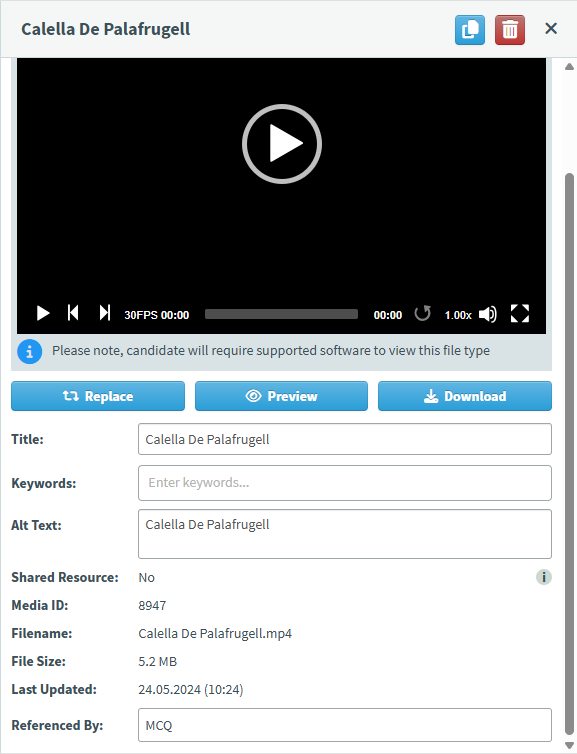
This article explains how to use the media library side panel.
In this article
Replacing media
Select Replace to replace the selected media with another piece of media. You cannot replace any media that has been added to an item at Live status.
Previewing media
Media can be previewed at the top of the side panel. Select Preview to open the media full size in a dialog window.
Downloading media
Select Download to download the media to your device.
Editing media
The side panel contains various media details and you can edit the title, keywords, and alt text in the side panel.
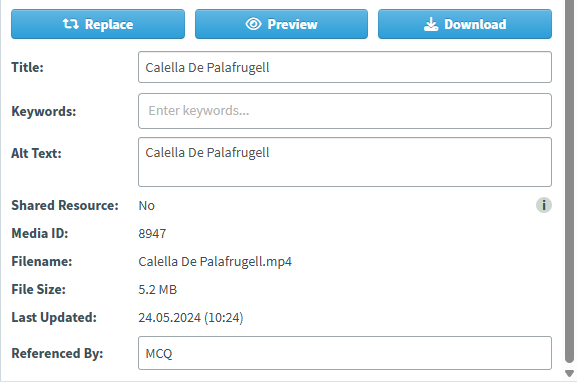
Refer to the following table for more information on the available details:
| Detail | Description |
|---|---|
| Title |
The name of the media.
NOTE: The media label displayed to candidates can be edited after the media is added to an item.
|
| Keywords |
Keywords are media-specific tags used to filter media in the media library.
IMPORTANT: Keywords functionality is not available by default. If you are interested in using this functionality, speak to your Surpass Customer Success Manager.
|
| Alt Text |
The media’s alt text. |
| Shared Resource |
Determines whether the media is a shared resource or not. For more information on shared resources, read ‘Import Shared Resource’ in About the Surpass media library. |
| Media ID | The media’s unique identifier. |
| Filename |
The media’s original filename.
NOTE: Individual filenames are not listed for grouped media.
|
| File Size |
The media’s file size, in MB.
NOTE: Individual (or the total) file sizes are not listed for grouped media.
|
| Dimensions |
The image’s dimensions in PX.
NOTE: Dimensions are only listed if the media is an image.
|
| Last Updated | The date the media was last updated, in DD.MM.YY (HH:SS) format (localised). |
| Referenced By |
The name of all items the media is currently added to.
TIP: Hover over the item name to display the corresponding item’s unique identifier.
IMPORTANT: Referenced by functionality is not available by default. If you are interested in using this functionality, speak to your Surpass Customer Success Manager.
|
| Version |
The custom question’s version number.
NOTE: Version is only listed if the media is a Custom Question Type package.
|
Duplicating media
Select Duplicate to duplicate the media.
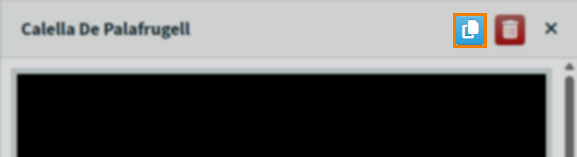
The duplicated media has a numbered suffix added to its title, for example Calella De Palafrugell(2).
Deleting media
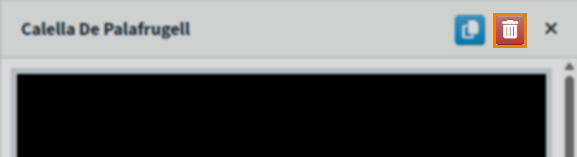
Select Delete to delete the media.
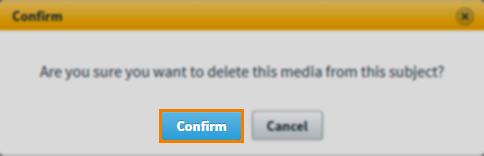
Select Confirm to confirm deletion.
Further reading
To learn more about the media capabilities of Surpass, read the following articles: