
Adding sections to a test form in the Test Wizard
In a test form, a section is an item container. All test forms contain a minimum of one section. Sections can be added to tests forms using the Test Wizard and configured so that items in that section appear in a fixed or random order.
This article explains how to add sections to a test form using the Test Wizard.
In This Article
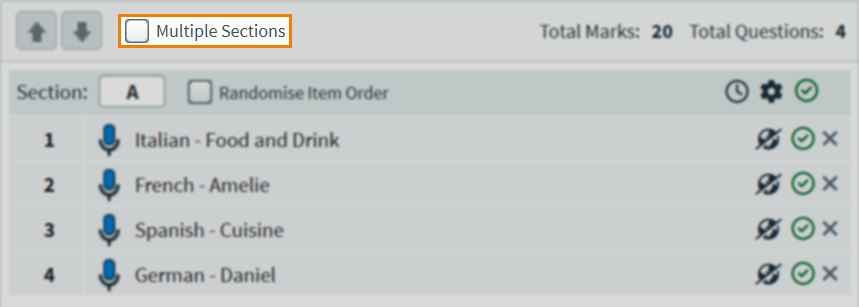
1. Enable multiple sections
Select Multiple Sections to add further sections to your test.
2. Add your sections
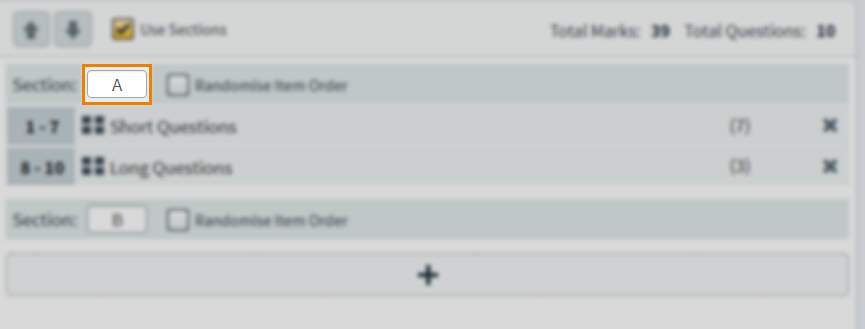
Select Add to add more sections.

You can labels to sections by entering up to three characters in the Section entry field.
Randomising item order
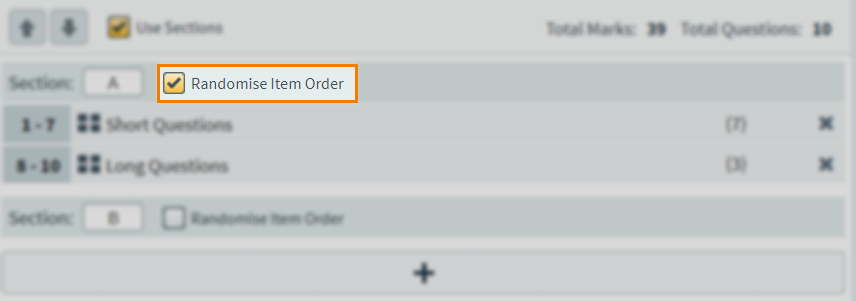
You can choose to present items to candidates in a random order.
To randomise items in a specific section, select Randomise Item Order.
Using timed sections
Test form sections can be timed. To use timed sections, choose Timed Sections as the test form’s Duration setting. For more information on timed settings, read ‘Date and time‘ in About test form settings.
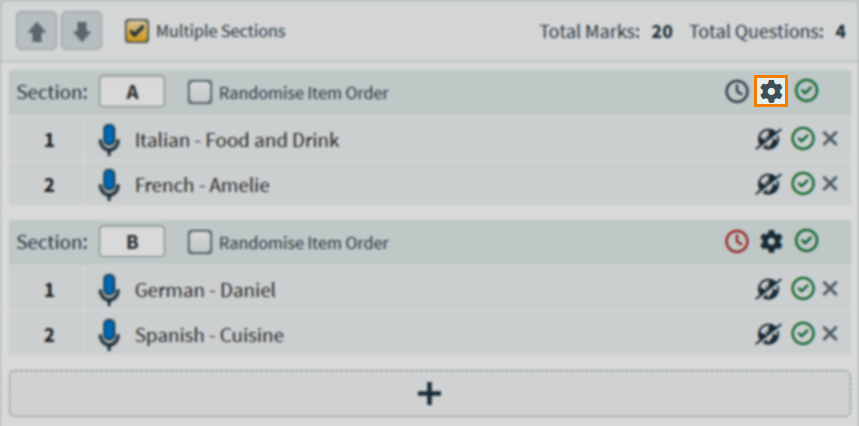
Select the settings icon to configure section settings.
Enter a time limit for the section in the Section Duration field.
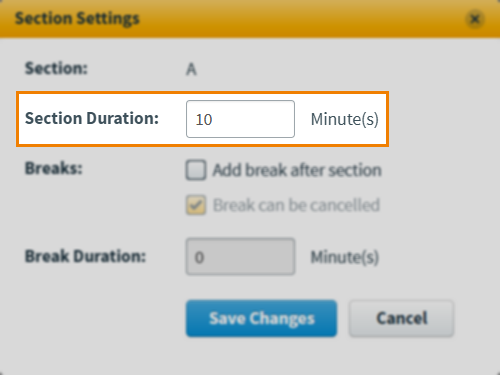
Select Save Changes.
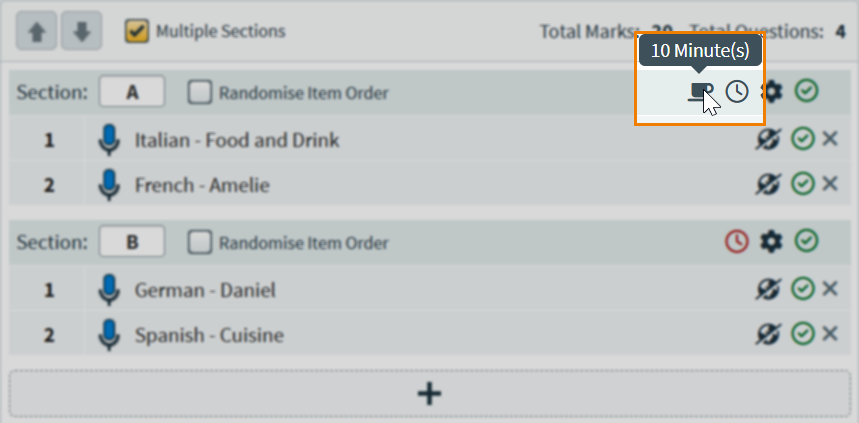
You can hover over the clock icon to reveal a section’s duration.
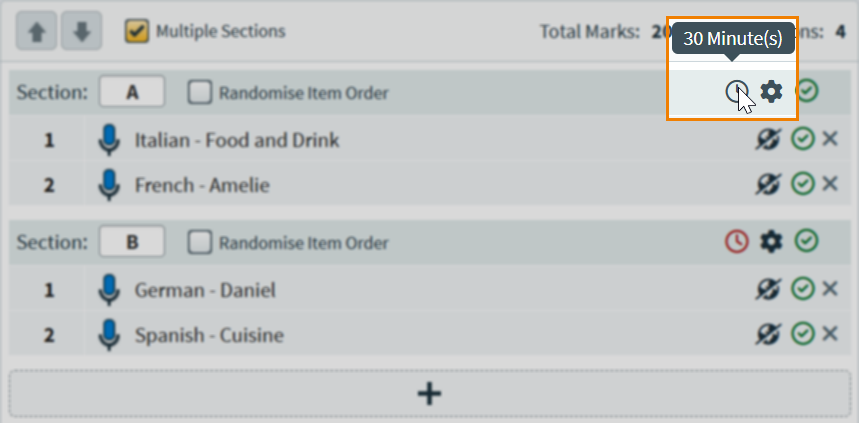
A red clock indicates the section requires a duration.
Adding candidate breaks
If using timed sections, breaks can be given to candidates between sections.
Select the settings icon to configure section settings.
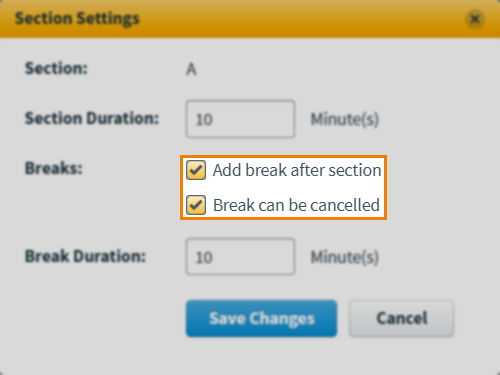
Select Add break after section. To enforce candidates taking the entire duration of the break, disable Break can be cancelled.
Enter a time limit for the break in the Break Duration field.
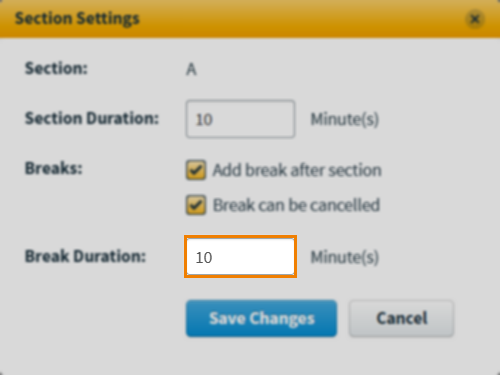
Select Save Changes.
A coffee cup icon indicates the section has a break after it. You can hover over the coffee cup to reveal a break’s duration.
Setting sections as non-scored
Sections and their items can be scored (indicated by a green check icon) or non-scored (indicated by an orange check and cross icon). Sections are scored by default.
Select the icon to switch between scored and non-scored.
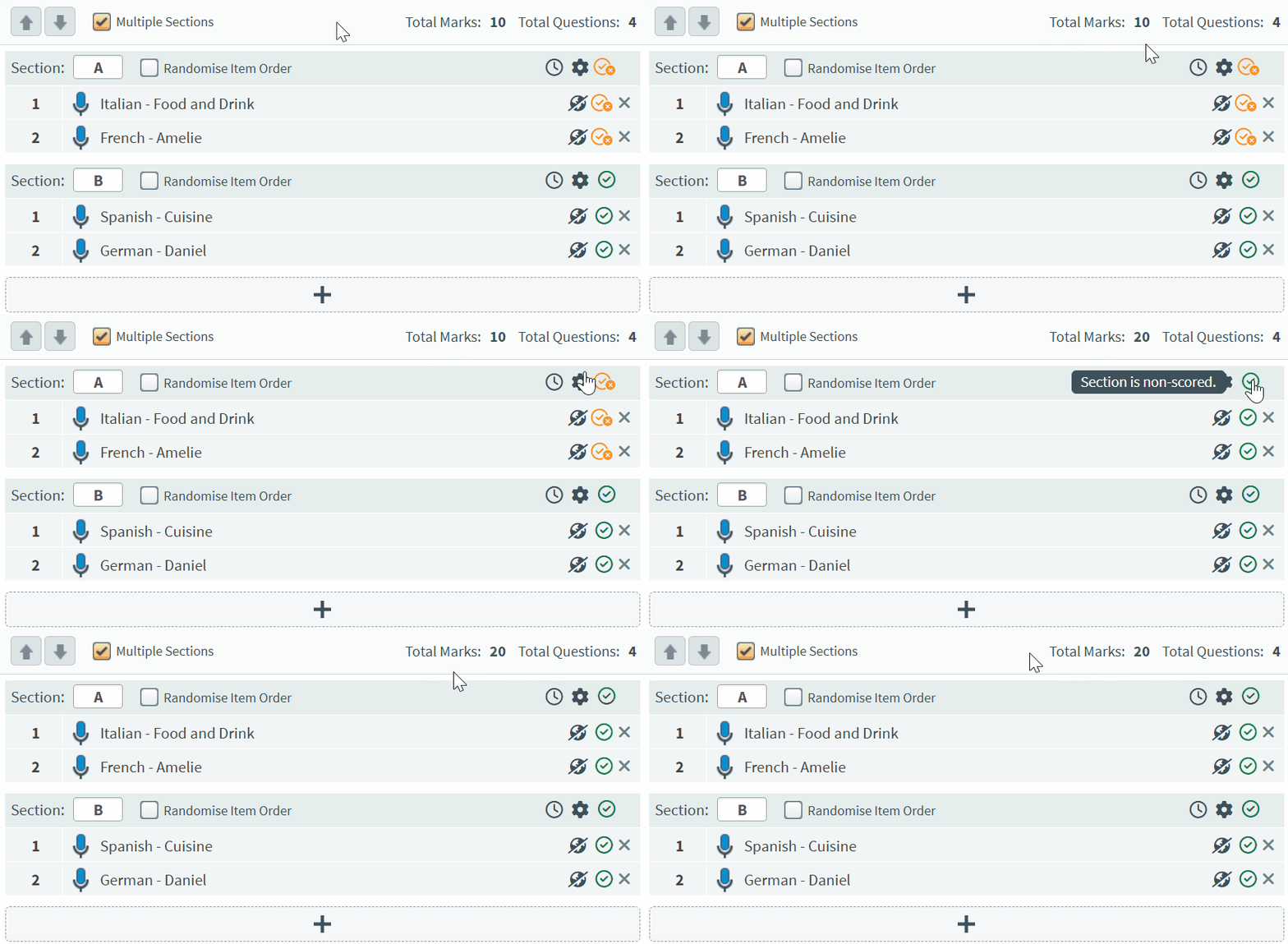
If a section contains both scored and non-scored items, the orange check and cross icon is displayed for the section.
3. Add your items
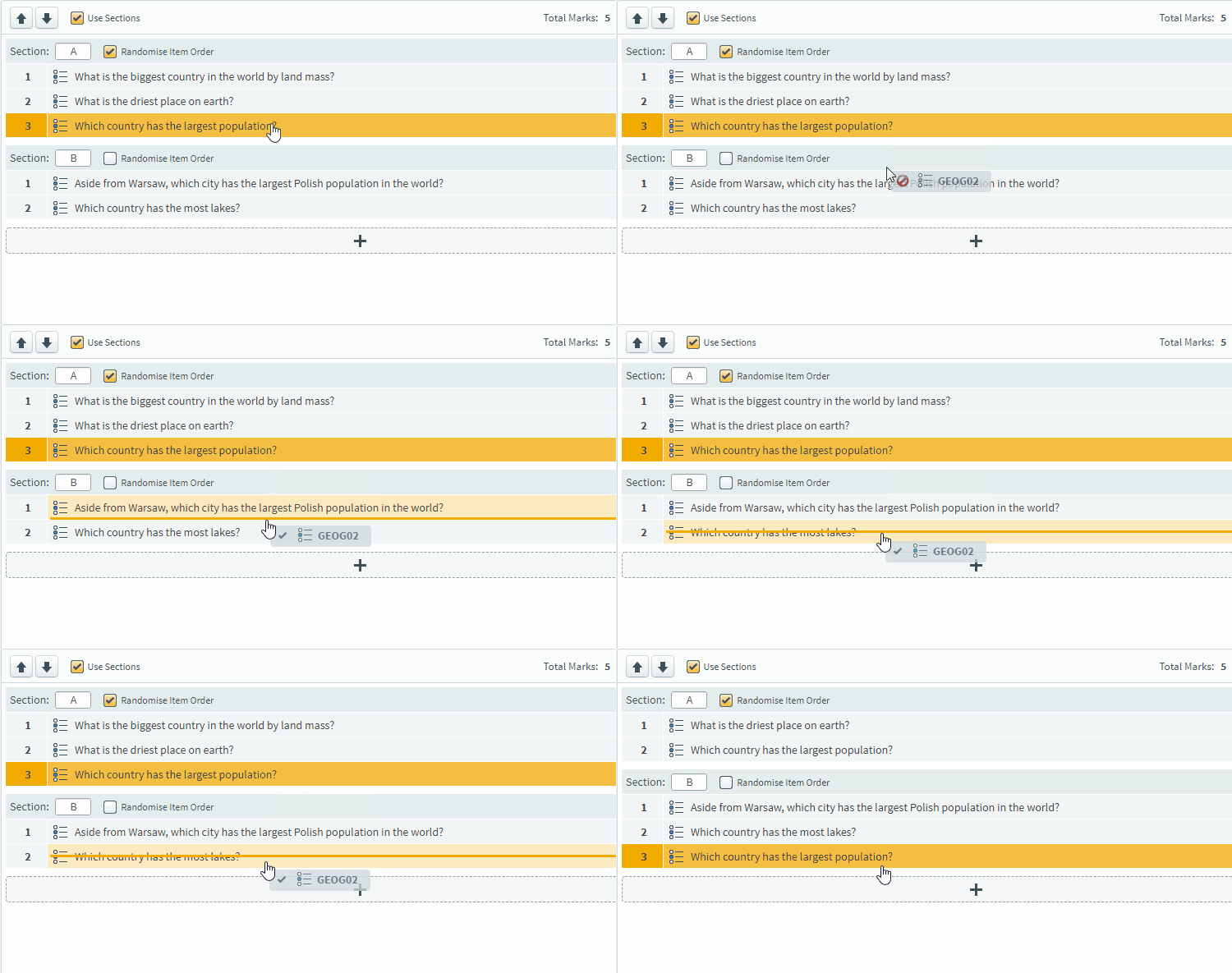
To add an item into a section, drag the item over the section until an orange line appears. Release the item to add it to the section.
You can also use the arrows to reorder your items.
Further reading
Now you know how to add sections to a test form using the Test Wizard, read the following articles to learn more: