
Grouping items in a test form in the Test Wizard
In the Test Wizard, you can group items together so that they appear on one page when delivered to candidates.
This article explains how to group items in a test form using the Test Wizard.
In This Article
1. Create your group
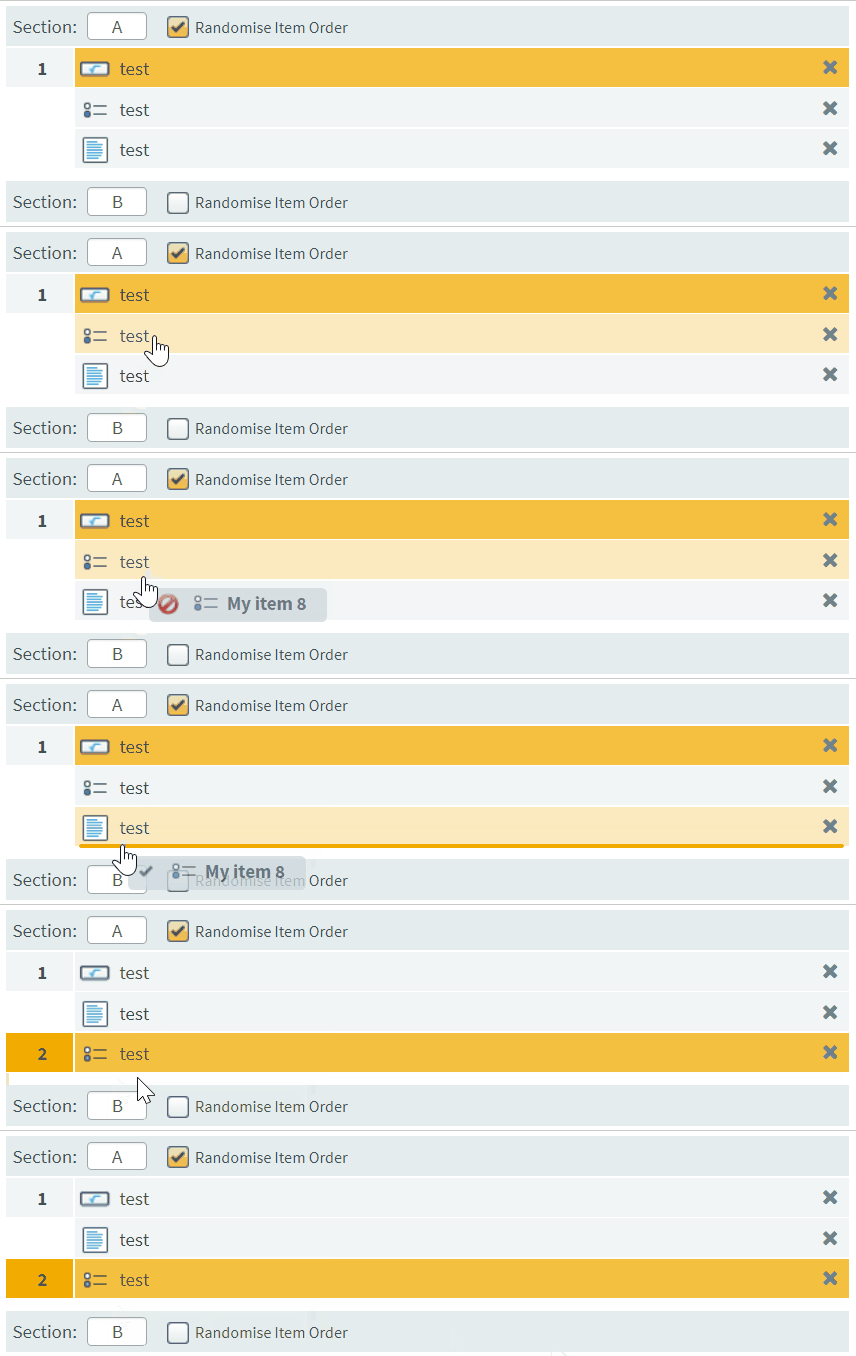
To group items, drag the item on top of another item. An orange line appears over the item you want to group it with. In a test, grouped items appear together on a single page.

2. Ungrouping items
To ungroup an item, drag it to the bottom of the section.
Further reading
Now that you know how to group items together in the Test Wizard, read the following articles to learn more: