
Starting Windows secure browser delivery tests
Secure browser tests can be launched on Windows devices using the Cardea Secure Browser application downloaded from the Microsoft Store. Cardea Secure Browser uses the Surpass test driver.
This article explains how to start a secure browser delivery test on Windows. For more information, read About Windows secure browser delivery.
In This Article
1. Open Cardea Secure Browser
Open the Cardea Secure Browser application. To learn how to install and download the application, read Installing Cardea Secure Browser.
2. Enter your keycode
Enter your unique alphanumeric keycode in the entry field. Your keycode must contain eight characters and be in upper case.
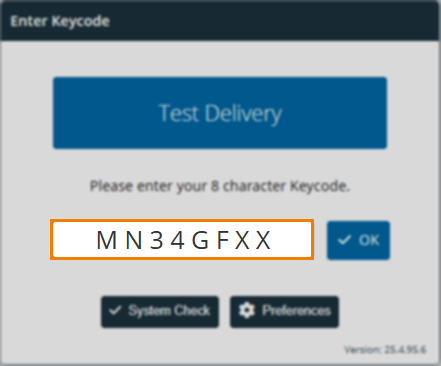
Select OK to confirm your keycode.
For more information on the Enter Keycode screen, read Entering your keycode and confirming your details.
3. Confirm your details
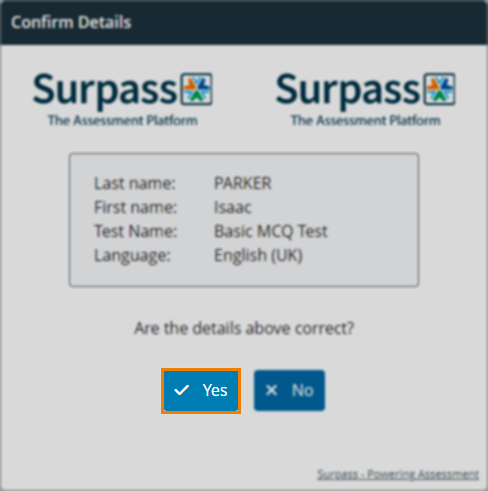
The keycode screen is bypassed and you are taken straight to the Confirm Details dialog in the launched SecureClient application. Confirm your details in the Confirm Details dialog. For more information, read Entering your keycode and confirming your details.
4. Agree to terms
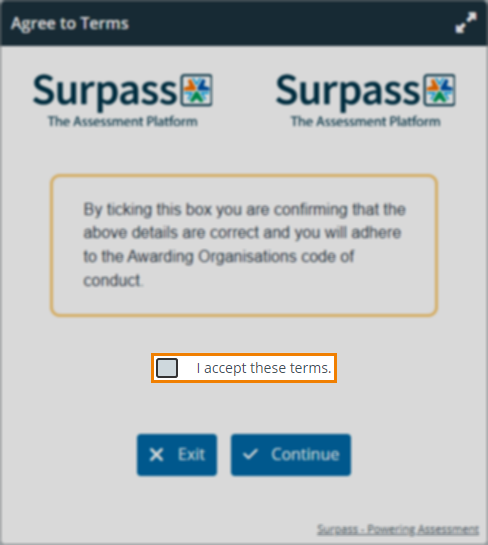
Before you can start your test, you must agree to any terms. Select I accept these terms and choose Continue to start your test.
If your test contains Audio Capture questions, you must test your microphone by recording a short audio clip in the Sound Recording Test. For more information, read ‘Checking your microphone for Audio Capture questions’ in Checking your system.
If your test requires invigilation, enter your PIN if you have it or wait for further instructions from an invigilator before you can proceed. For more information, read ‘2. Unlock your test’ in Starting invigilated tests.
Further reading
To learn more about navigating the Surpass test driver, read the following articles: