
Setting up Surpass Luma
Surpass Luma can generate complete Multiple Choice questions including question stems, answer options, and correct answers.
To learn how item authors can use Surpass Luma in Item Authoring, read Generating Multiple Choice questions with Surpass Luma.
This article explains how to enable Surpass Luma at subject-level and provide it with additional guidance in the Subjects screen of Setup.
In this article
1. Enable Surpass Luma in Setup > Centres
Surpass Luma is enabled at centre-level. To enable Luma, go to Setup > Centres.

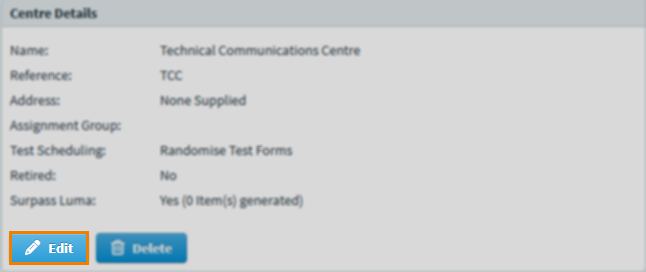
Select Edit in the Centre Details panel to open the Edit Centre Details dialog.
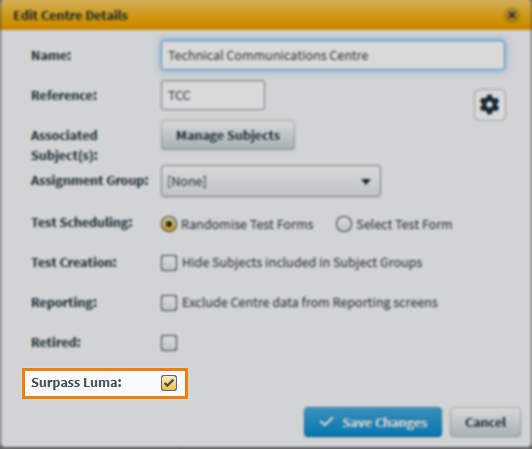
Select Surpass Luma. You must agree to the linked contractual obligations before selecting Enable Surpass Luma in the Confirm Surpass Luma dialog.
2. Go to the Subjects screen in Setup
To view the Subjects screen in Setup, go to Setup > Subjects.

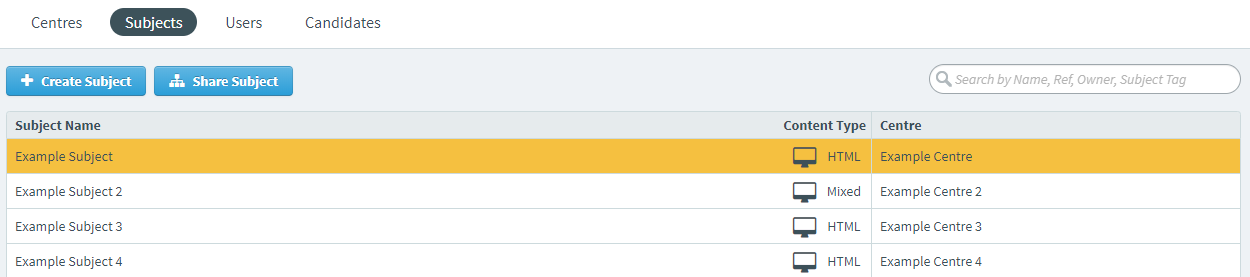
3. Choose a subject in the Subjects list
Choose a subject in the Subjects list.
4. Select Edit in the Surpass Luma panel
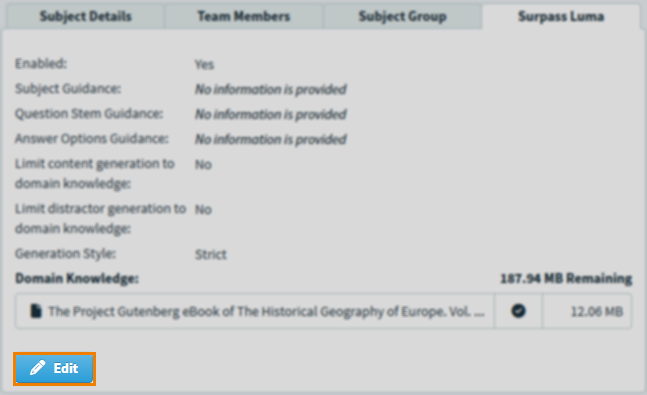
The Surpass Luma panel displays the chosen subject’s Surpass Luma settings.
Select Edit to view and edit the Surpass Luma settings.
5. Configure Surpass Luma settings
The Surpass Luma dialog displays the available settings for Surpass Luma.
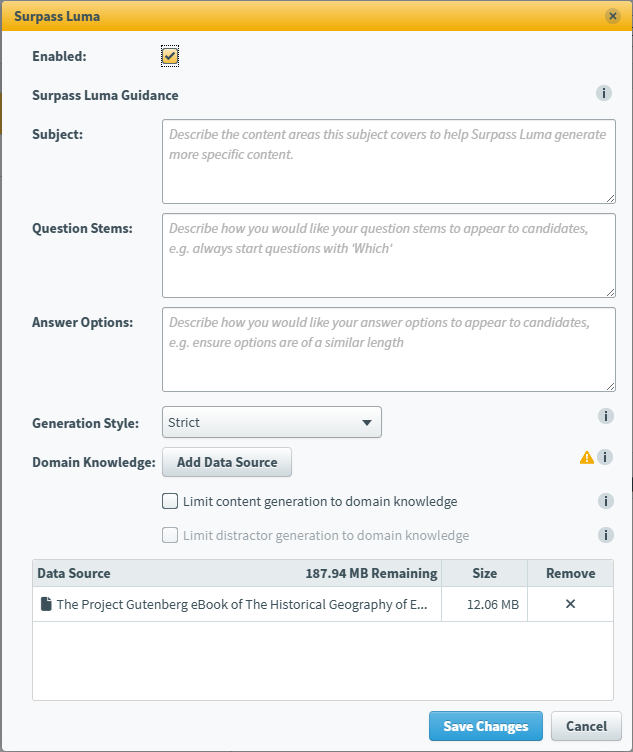
Refer to the following table for information on each setting:
| Setting | Description |
|---|---|
| Enabled |
Determines whether Surpass Luma is enabled for your subject. Surpass Luma must first be enabled at centre-level, read ‘Edit the centre’s settings’ in Editing a centre for more information. |
| Subject |
Provide Luma with information about your subject to help it generate more specific and accurate content. |
| Question Stems |
Provide Luma with information about the standard format and style of question stems in your subject to help it generate better question stem suggestions. |
| Answer Options |
Provide Luma with information about the standard format and style of answer options in your subject to help it generate better answer option suggestions. |
| Generation Style |
Controls Luma’s generation style:
|
| Domain Knowledge |
Select Add Data Source to upload DOCX, TXT or PDF files for Surpass Luma to use as data sources when generating content, up to 200MB (20MB per file).
WARNING: Your organisation must either own or have the appropriate licence to copy and use all data that you upload into Surpass Luma. You must further ensure that you do not upload the personal data of any person into Luma. By uploading data for use in Luma, you are representing to Surpass that the uploaded data complies with these requirements. Please also be aware that if uploaded documents contain bias or discriminatory language, then Surpass Luma may reflect this in its outputs.
NOTE: Item authors can also attach source material to individual items as a further data source.
Choose whether to Limit content generation to domain knowledge so that Luma only refers to the uploaded domain knowledge for your subject and not the internet. If limiting content generation, you can also choose to Limit distractor generation to domain knowledge. |
6. Save your settings
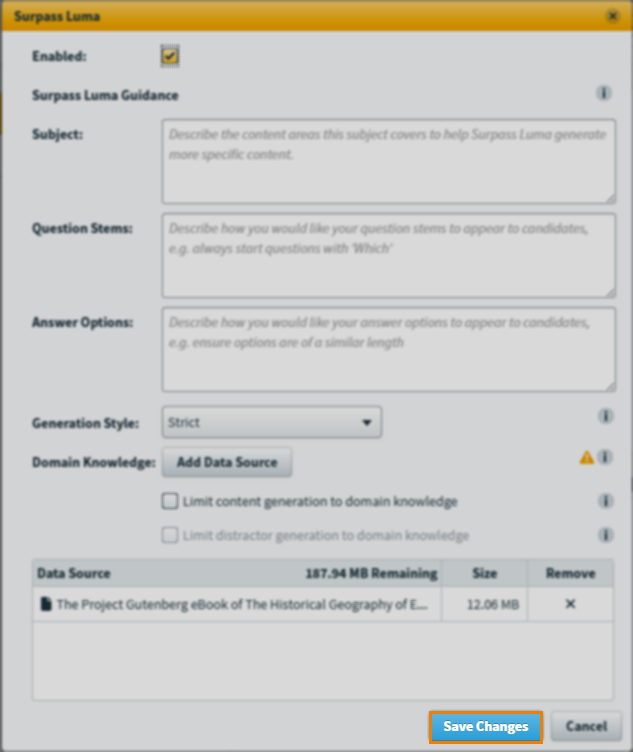
Select Save Changes to save the Surpass Luma settings for your subject.
Further reading
To learn more about working in the Subjects screen, read the following articles: