
Grouping media in the media library
You can combine images and PDF into media groups, which allows them to be used in the high-fidelity image viewer or PDF viewer in SecureClient. This lets you create more dynamic content by giving candidates greater interactivity with item media.
You can add 25 images or 60 PDFs to a group. You cannot mix images and PDFs in a single group. Grouped media are always delivered together.
This article explains how to group images and PDFs in the Surpass media library for use with the high-fidelity image viewer and PDF viewer.
In this article
1. Open the media library
In your subject, select Media Library to open the subject’s media library.

2. Select media to group
Select the media you want to group.
3. Create media group
With your media files selected, select Group Media .

The thumbnails of the media files are combined into a single group.
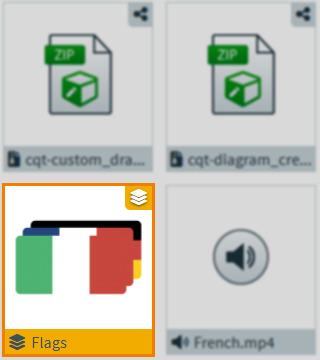
To edit the group’s name, select the media group and edit its name in the side panel. For more information on editing media and media groups in the side panel, read Managing media in the media library side panel.
Adding media to an existing group
To add additional media to an existing group, use the Group Media arrow to open the Add media to group menu. Select the group you want to add the media to and then select Add media to group .

Further reading
To learn more about media in Surpass, read the following articles: