
Viewing images in the test driver
Images are embedded on the page and can also be opened in an image viewer, either in a pop-up or docked in a side-by-side view. In the image viewer, candidates can examine images in detail by panning and zooming.
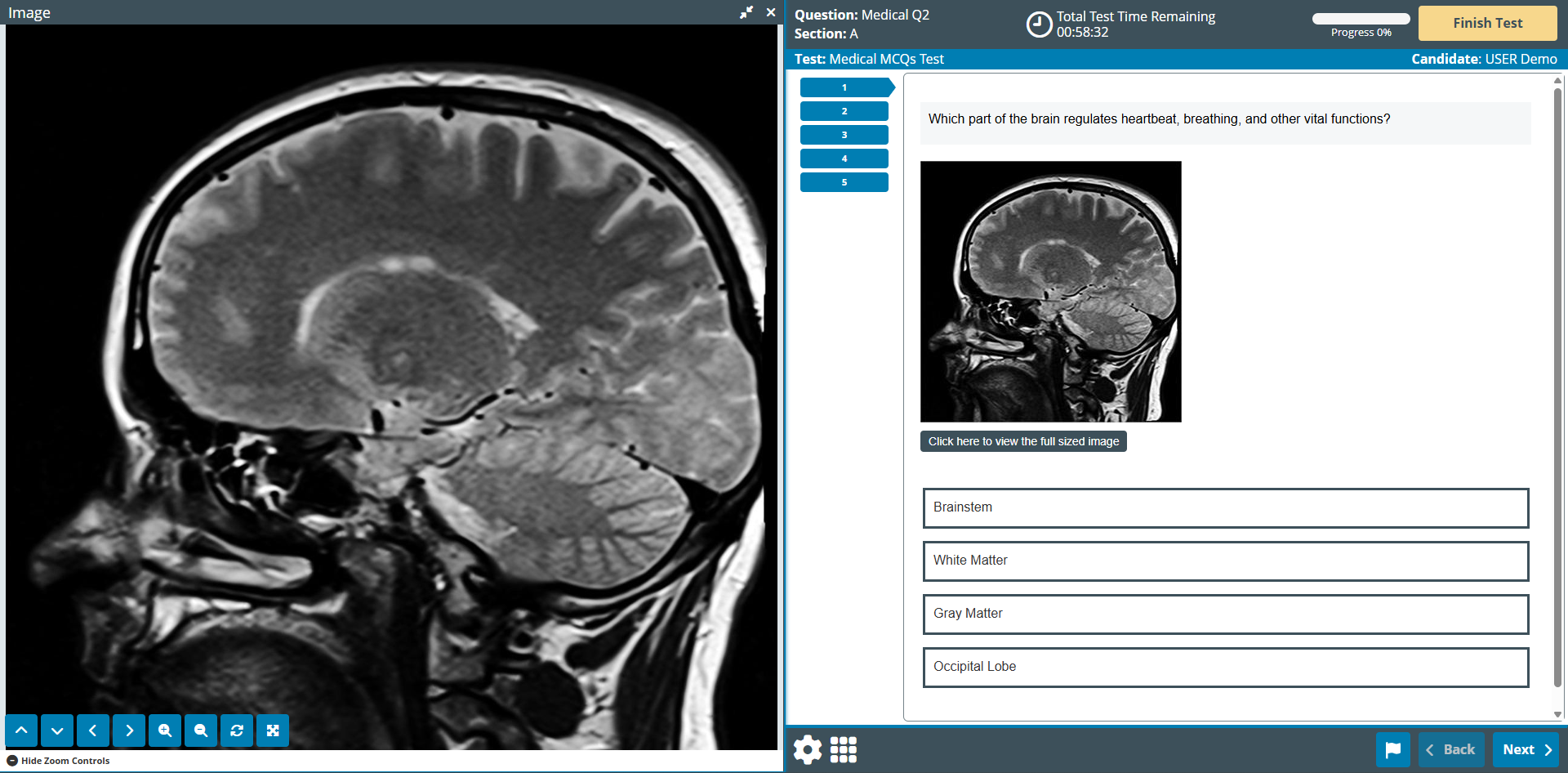
This article explains how to view and use images in the test driver.
Table of Contents
Viewing images in the test driver
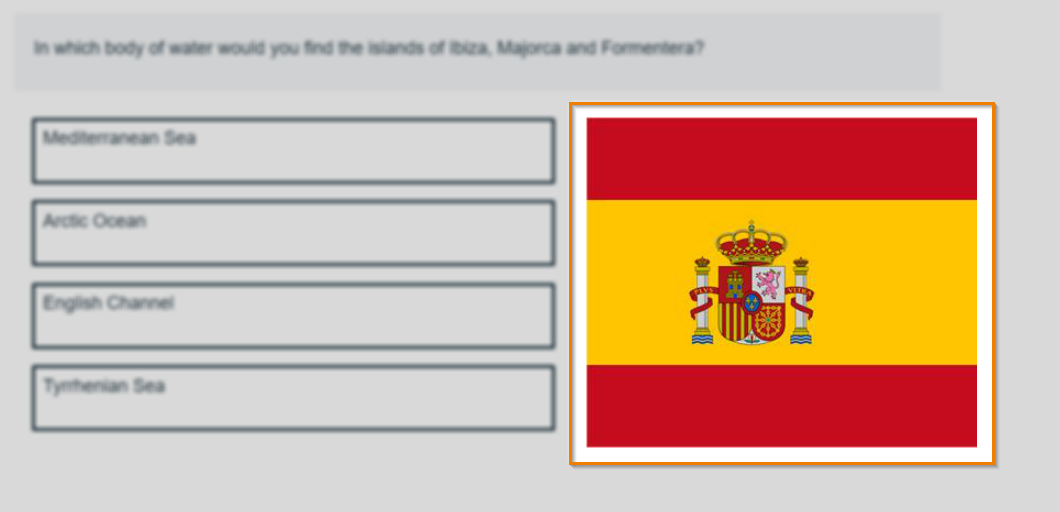
The embedded image’s position is determined by the item author. Multiple images may be embedded on the page.
Opening full-size images in the image viewer
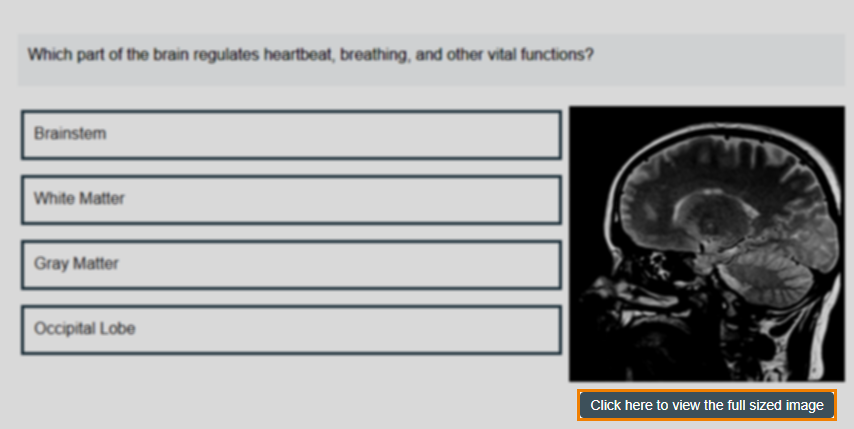
If the Allow image to be opened as popup setting has been enabled for the image, candidates can select Click here to view the full sized image to open the image in the image viewer.
Images automatically dock in a side-by-side view on screens with resolutions of 1920 x 1080 pixels or higher. If you have a lower resolution screen, images automatically open in a pop-up.
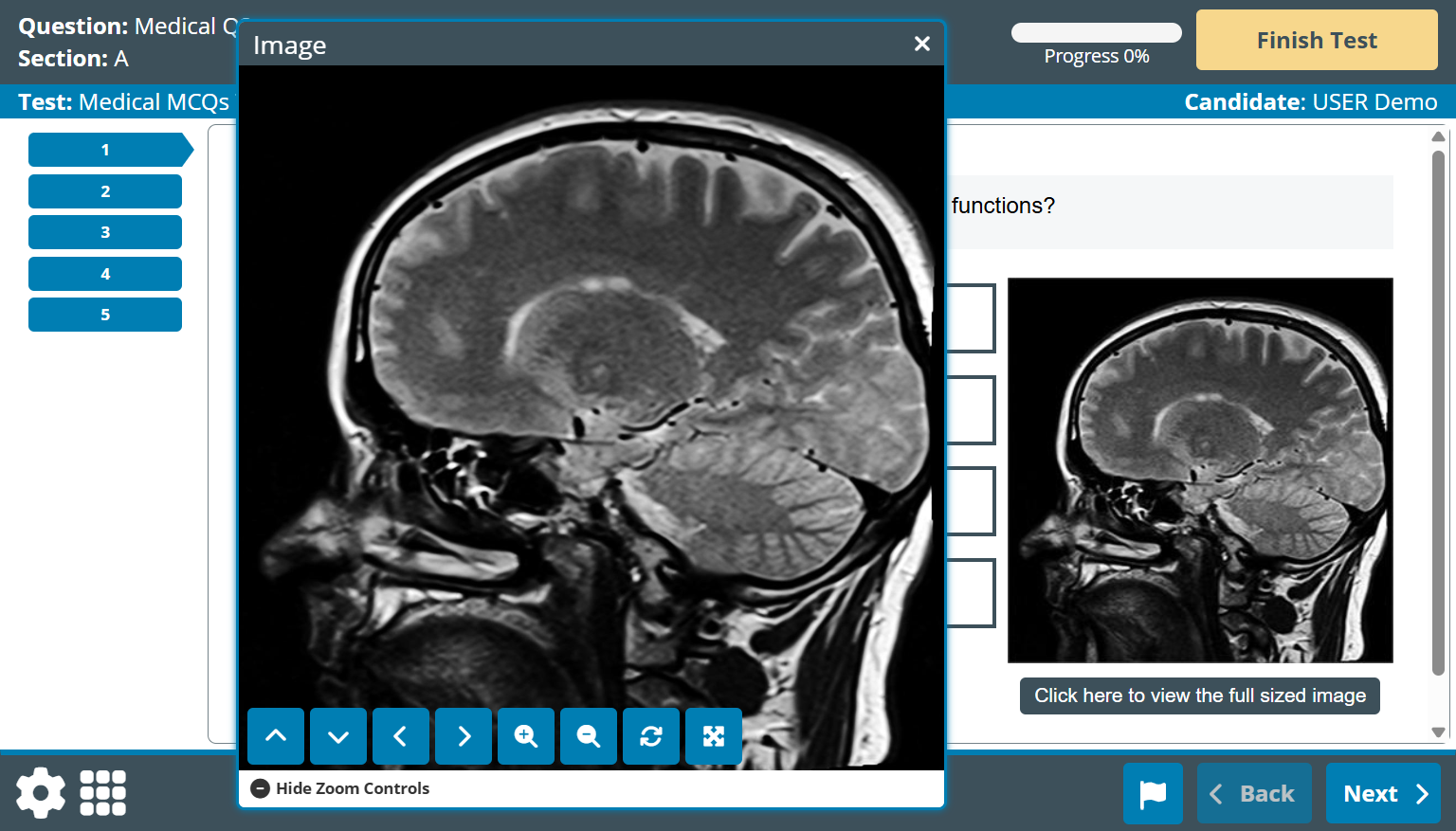
You can change the size of the pop-up and move the pop-up around the delivery window by clicking and dragging the title bar.
Using the image viewer
You have access to several controls in the image viewer.
Moving the image
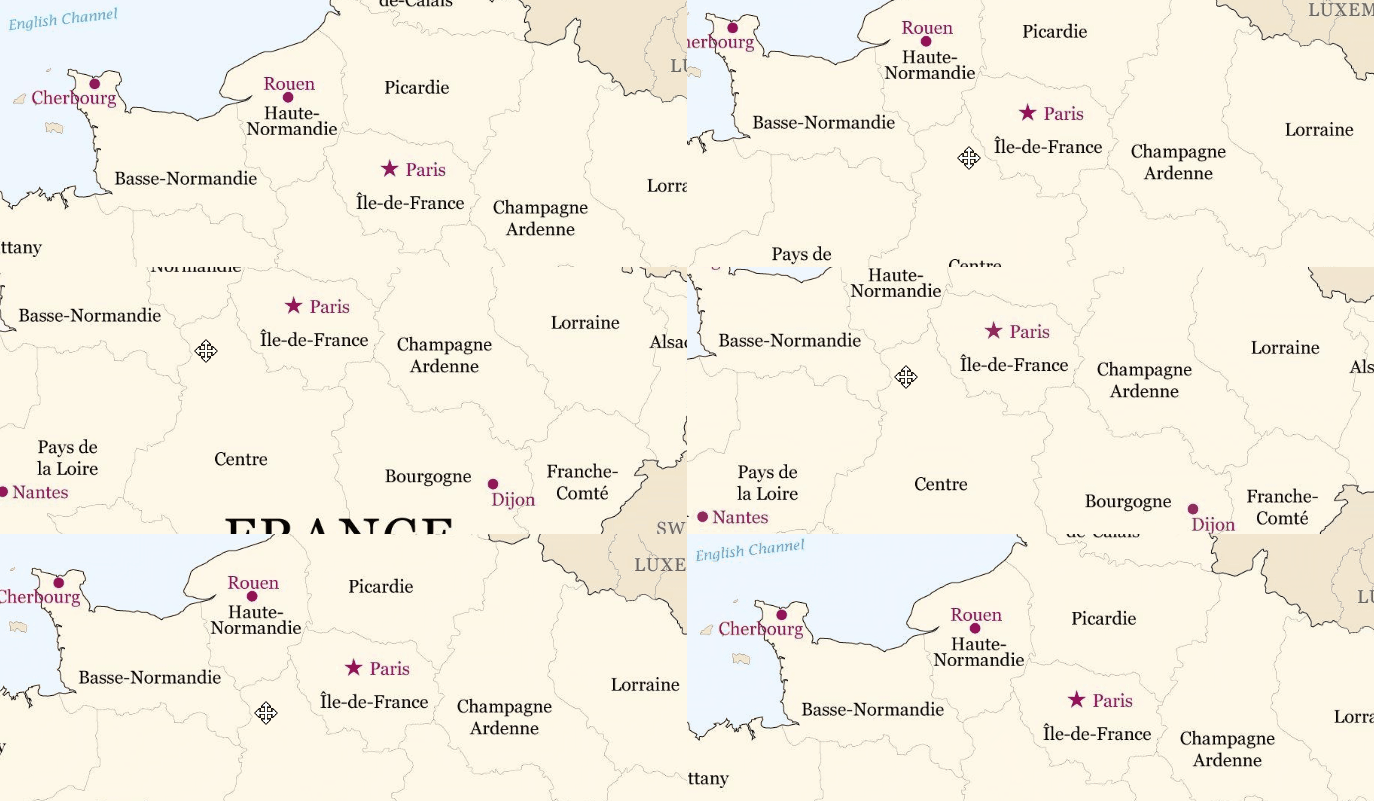
You can move the image using the cursor and pan controls.
Click and drag the image to move it.
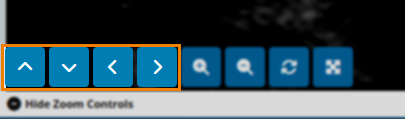
You can also use Move Up , Move Down , Move Left , and Move Right to move the image.
Zooming in and out
You can zoom in and out of images to magnify content.
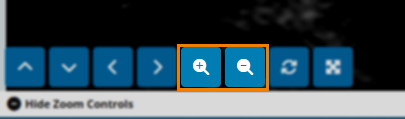
To zoom in, select Zoom In . To zoom out, select Zoom Out .
You can also Reset Zoom to 100% or select Max Zoom to quickly magnify the image as much as possible.
Unpinning and pinning the image viewer
You can open the image viewer in a window or pinned, side-by-side with item content.
In browsers with a width of 1830 pixels or higher (or a screen resolution of 1920 x 1080 pixels or higher in SecureClient), the image viewer opens in a pinned, side-by-side view with the item content.
Unpin the image viewer by selecting Unpin dialogue .
The unpinned image viewer changes to a pop-up within the test driver.
Pin the image viewer by selecting Pin dialogue .
Closing the image viewer
Select Close dialogue to close the image viewer.
Further reading
Now you know how to view images, read the following articles to learn more: