
Starting Chromebook secure browser delivery tests
The Surpass test driver can be launched in a kiosk mode using a Chromebook. All devices must be registered with a Google Workspace domain (Enterprise or Education) with ChromeOS device management (Chrome Education Upgrade).
This article explains how to start a Chromebook secure browser delivery test. For more information on Chromebook secure browser delivery, read About Chromebook secure browser delivery.
In This Article
1. Select Apps
Open the Apps menu.
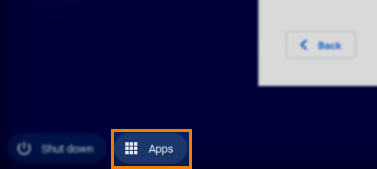
Choose your Surpass test driver instance from the available options.
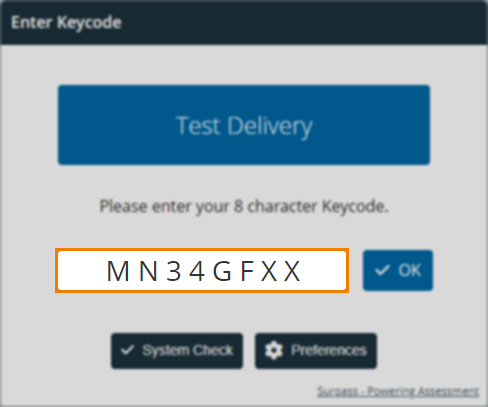
2. Enter your keycode
Enter your unique alphanumeric keycode and confirm your details in the Enter Keycode screen of Chromebook delivery. Select OK to confirm your keycode. For more information on the Enter Keycode screen, read Entering your keycode and confirming your details.
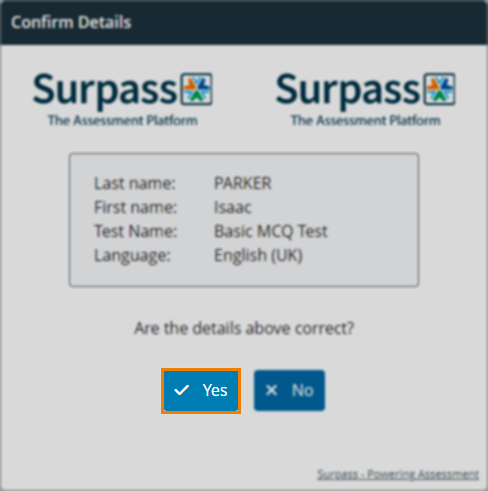
3. Confirm your details
Confirm your details in the Confirm Details dialog. For more information, read Entering your keycode and confirming your details.
4. Agree to terms
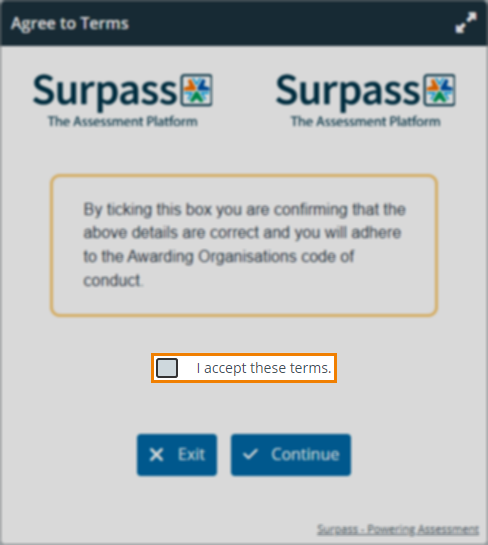
Before you can start your test, you must agree to any terms. Select I accept these terms and choose Continue to start your test.
If your test contains Audio Capture questions, you must test your microphone by recording a short audio clip in the Sound Recording Test. For more information, read ‘Checking your microphone for Audio Capture questions’ in Checking your system.
If your test requires invigilation, enter your PIN if you have it or wait for further instructions from an invigilator before you can proceed. For more information, read ‘2. Unlock your test’ in Starting invigilated tests.
Further reading
To learn more about navigating the Surpass test driver, read the following articles: