
Setting up Chromebook secure browser delivery as an administrator
To set up Chromebook secure browser delivery as an administrator, you must have a device registered with a Google Workspace domain (Enterprise or Education) with ChromeOS device management (Chrome Education Upgrade).
This article explains how to configure devices for Chromebook delivery.
In This Article
1. Go to your Google Admin console
Navigate to https://admin.google.com and log in.
2. Configure enrolment and access settings
Configure the Surpass API access endpoints and associated settings.
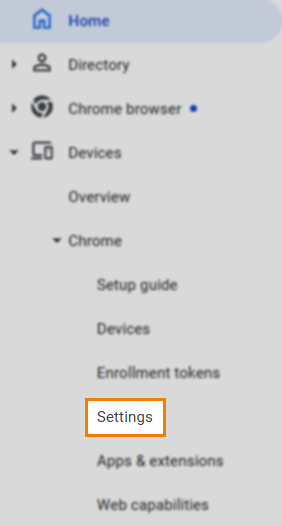
Navigate to to Devices > Chrome > Settings.
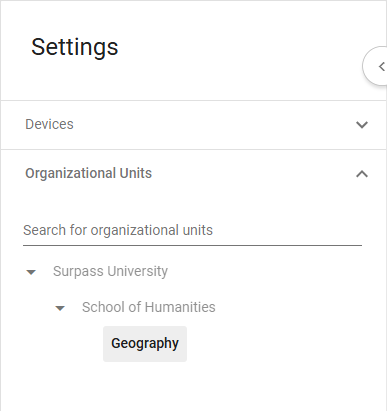
Select the devices and organizational unit for which you are setting up Chromebook delivery.
Select the Device settings tab in Settings.

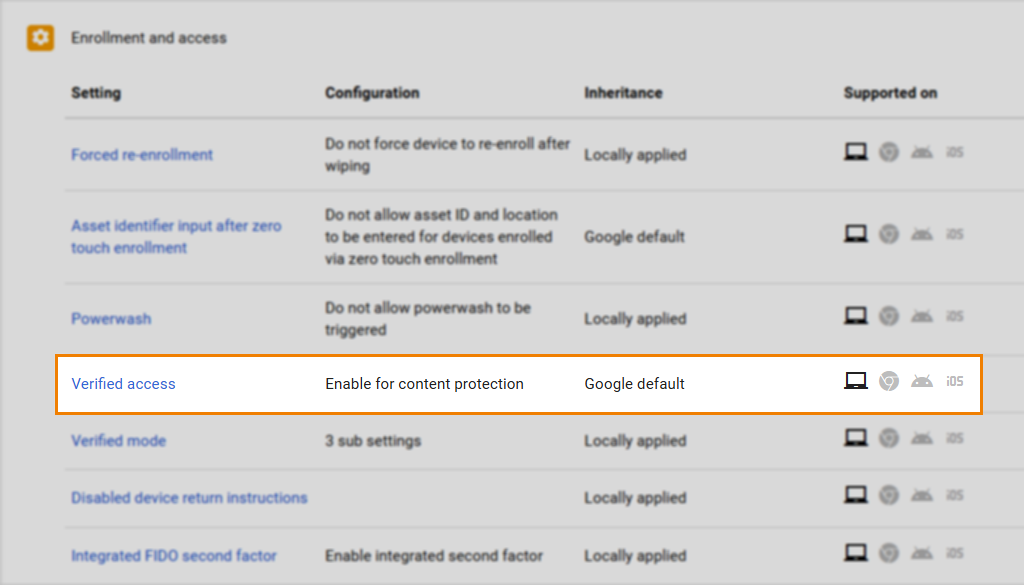
In Enrollment and access settings, select Verified access.
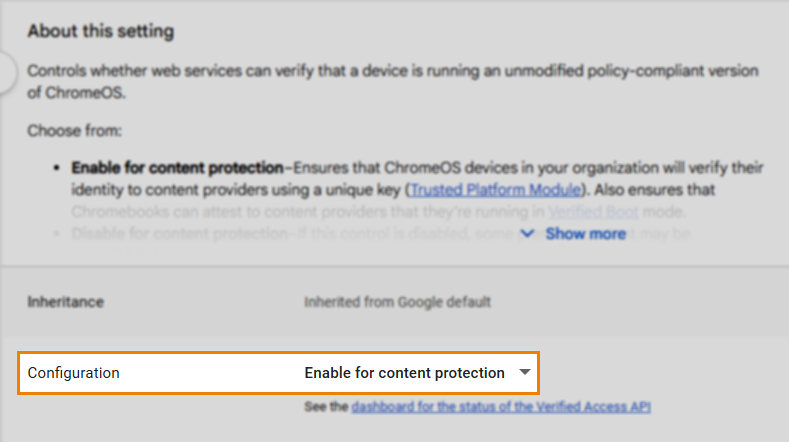
Set the Configuration to Enable for content protection.
Select Save.
Return to Enrollment and access settings and select Verified mode.
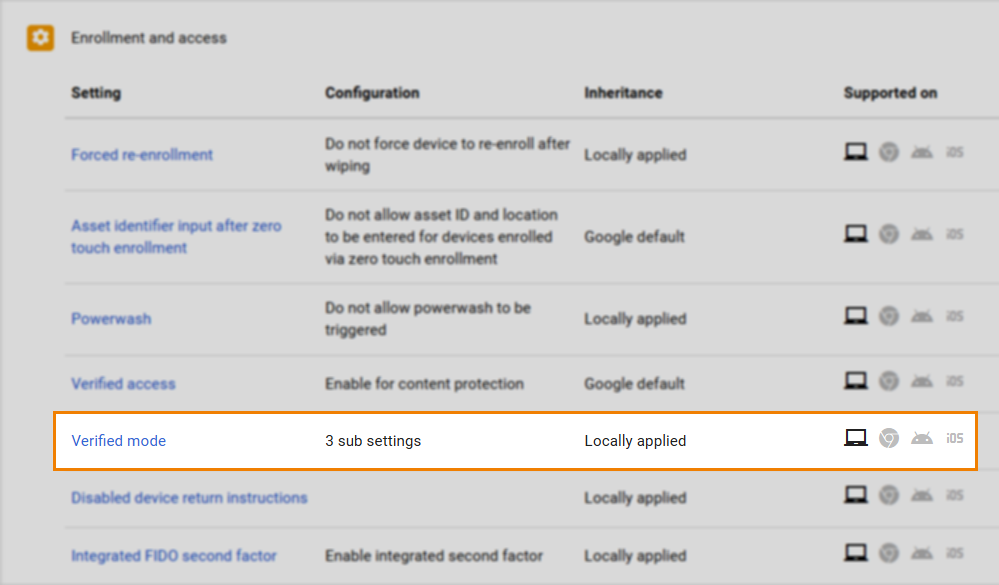
Set the Configuration to Skip boot mode check for verified access.
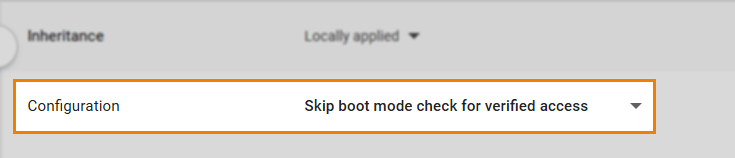
Enter the following endpoint into the Services with limited access field: surpassapi@surpassverifiedaccessapi.iam.gserviceaccount.com
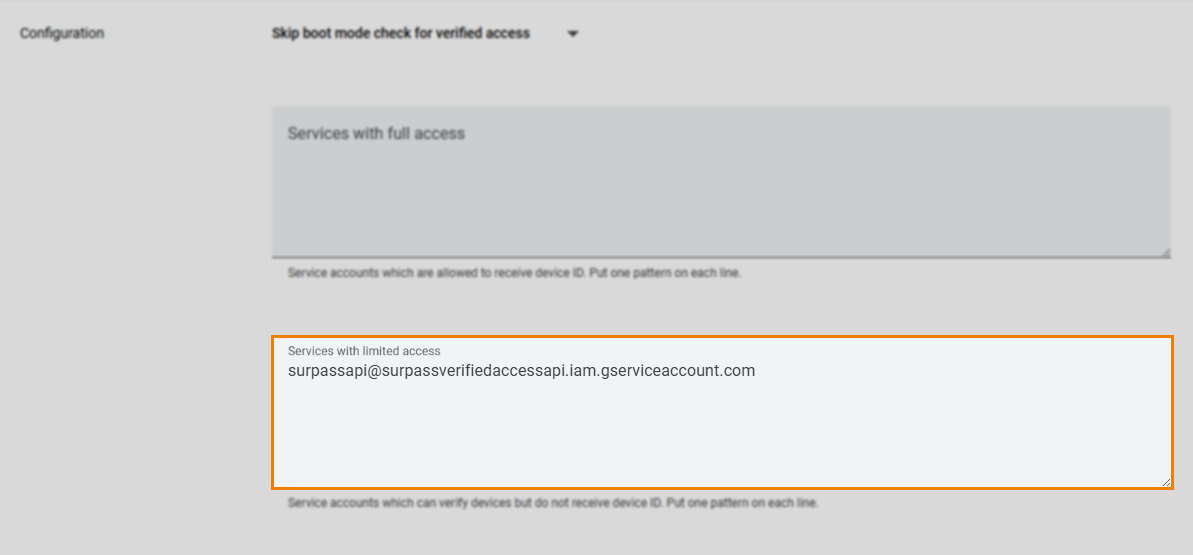
Select Save.
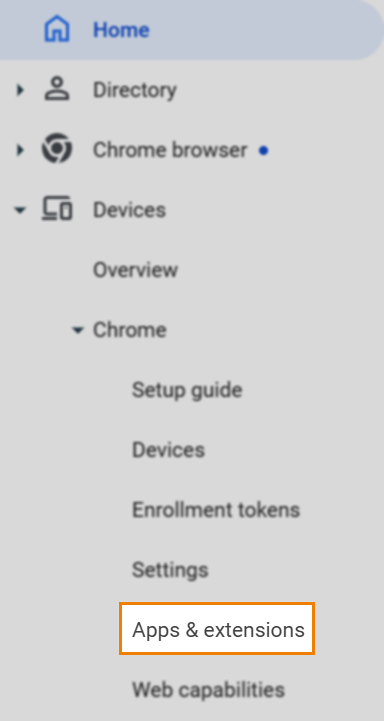
3. Navigate to Apps & Extensions
To view Apps & Extensions, go to Devices > Chrome > Apps & Extensions.
4. Open the Kiosks tab
Select the Kiosks tab in Apps & Extensions.

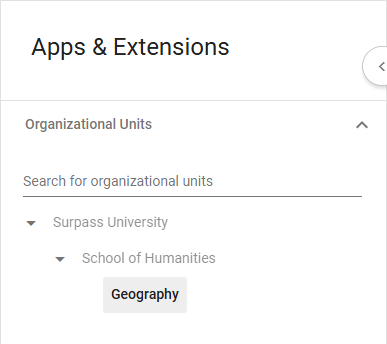
5. Open your Organizational Unit
Select the organizational unit for which you are setting up Chromebook delivery.
6. Add PWA by URL
Select Add by URL from the Options menu.
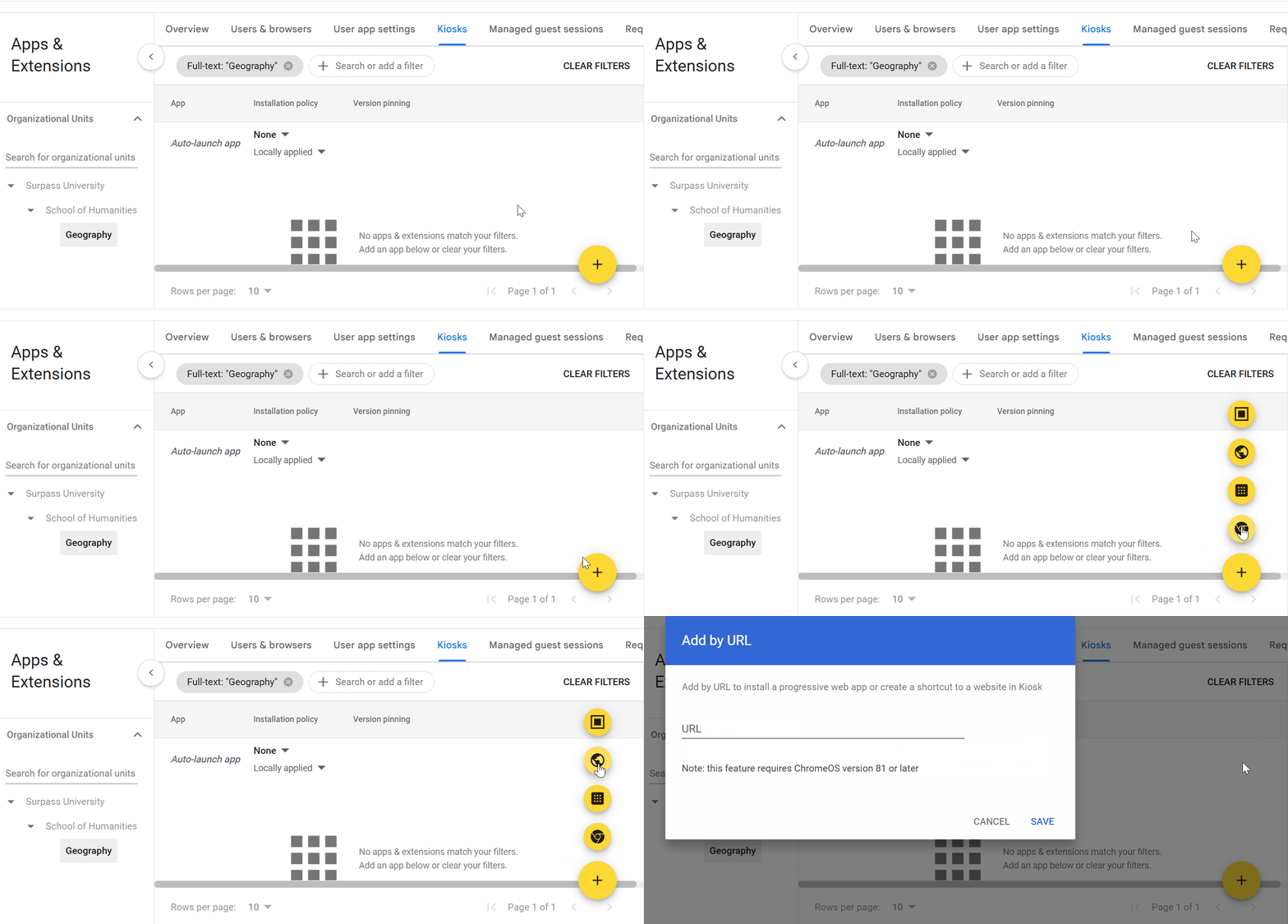
Enter your Surpass instance URL in the URL text entry field, appended with /deliveryui/htmldelivery/pwa.html.
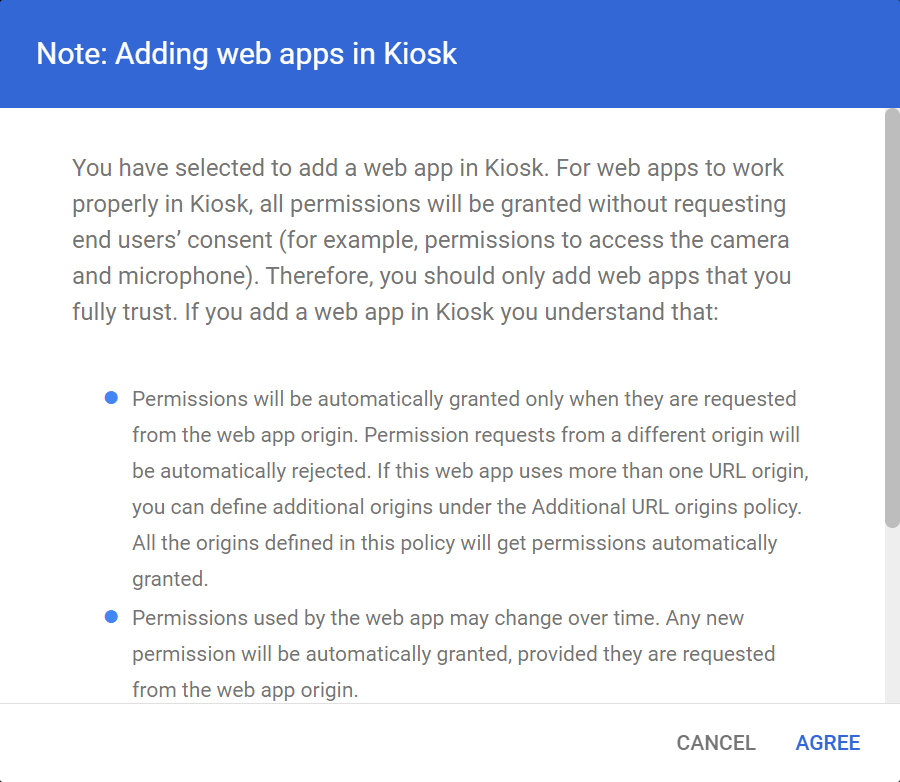
Read the Adding web apps in Kiosk terms and then select AGREE.
7. Configure Kiosk settings
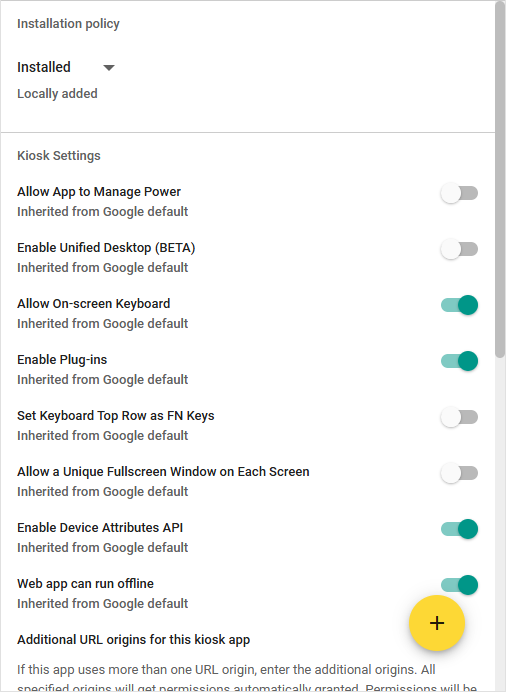
Configure your Installation Policy and Kiosk Settings per your own specifications.
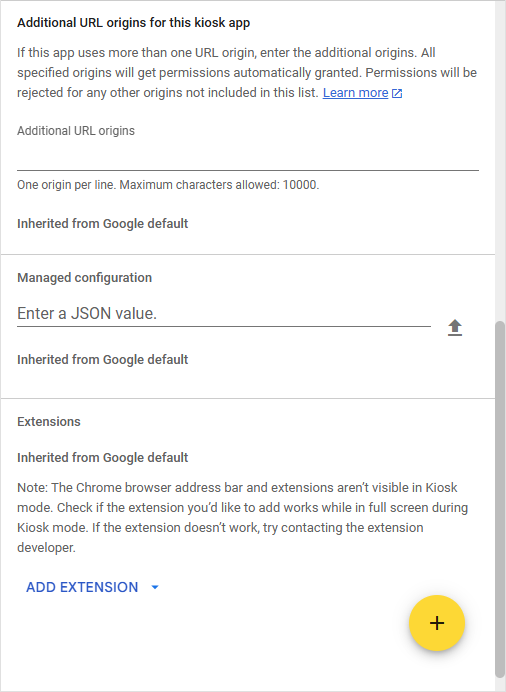
8. Add a Chrome extension
A Surpass Chrome extension must be added to the kiosk application to apply the relevant Surpass authentication, authorisation, and other settings upon test delivery. This extension identifier is ddimmdpkdphpeneldnjmjlfmahafjfhi and the URL where the extension is hosted is https://extension.surpass.com/updates.xml.
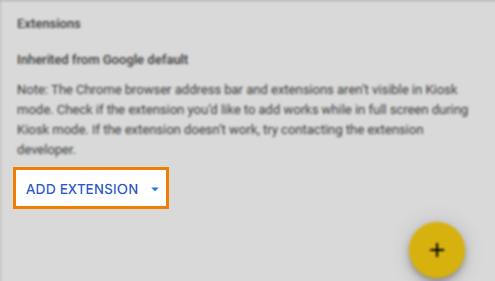
Select the ADD EXTENSION drop-down menu.
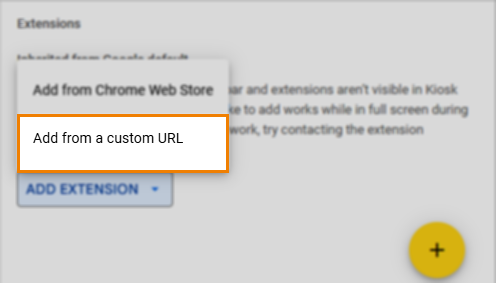
Choose Add from a custom URL.
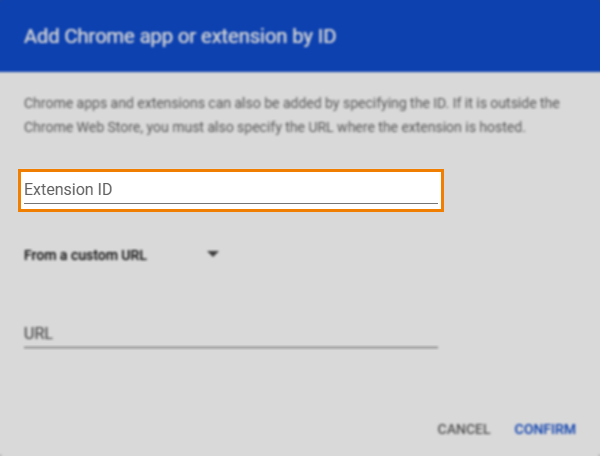
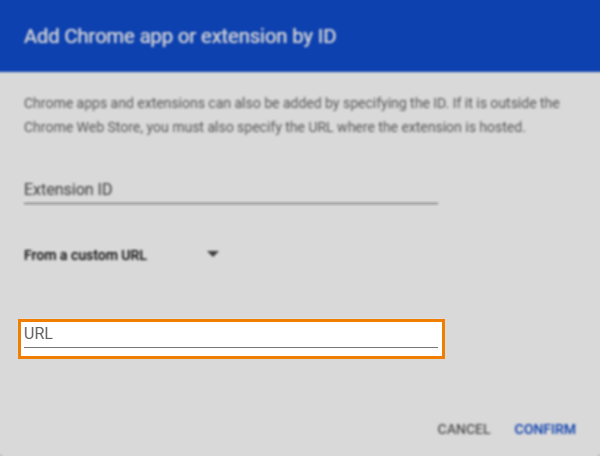
In the Add Chrome app or extension by ID window, select From the Chrome Web Store and choose From a custom URL.
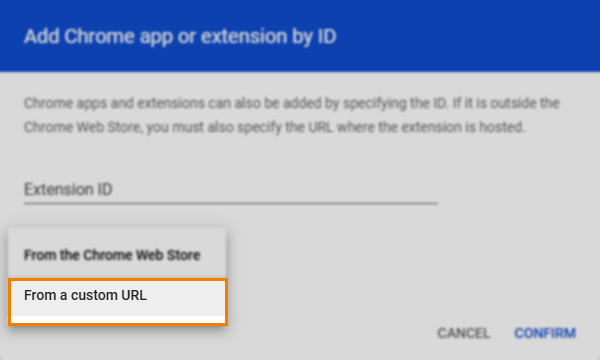
In the Extension ID text entry field, enter the identifier: ddimmdpkdphpeneldnjmjlfmahafjfhi.
In the URL text entry field, enter the URL: https://extension.surpass.com/updates.xml.
Select CONFIRM.
Further reading
To learn more about Chromebook secure browser delivery and the Surpass test driver, read the following articles: