
Adding candidate feedback to items
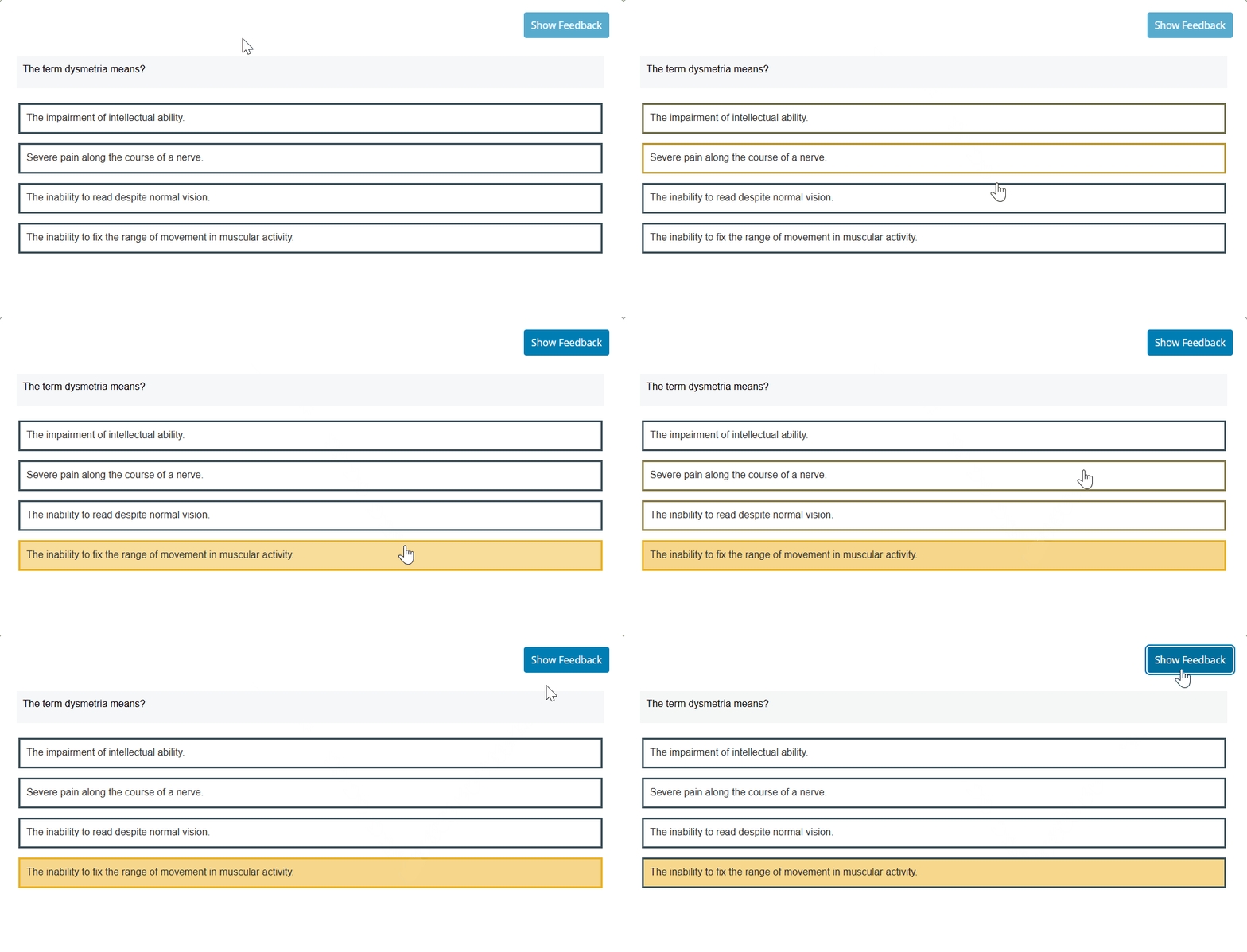
Candidate feedback is designed for use in low-stakes and formative assessments and only appears to candidates if the Show Feedback Button setting is enabled in the Test Feedback settings. The item becomes read-only after feedback is opened. For more information on test form settings, read About test form settings.
Summary feedback shows candidates a summary of their performance on the test after completion if the following Test Feedback settings are enabled: Summary Feedback, Review Answers, and Item Feedback.
To learn how these feedback options are displayed to candidates, read Viewing candidate feedback in the test driver and Viewing summary feedback in the test driver.
This article explains how to create candidate feedback and add it to your item.
In this article
1. Go to your item’s Edit screen
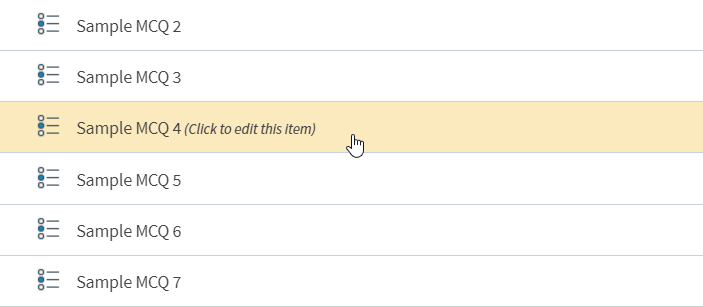
Select an item in your subject to open it and go to the Edit screen.
2. Select Candidate Feedback
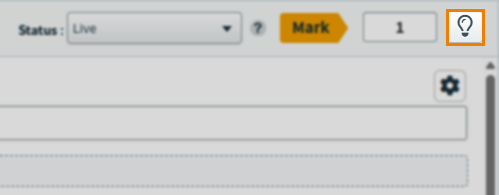
Select Add candidate feedback to open the Candidate Feedback menu.
3. Add your feedback content
Add your feedback text in the entry field. You can use the formatting toolbar for candidate feedback text content. For more information, read Using the formatting toolbar.
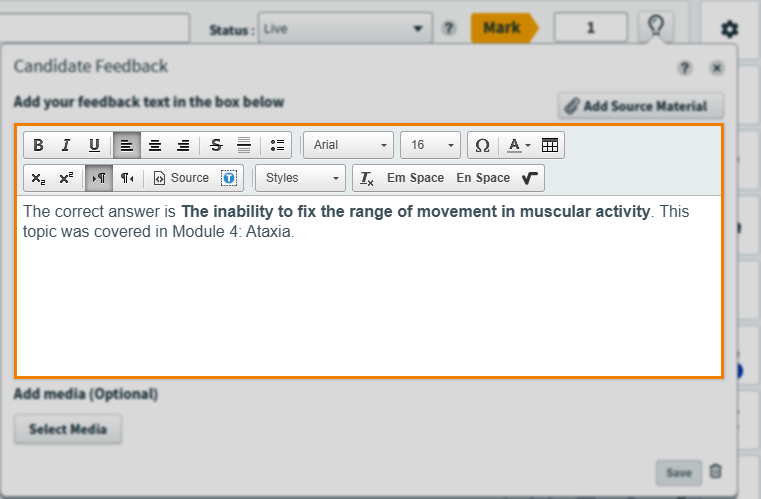
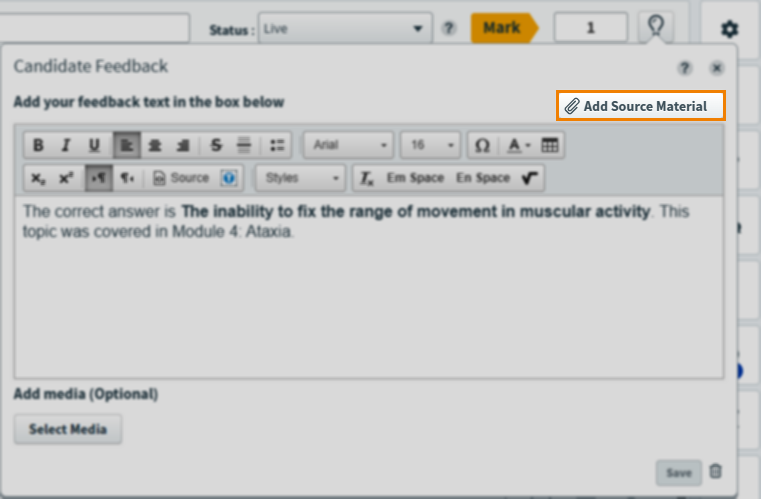
You can add source material to candidate feedback. Select Add Source Material to add source material. To remove source material, select Remove . For more information on source material, read About source material.
You can add media to candidate feedback. Use Select Media to open the media library and choose your media.
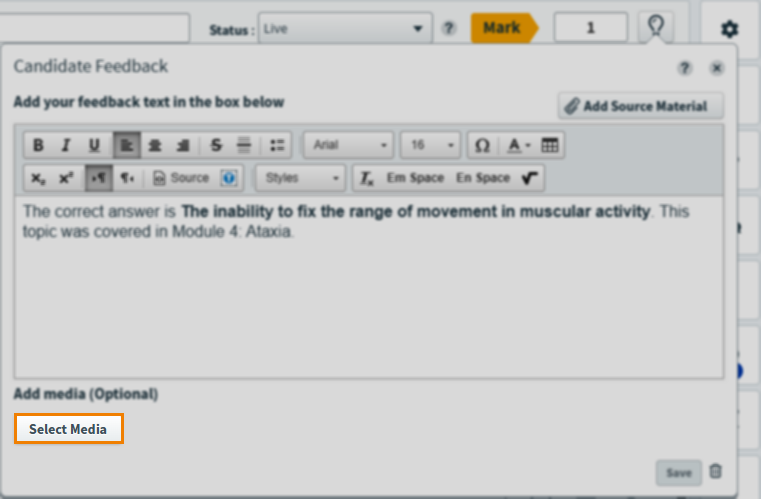
Select Add media in the media library to add the chosen media to the candidate feedback. For more information about media, read Using media.
4. Save your feedback
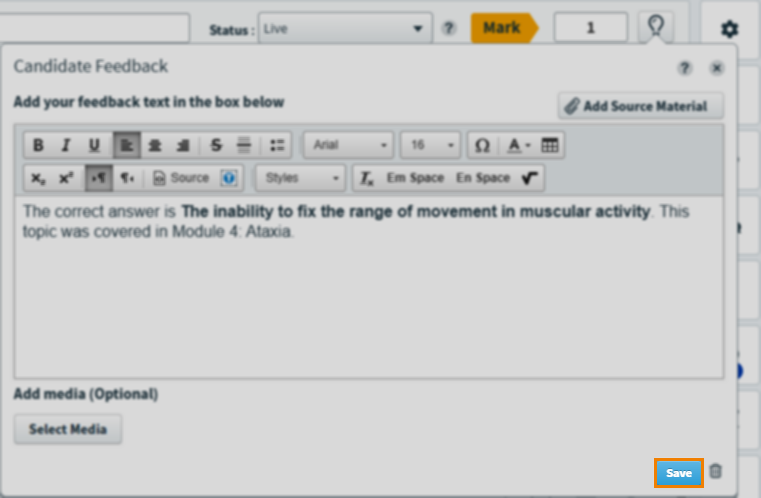
When you have finished creating your feedback, select Save to save the feedback to your item. To remove your feedback from the item, select Delete .
5. Preview your feedback
To see your feedback from a candidate’s perspective, select Preview .

In the Preview screen, select Show candidate feedback to see your feedback.
Further reading
Now you know how to add feedback to items, read the following articles for further information on Surpass functionality: