
Searching for items with Item Search using the Semantic Search
You can use Item Search to find items and item sets across all available subjects in Item Authoring. You can create searches using natural language, which the Semantic Search search type uses to find conceptually similar results.

When you have found the necessary items, you can create item lists for use in LOFT/Adaptive tests, Authoring tasks, or Review tasks. You can also bulk update items across multiple subjects in the Item Search results screen.
This article explains how to use the Semantic Search search type in Item Search.
In this article
1. Go to the Item Search screen
To view the Item Search screen, go to Item Authoring > Item Search.

2. Choose Semantic Search
Select Keyword Search from the Search Type toggle. The Search Type toggle is only available if Semantic Search is enabled.

3. Enter your search text
Enter your search text in the Search text entry field. The search is based on all question stem text, and answer options for Multiple Choice, Multiple Response, and Either/Or questions.

4. Choose a minimum match
Use the Minimum Match slider to determine how closely each item should match what you searched for. Only results with a match percentage at or above this value will be shown.

Use the following guidance to interpret minimum match percentage values:
- 80%-100% – Likely paraphrased versions of the same item.
- 60-80% – Items share the same concept, worded differently.
- 40-60% – Items may share some context, but focus on different aspects.
- 0-40% – Probably unrelated in meaning.
5. Search for items
Select Search to find items that match your chosen search criteria.

Changes to items may take up to 10 minutes to be reflected in semantic search results. It may take longer than 10 minutes to return items from subjects where the Surpass Luma setting has only recently been enabled, if for example multiple subjects were enabled and/or there is a large amount of item data.
6. View your search results
After your search is complete, the Item Search grid is populated with items matching the chosen search criteria.
A Match (%) column is added to the grid, displaying a percentage match value for each item. Toggle between ascending () or descending () order by selecting the column header.
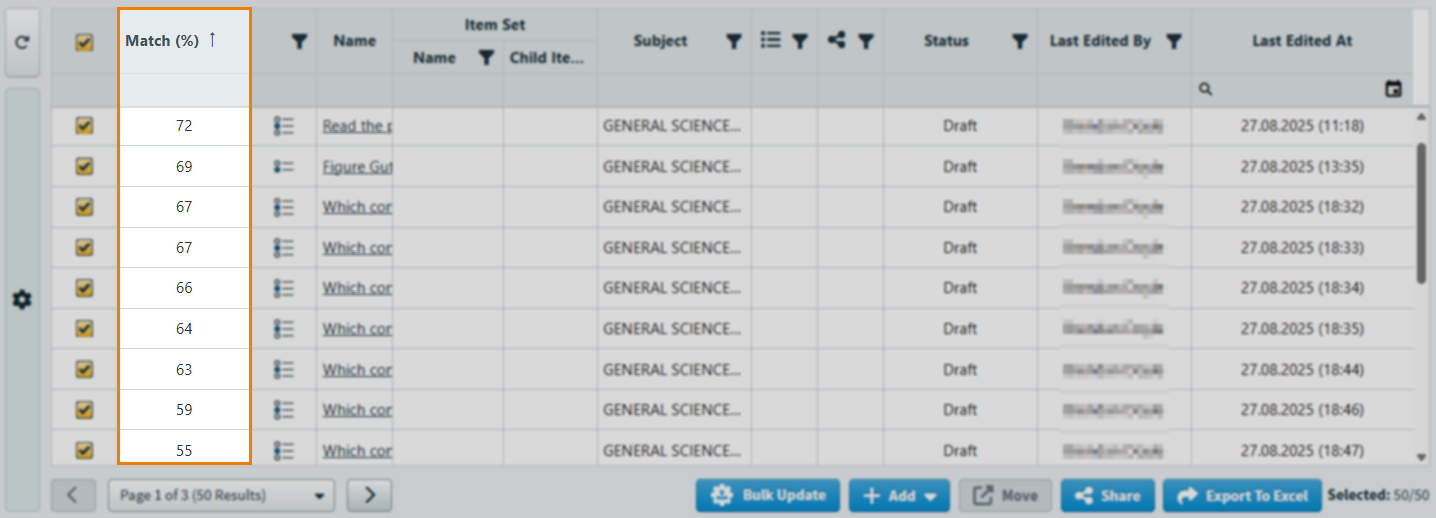
For more information about the Item Search results grid, read About the Item Search results grid.
Further reading
Now you know how to search for items using Item Search, read the following articles to learn more: