
Analysing enemy items in the Item Lists screen
In Surpass, enemies are items that cannot appear in a test together. Surpass Luma can analyse items in an item list to help you identify and create test form enemy relationships. For more information on enemy relationships, read Setting up enemy items.
In this article
This article explains how to analyse enemy items in the Item Lists screen.
1. Go to the Item Lists screen
To view an item list, go to Item Authoring > Item Lists.

Select the item list containing the items you want in the Item Lists screen.

2. Choose your items
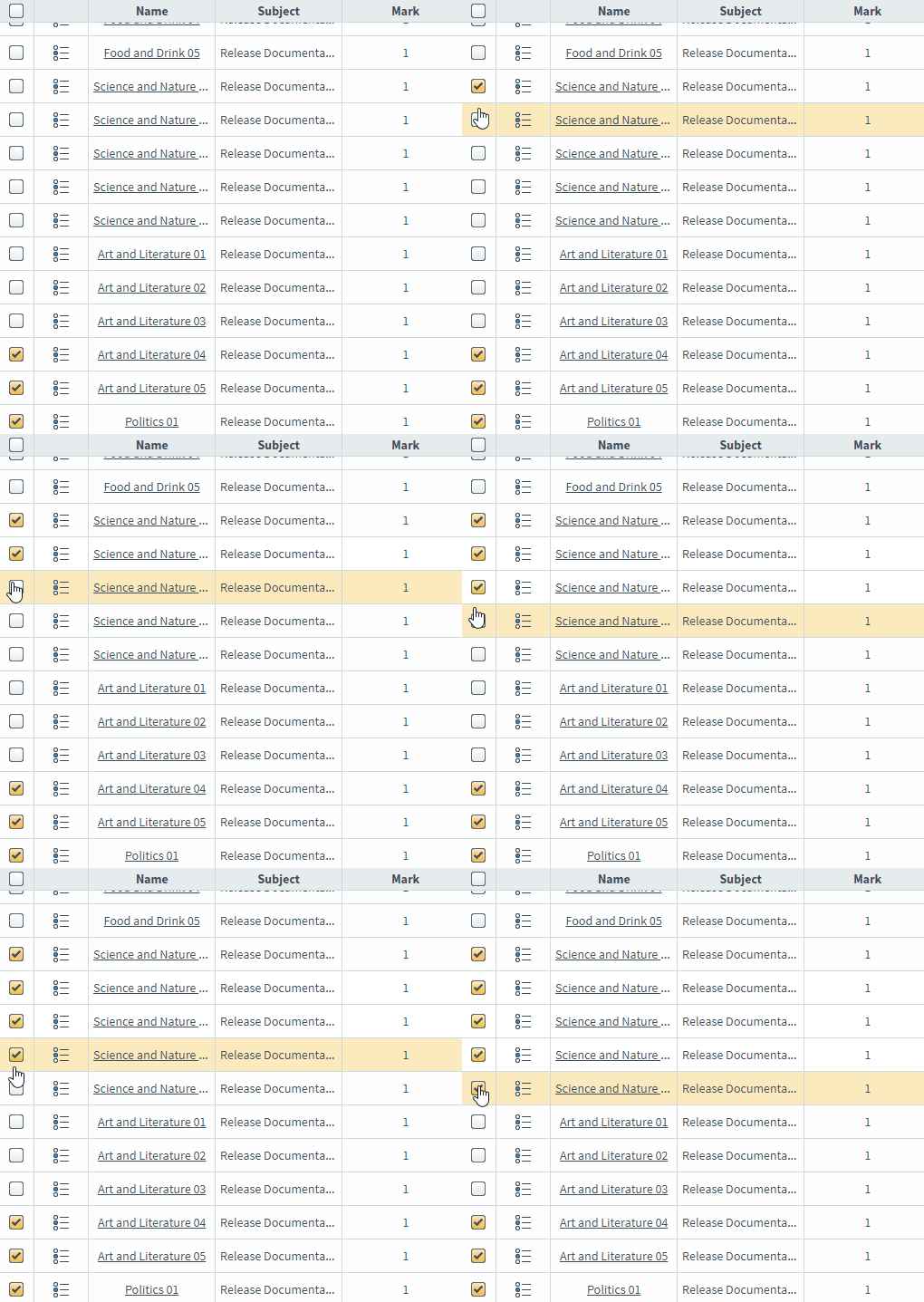
Select the items for which you want to analyse possible enemy relationships.
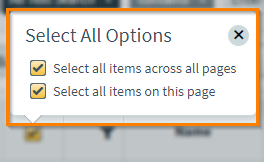
Select the checkbox in the header row to open the Select All Options menu. You can select all items on the current page (Select all items on this page) or select all items across all pages (Select all items across all pages).
3. Analyse possible enemy relationships
Select Enemy Items.

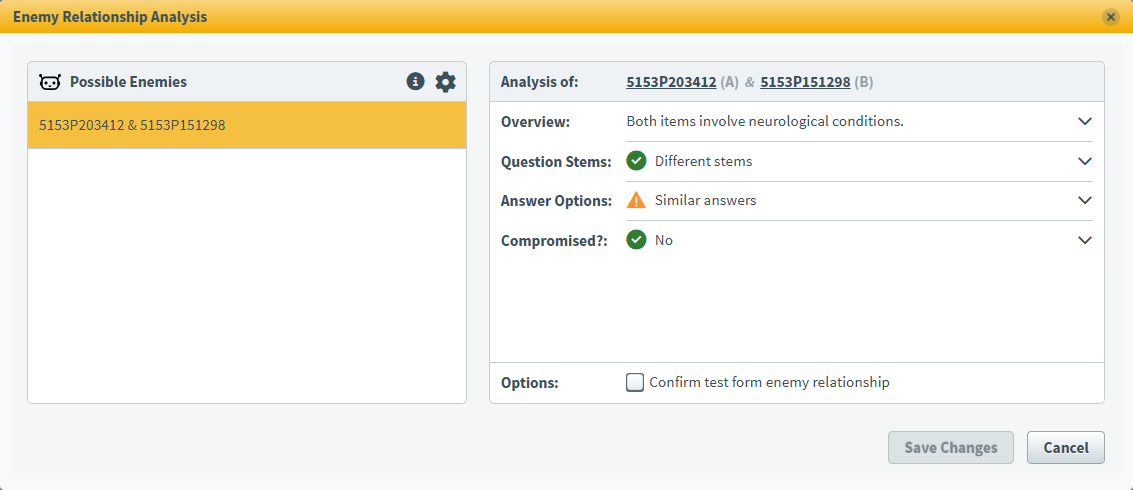
The Enemy Relationship Analysis dialog lists all the possible pairs of enemy items from your selected items based on an analysis of their question stems and answer options. Items are listed using their unique identifier.
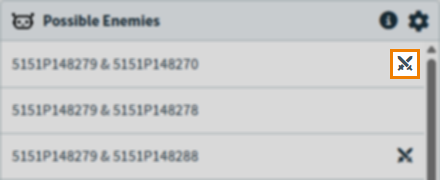
Existing enemy relationships are indicated by an Enemy Items icon.
Select a pair of items from the list of Possible Enemies to show the corresponding analysis.
In the analysis:
- indicates the items do not have very similar Question Stems or Answer Options.
- indicates the items have some similarities that should be considered and may suggest the items should be enemy items.
- The same icons are used next to the Compromised? section to indicate whether one or both of the items are compromised.
Expand the Overview, Question Stems, Answer Options, and Compromised? sections for more information.
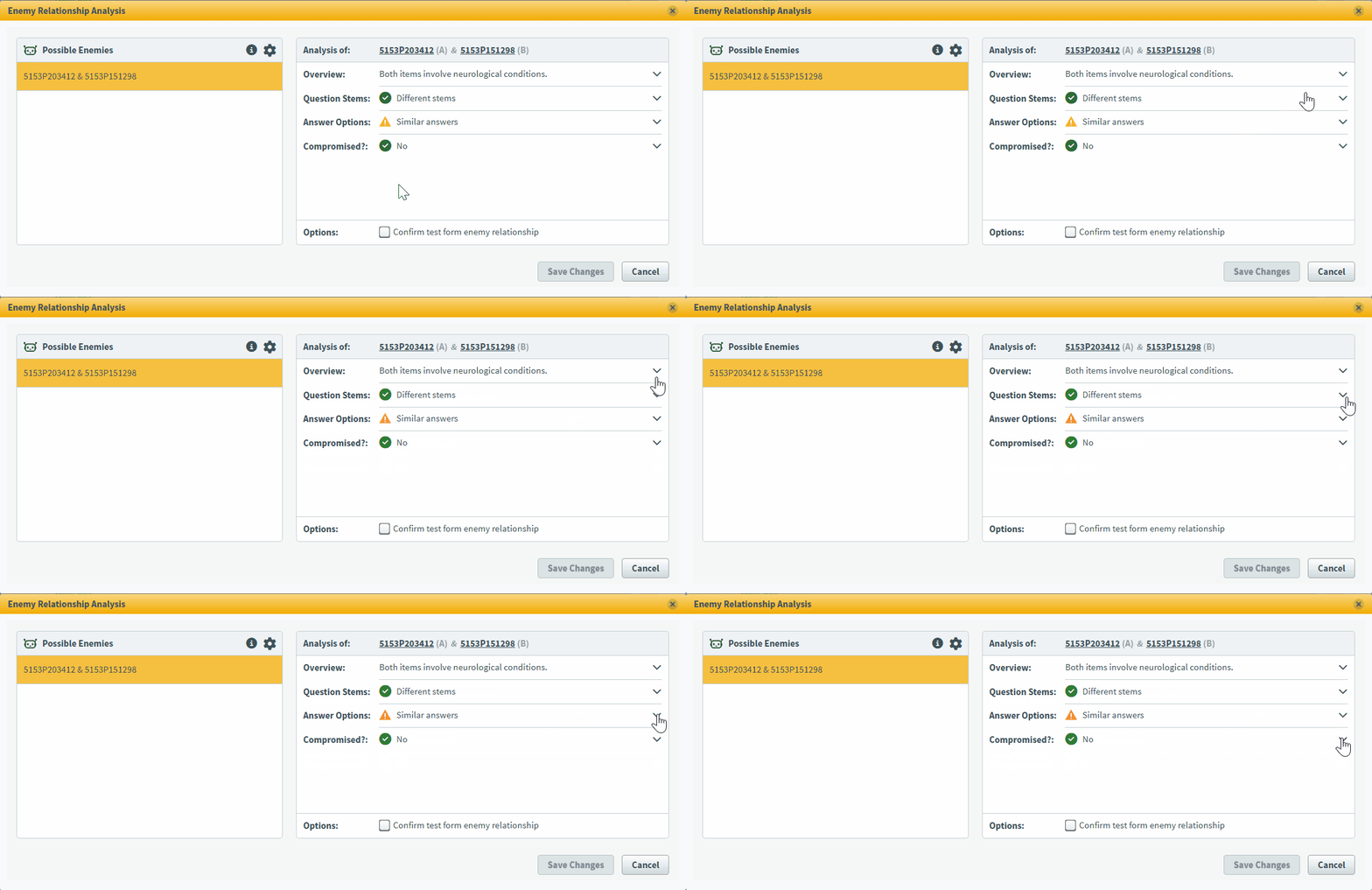
Confirming test form enemy relationships
After analysing a pair of possible enemies, you can create an enemy relationship between the two. To do this, select Confirm test form enemy relationship.
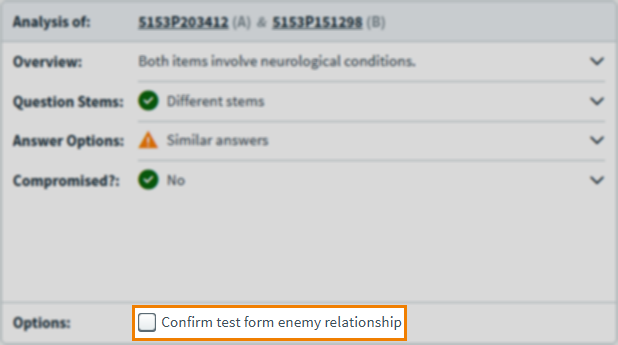
Select Save Changes to create the enemy relationship.
Amending the minimum match percentage
You can adjust the match percentage that determines whether two items are similar enough to be considered possible enemies.
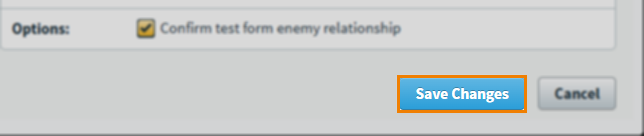
Select the Settings icon.
Use the Minimum Match slider to determine how closely two items should match to be considered possible enemies, ranging from 60% (similar) to 100% (duplicate items).
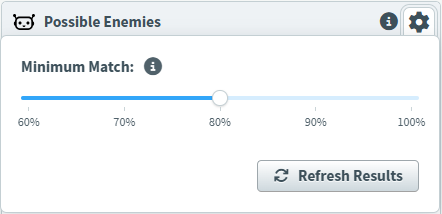
After adjusting the slider, select Refresh Results.
Further reading
Now you know how to analyse enemy items from Item Lists, read the following articles to learn more: