
Finalising tasks
As a manager, you can finalise a task when you are satisfied that assignees have completed their work. Finalising a task marks it as Complete and updates and unlocks all task items in Item Authoring.
This article explains how to finalise a task, including how to mark a task as incomplete after it has been closed.
In this article
1. Find the task
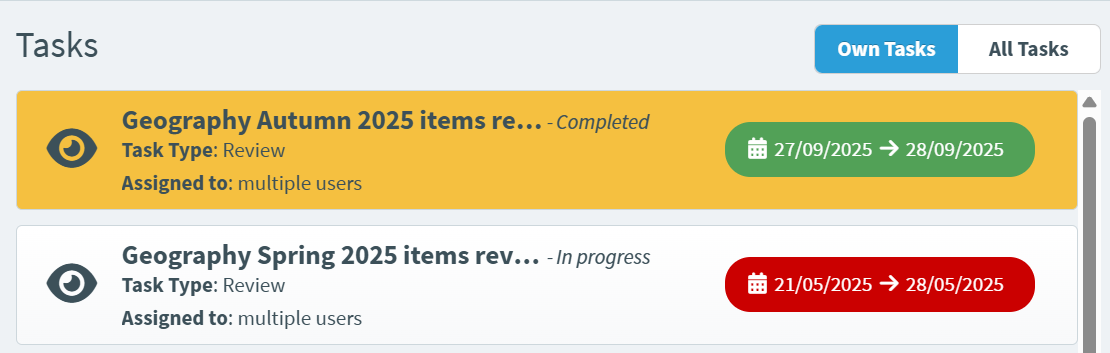
Go to the Tasks section of Surpass and select the task you want to edit on the Tasks list.
2. Check the progress of the task
Before finalising the selected task, you can check its progress in the task details panel.
The task details panel has doughnut charts to show relevant information to the user, which may change dependent on their permissions within the task.
Authoring (Edit Existing Items)
In Authoring Tasks, all users see the items they have submitted so far, and how many days are remaining before the deadline.

Authoring (Create New Items)
Lead Assignees see the progress of the Total Items submitted across all assignees so far in the task, their own progress and how many days are remaining before the deadline.

Assignees see the progress of their own items submitted, and how many days are remaining before the deadline.

Review Tasks (Individual and Shared)
In Review Tasks, Lead assignees will see how many items have been reviewed by lead assignees, how many items have been reviewed by assignees and how many days are remaining before the deadline.

Assignees will see how many items they have reviewed and how many days are remaining before the deadline.

Standard Setting
In Standard Setting Tasks all users will see the items in the task and how many days are remaining before the deadline.

General
As there is only one user assigned to a general task, the doughnut charts show how many days are remaining before the deadline.

3. Finalise the task
Select Finalise Task to close the task.

Finalising review tasks
If there are any items that haven’t been submitted by the Lead Assignee at the point of finalising the task, a warning message will appear.
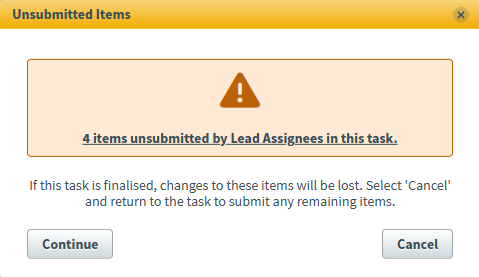
Click Continue to finalise the task without submitting these items, or Cancel to return to the task and submit any remaining items.
Marking the task as incomplete
You might want to mark a task as incomplete if it was incorrectly finalised or needs to be worked on again.
Find and select your completed task. Select Mark as incomplete to mark the task as incomplete. This lets assignees to continue working on the task if the end date has not yet passed.

Further reading
For more information on Tasks, read the following articles: