
Using the 3D image viewer in the test driver
Candidates can use the 3D image viewer in test delivery to view an interactive 3D image added as Source Material. Candidates can examine images with the ability to rotate, zoom in-or-out and pan.
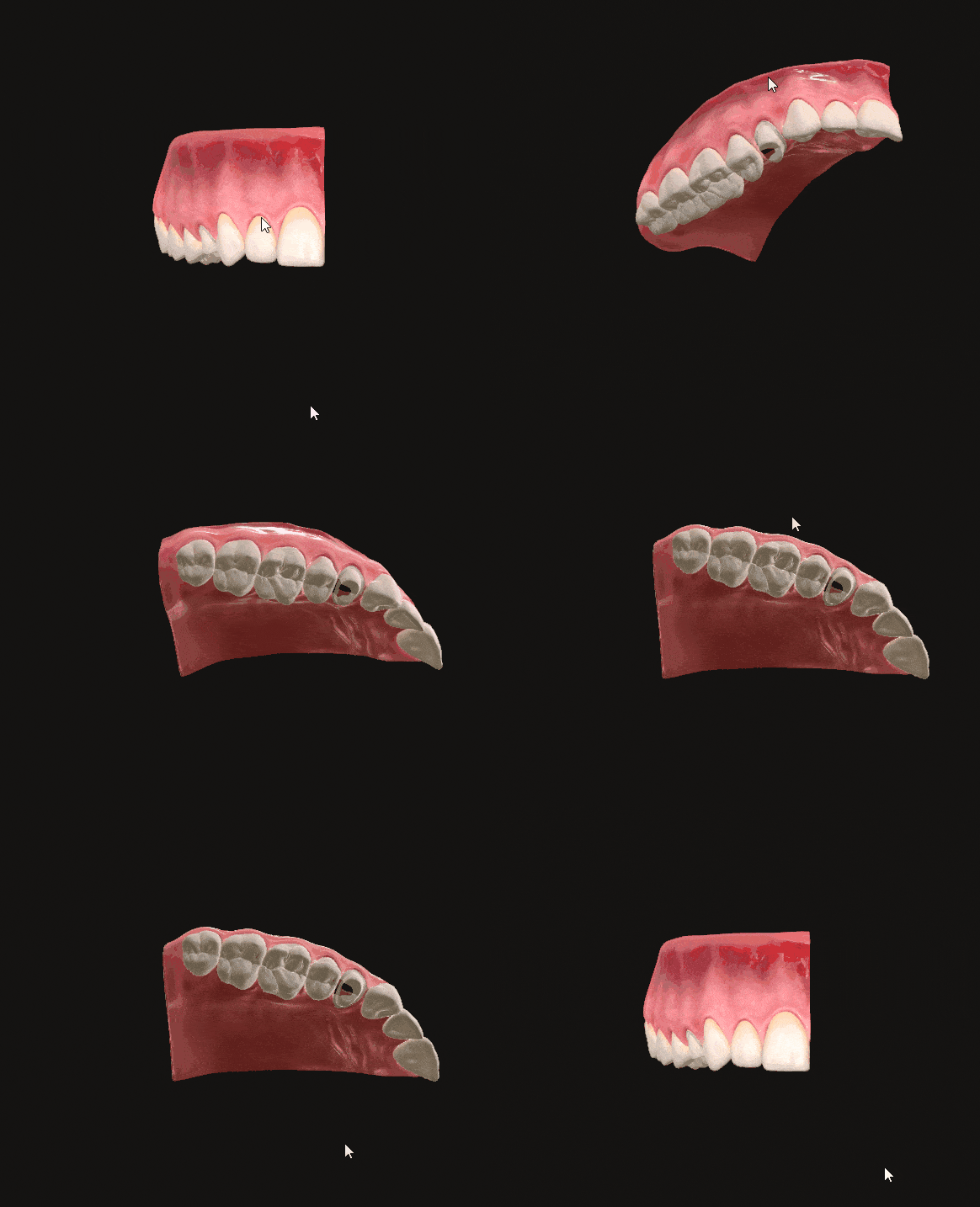
This article explains how to use the 3D image viewer.
In this article
Opening the 3D image viewer
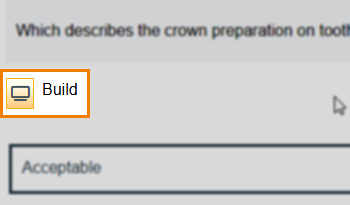
Open the 3D image viewer by selecting Build. The name of this button is set by the author.
Using the 3D image viewer
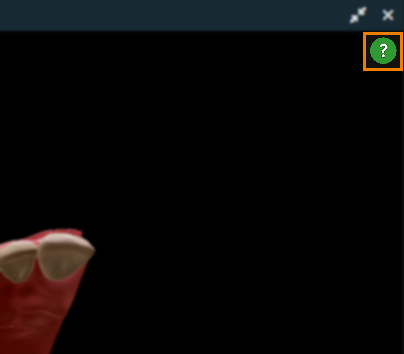
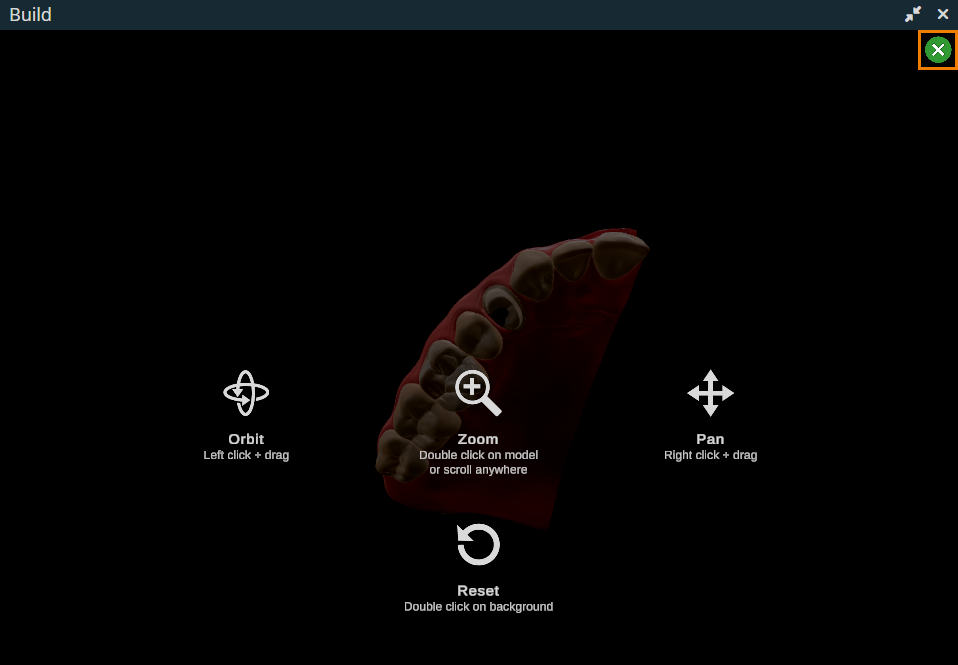
Candidates have access to a variety of controls in the 3D image viewer, including Pan, Zoom, and Orbit. Candidates can view how these controls function by selecting the icon.
Hide these control descriptions by selecting the icon.
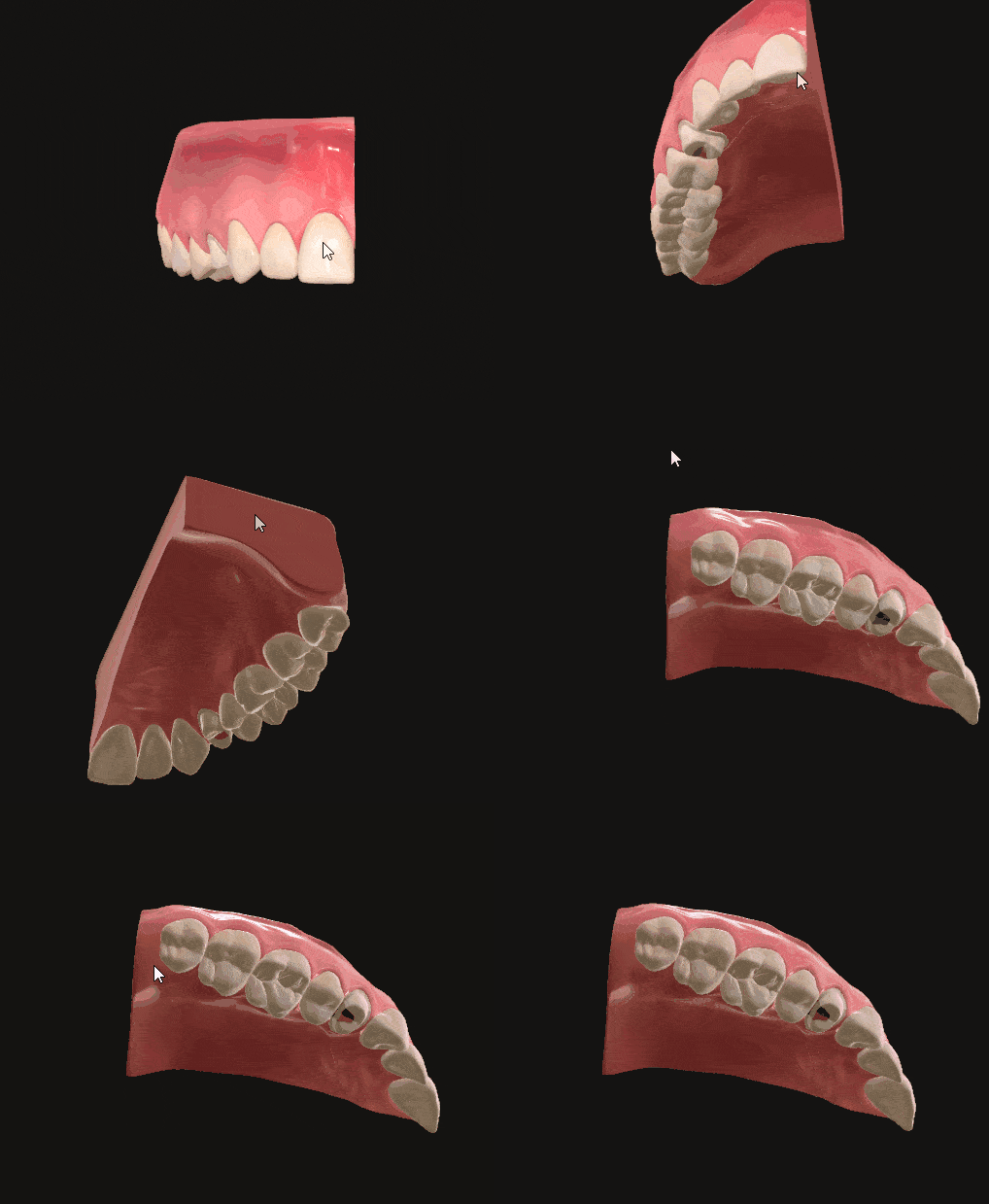
Moving the image
You can rotate and manoeuvre the image using the cursor, and pan controls.
Click and drag the image to manoeuvre it.
Right click and drag the image to pan.
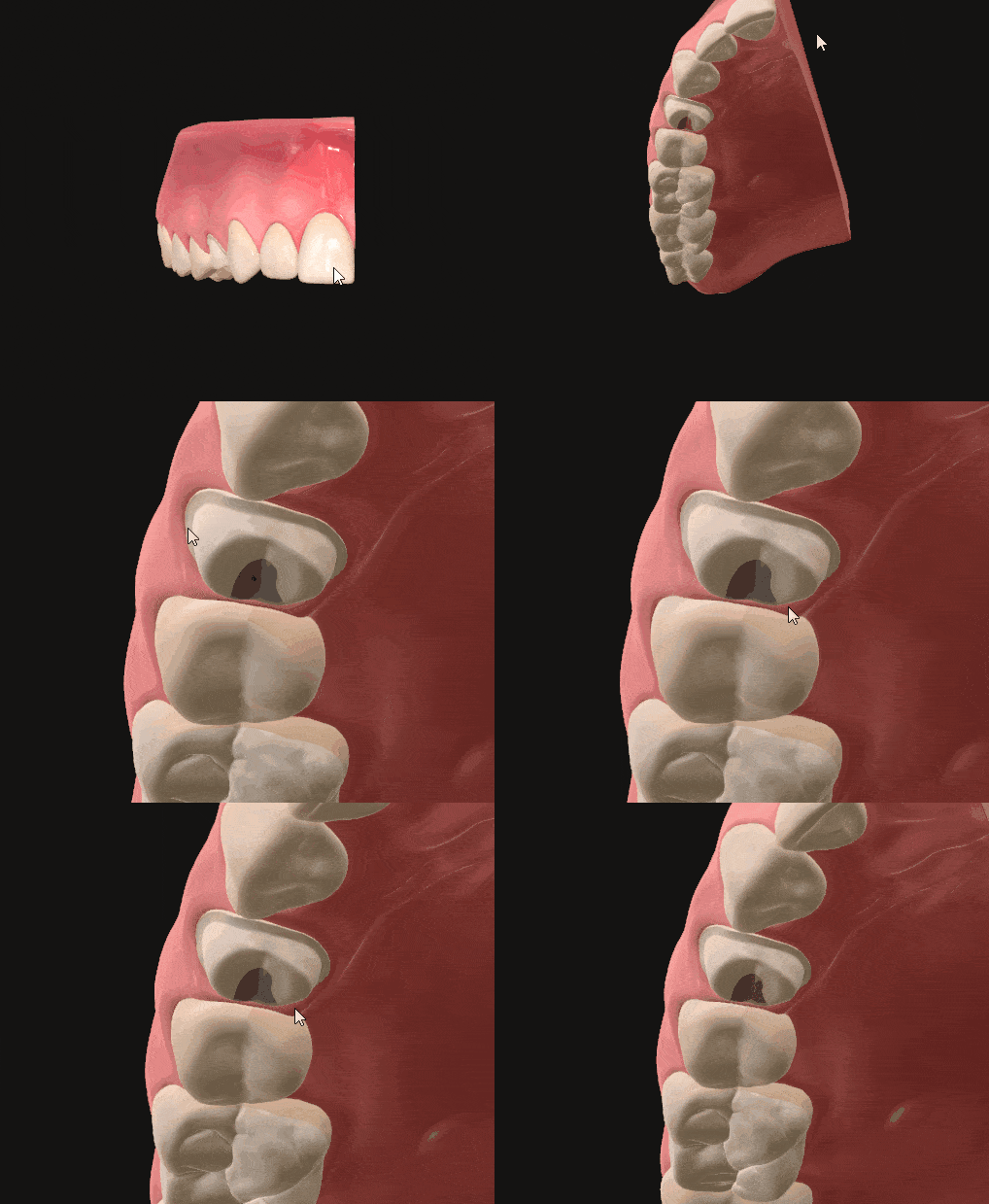
Zooming in and out
Double click the image to zoom in. To zoom out, you must reset the image. You can also scroll the mouse wheel up to zoom or scroll the mouse wheel down to zoom out.
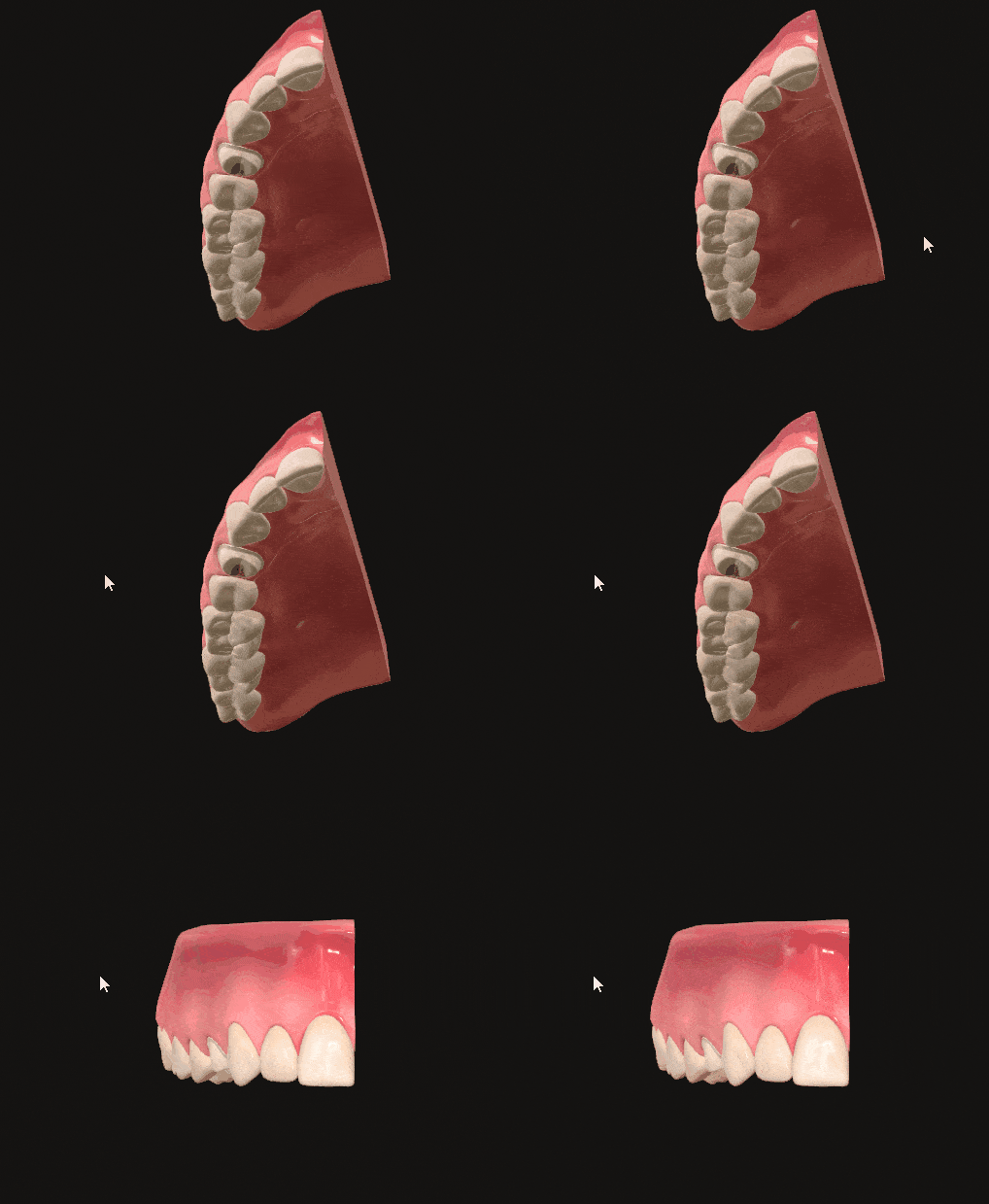
Reset the image
Double click the background of the image to reset it to its default position.
Closing the 3D image viewer
Select the Close button to close the 3D image viewer.
Further reading
Now that you understand the 3D image viewer, read the following articles to learn about other functions of the Surpass test driver: