
Escalating a script in the Moderate screen
In the Moderate screen, you can escalate scripts that require further attention or investigation. You might want to escalate a script if a candidate is suspected of malpractice.
This article explains how to escalate a script in the Moderate screen, including how to de-escalate a script.
In This Article
1. Go to the Moderate screen
To escalate a script, navigate to the Moderate screen in Test Administration.

2. Choose a script
Select the relevant script in the Moderate grid.

Select Escalate to open the Escalate dialog.

3. Escalate the script
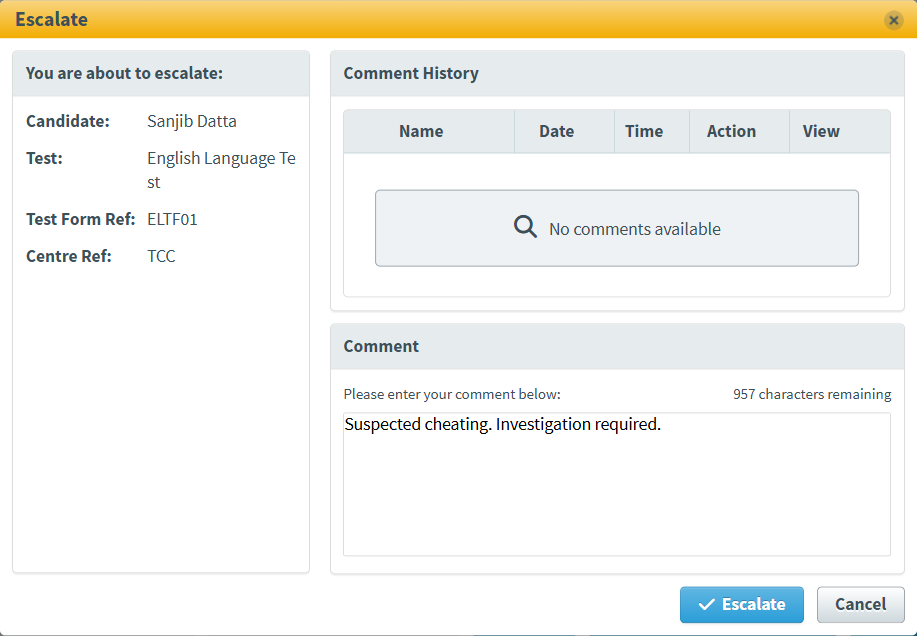
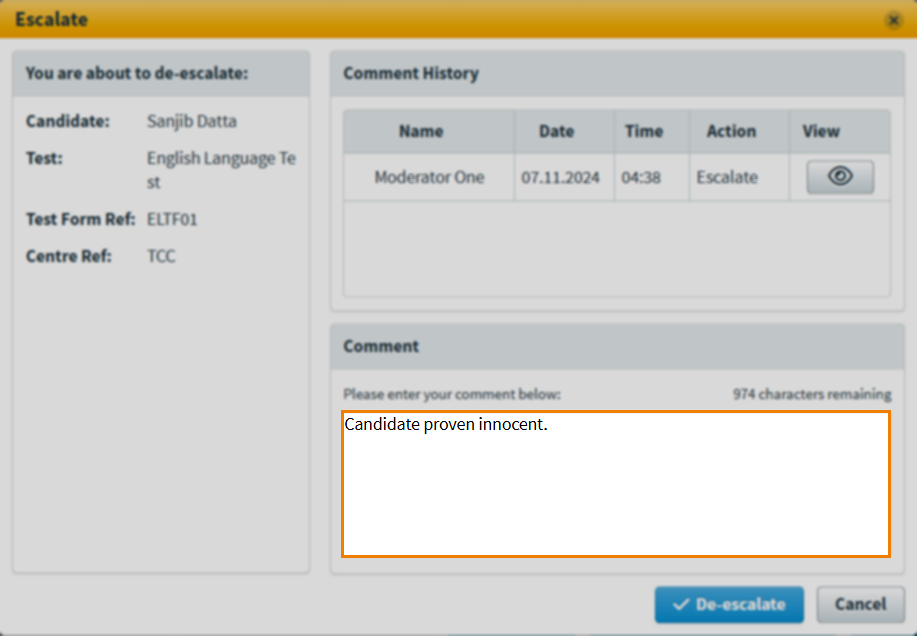
You can see an escalation history for the script in the Escalate dialog.
| Detail | Description |
|---|---|
| Name | Displays the name of the user who escalated or de-escalated the script. |
| Date | Displays the date on which the script was last escalated or de-escalated. |
| Time | Displays the time the script was last escalated or de-escalated. |
| Action | Displays the escalation action taken (Escalate or De-escalate). |
| View | Displays comment left by the user. |
Before you can escalate a script, you must provide a reason.
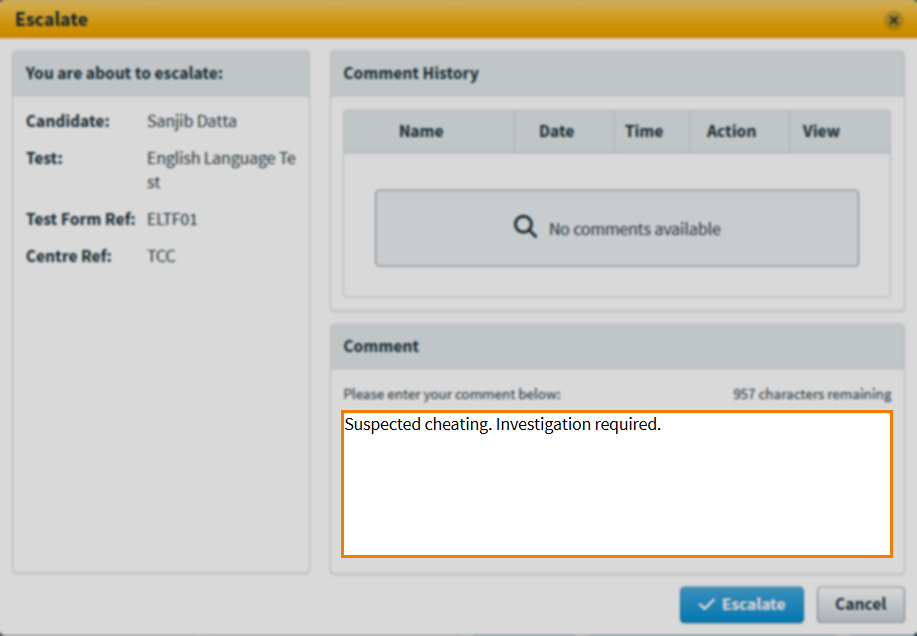
Select Escalate to escalate the script.
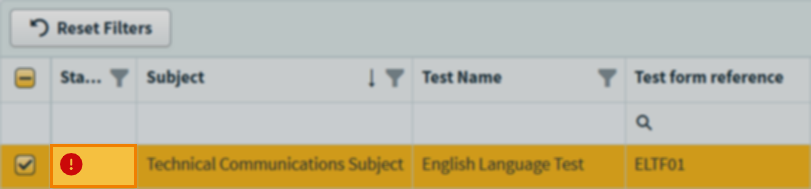
Escalated scripts are marked with an exclamation mark () in the Moderate grid.
De-escalating a script
You can de-escalate scripts in the Moderate screen.
Select the relevant script in the Moderate grid.
Select De-escalate to open the Escalate dialog.

To de-escalate a script, you must provide a reason.
Select De-escalate to de-escalate the script.
Further reading
Now you know how to escalate a script in the Moderate screen, read the following articles to learn more: