
Creating and managing language variants
When creating an item, you can create variants for the item in multiple languages. Language variants can only be created for Multiple Choice, Multiple Response, Either/Or, Essay questions, item sets; and Introduction, Information, and Finish Pages.
This article explains how to create, search for, edit, delete, and restore item language variants. For more information about using item language variants to deliver tests in different languages, read Delivering tests in different languages.
If enabled for your instance of Surpass, language variants can be configured in Site Settings. For more information about site settings, read ‘About Language Variants settings‘ in About Site Settings options.
In this article
Creating a language variant
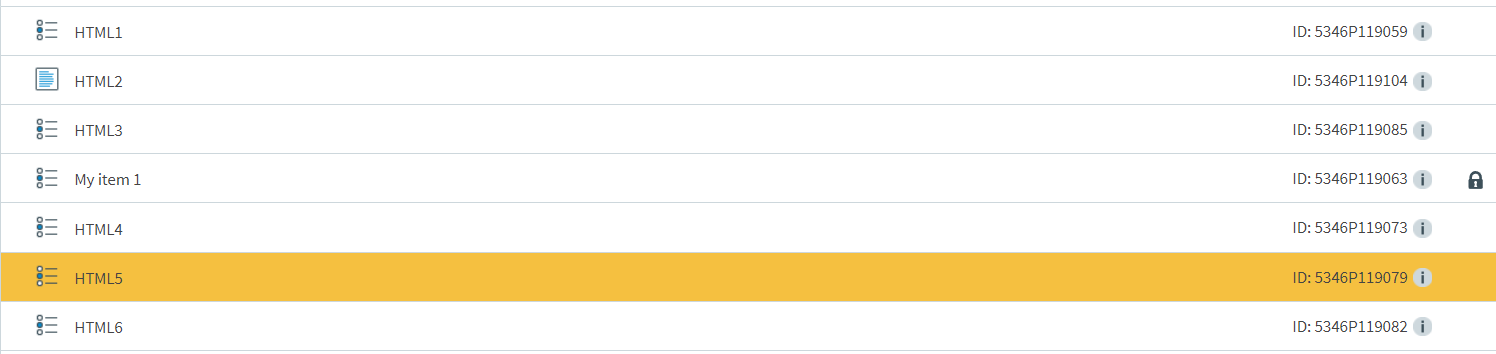
Select and open an item in your subject to go to the Edit screen.
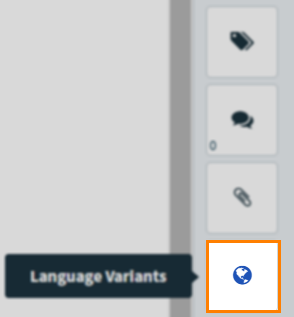
Select Language Variants to open the panel.
Select the language in which you want to create a language variant for the item from the drop-down list of languages.
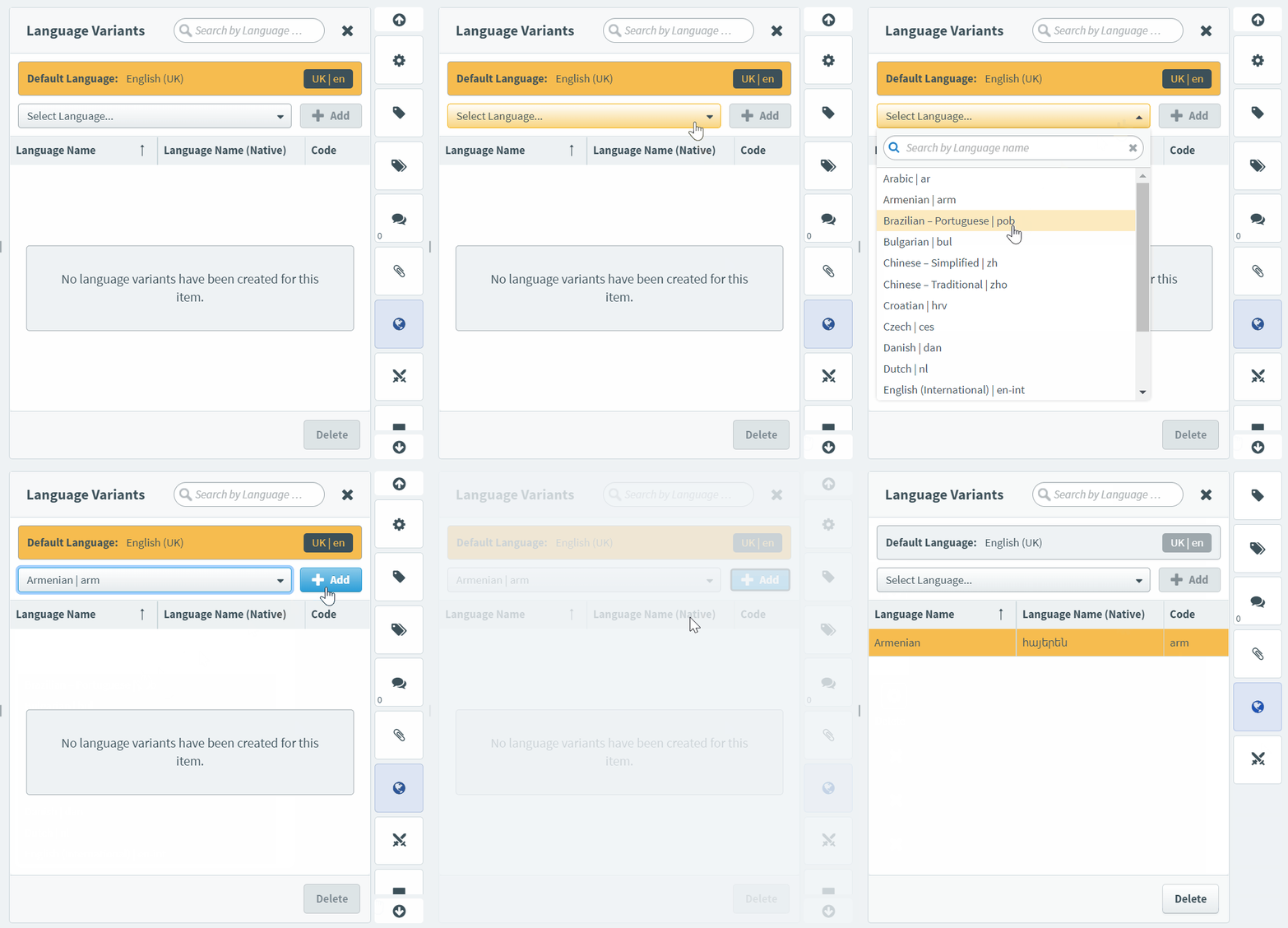
Select the Add button to populate the language details into the table. The Add button is enabled only when the language is selected from the list.
To close the expanded language variants panel, select Language Variants again.
The following table gives a description for each field in the table:
| Field | Description |
|---|---|
| Language Name | The name of the language in which the variant is created. |
| Language Name (Native) | The name of the language in which the variant is created, in its native language. |
| Code | The standardised ISO code used to universally identify the language of an item. |
Editing the inherited item content
After adding a language variant, the item details from the default language (parent item) are inherited. Now you can translate the item language variant’s text into the selected language and amend any other item content or settings as needed.
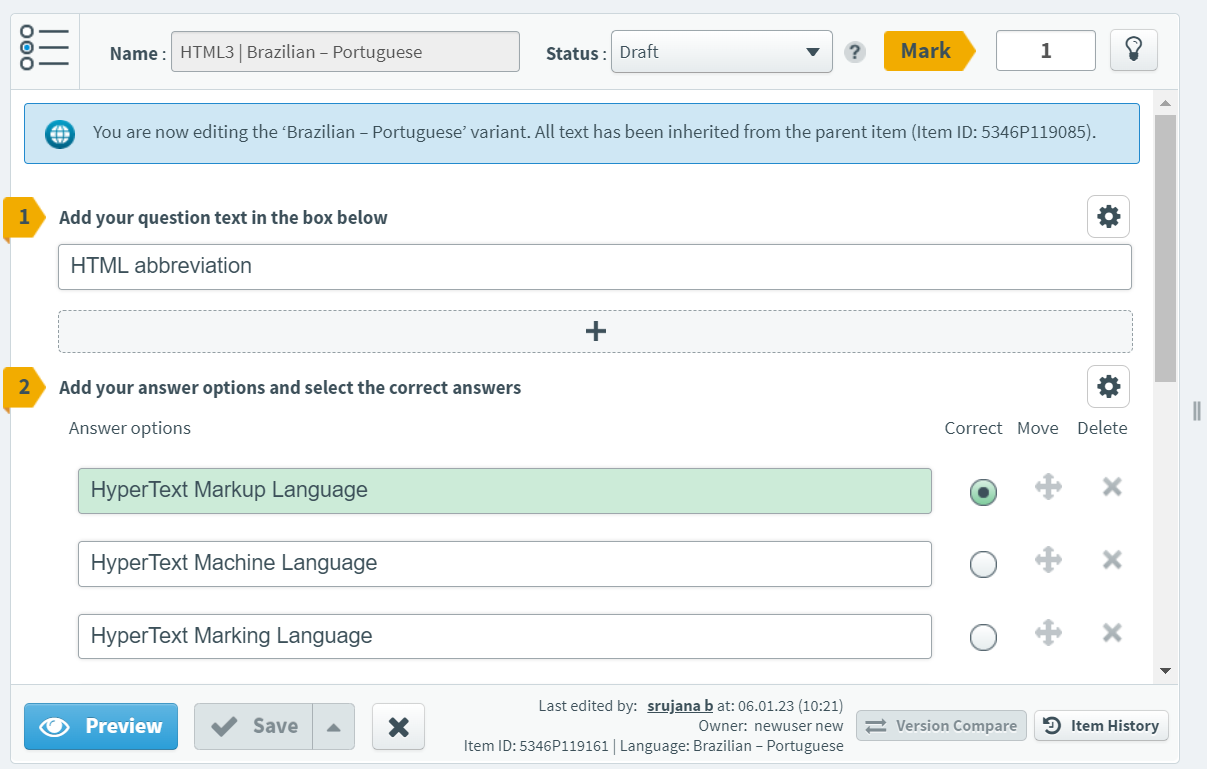
If the relevant language variant exists, the next or previous item is opened in the same language when navigating between items.
Searching for language variants
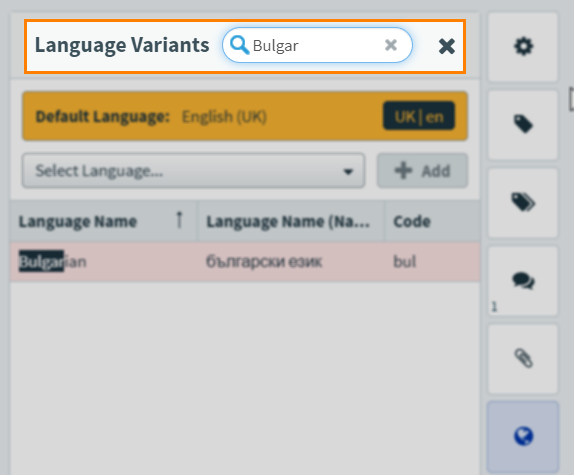
You can search for a particular language variant of your item using a search field within the panel.
Enter the language name partially or completely in the provided search field to filter the language variants.
Deleting a language variant
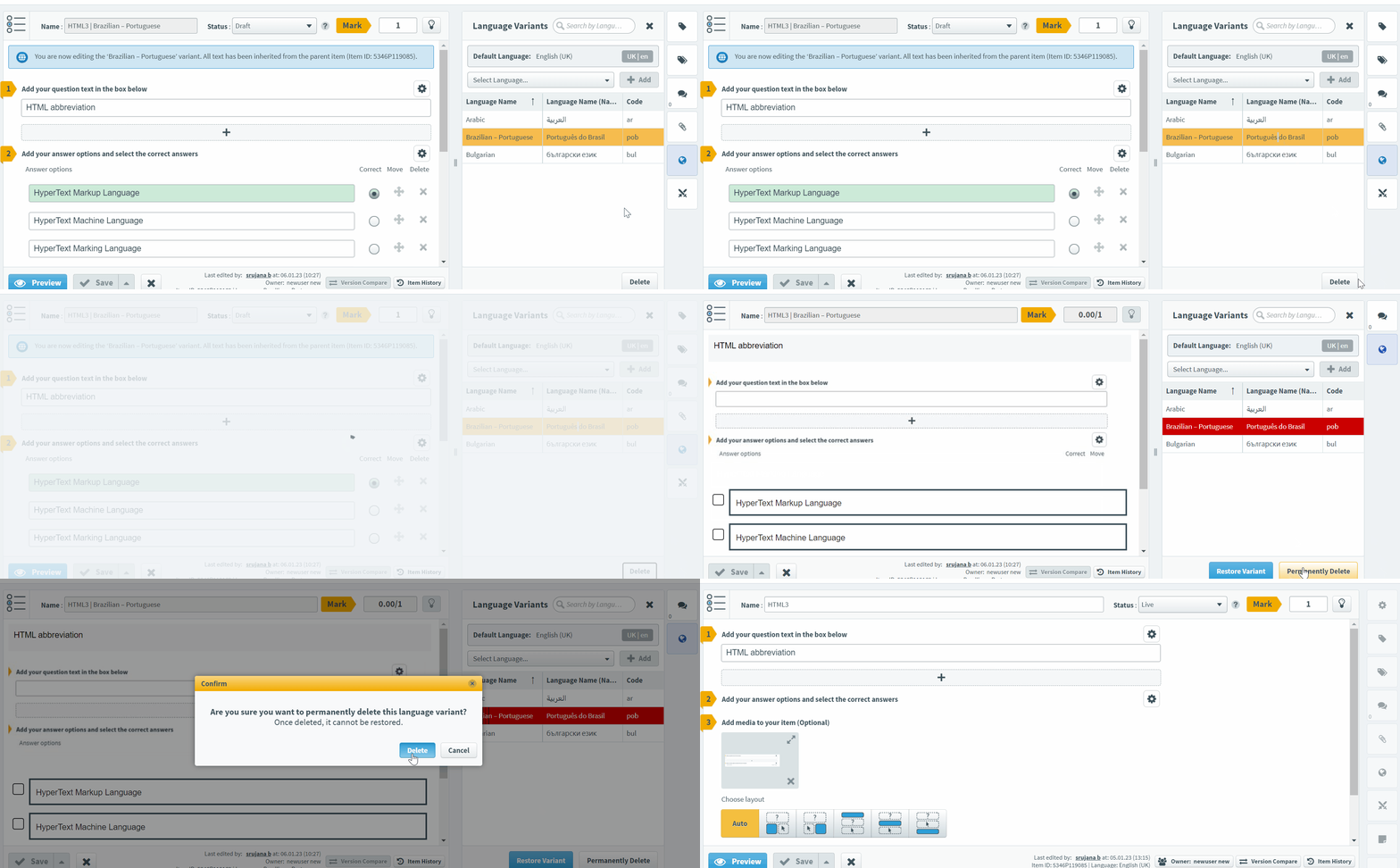
To delete a language variant, select the language variant you want to remove from the list and select Delete.
The Delete button deactivates the language variant and highlights it red. Deactivated language variants cannot be edited or accessed in Tasks, but are still considered valid for use in tests until permanently deleted.
Permanently deleting a language variant
Language variants can be permanently deleted.
After deleting the language variant, select the Permanently Delete button to permanently remove it.
Restoring a language variant
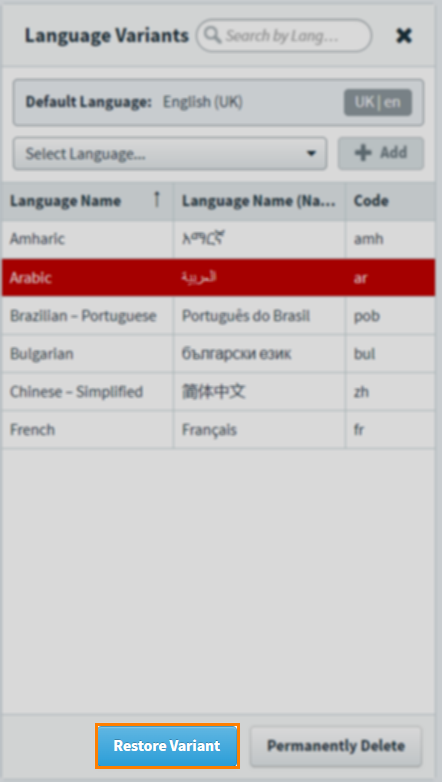
Deactivated language variants can be restored.
After deleting the language variant, select Restore Variant to restore it.
Further reading
For more information on language variants, read the following articles: