
Viewing candidate feedback in the test driver
Candidates can access feedback during a test if an item author has added it, the Test Feedback setting Show Feedback Button is enabled, and the test’s navigation style is forward only.
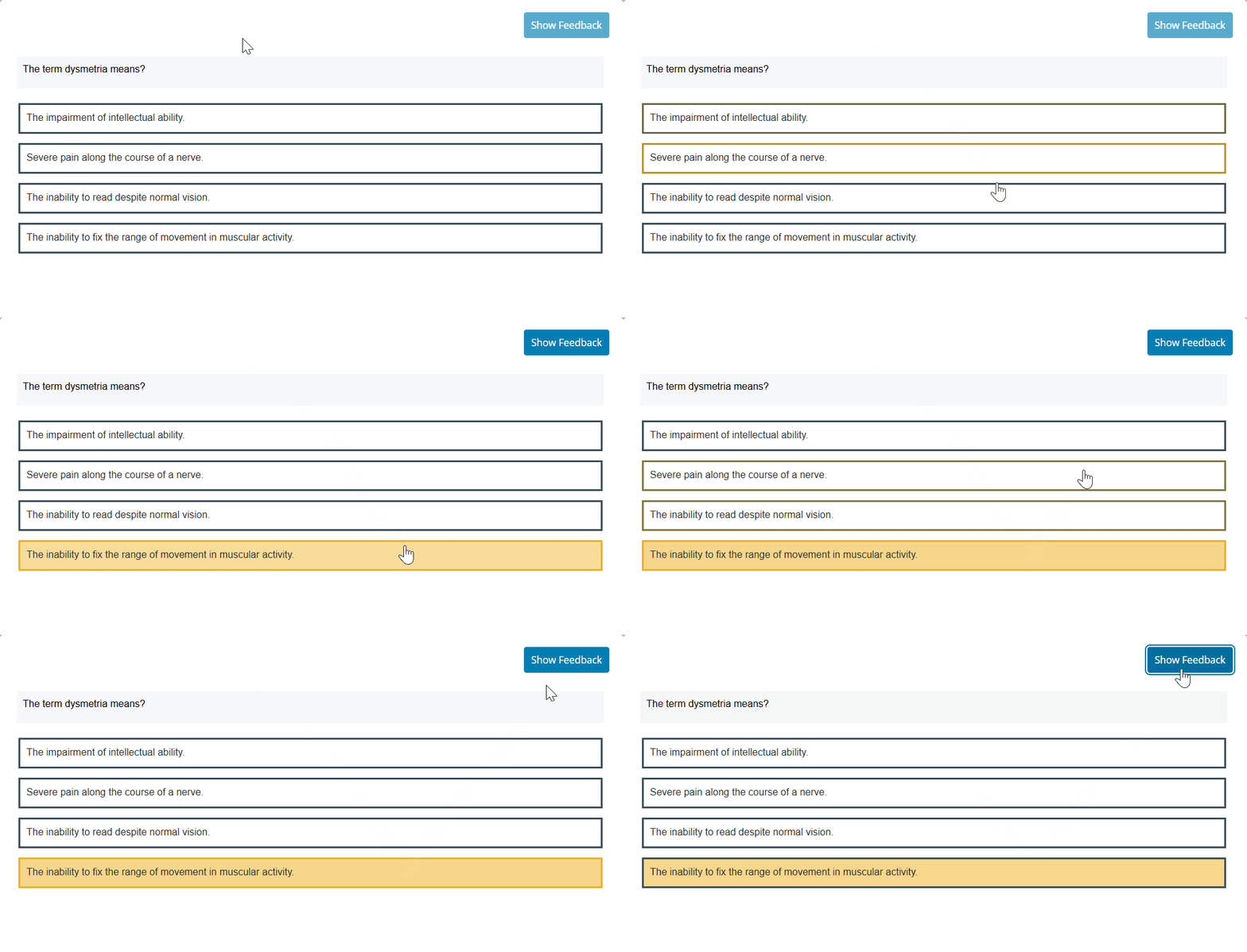
Candidate feedback is designed for use in low-stakes and formative assessments.
This article explains how to show and hide feedback during a test as a candidate. For information about adding candidate feedback to items as an item author, read Adding candidate feedback to items.
In this article
Viewing feedback
Candidate feedback cannot be opened until the question has been attempted.
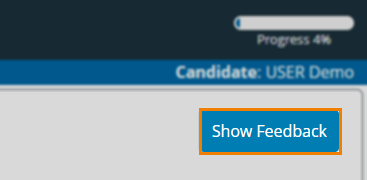
Select Show Feedback to view candidate feedback.

Viewing Correct/Incorrect feedback (Legacy)
Legacy test functionality in Surpass has two candidate feedback in Surpass modes: General feedback displays the same message to all candidates, while Correct / Incorrect feedback shows different messages to candidates depending on your choice of answer.
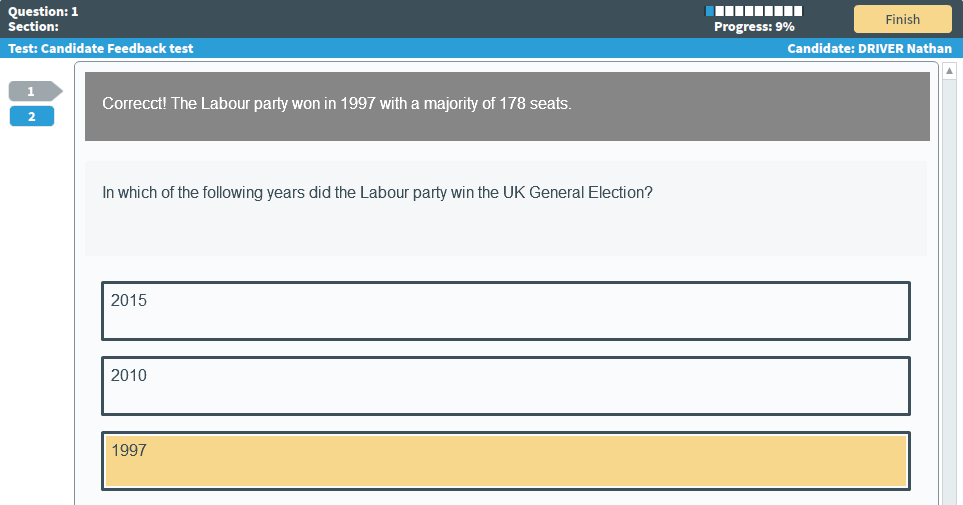
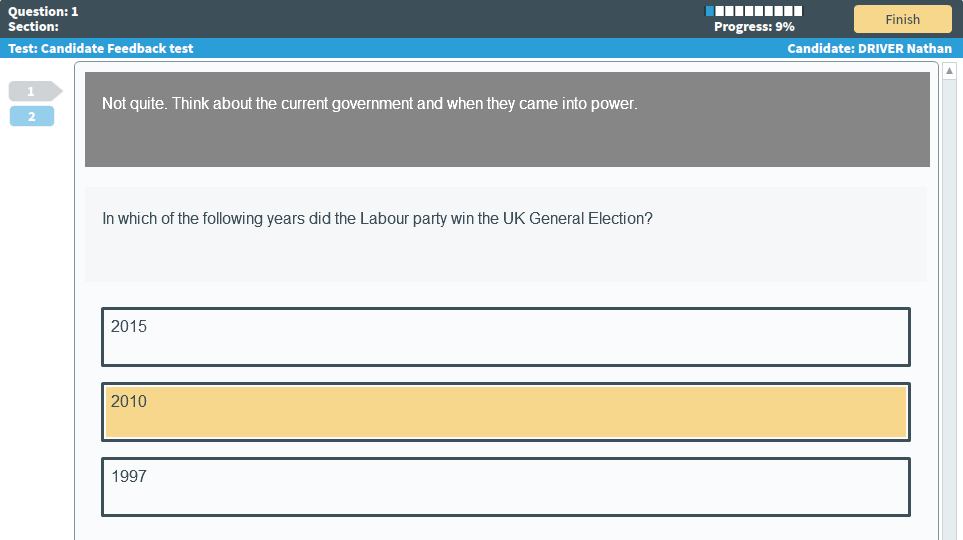
Correct/Incorrect feedback shows different messages depending on your choice of answer.
If you select the correct answer, the test driver displays the correct feedback.
If you select the incorrect answer, the test driver displays the incorrect feedback.
Hiding feedback
If you no longer need to view the feedback, select Hide Feedback to hide it.
Further reading
For more information on other functions of the Surpass test driver, read the following articles: