
Working in a Standard Setting task as an assignee
Standard Setting tasks allow you to rate items in an item list. As an assignee, you can rate each item according to the Angoff rating method to help determine a cut score along with other assignees’ ratings. The Angoff rating method is designed to identify the proportion of minimally competent candidates.
This article explains how to work in a Standard Setting task as an assignee, including how to rate items.
In this article
1. Open the task
On the Tasks list, select the Standard Setting task you want to work on. The task details panel displays the task’s description, total item count, and days until the deadline. You can also download attachments if the task has any. For more information, read About the Tasks screen.
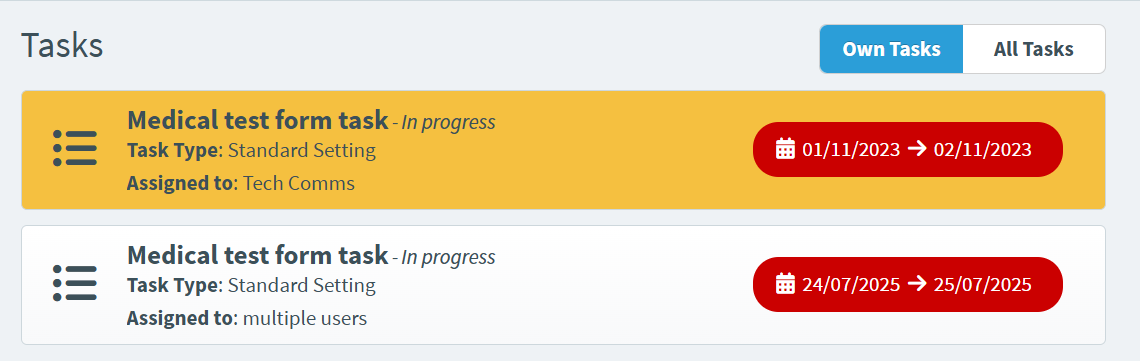
Select Open Task to open the Standard Setting screen and start working on the Standard Setting task. This changes the task’s status to In progress.
2. View your item
The Standard Setting screen contains all items in the associated item list. Items are displayed in the test driver, allowing you to see the items from a candidate’s perspective.
Navigating between items
There are multiple ways to navigate between items in the task.
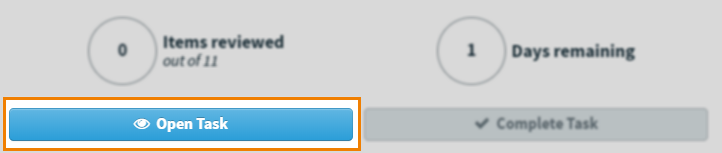
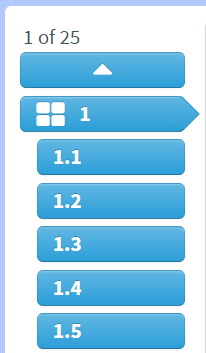
Select an item breadcrumb on the item navigation panel to go to another item.
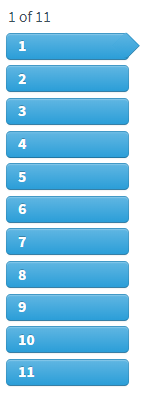
Alternatively, you can enter a specific item number into the Go to item field to navigate directly to that item.
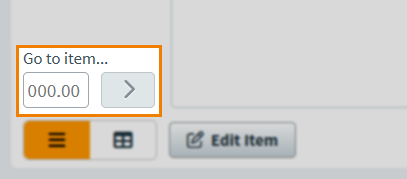
If an item is in an item set, you can enter a decimal (such as 1.3) in the Go to item field to navigate directly to that item.

Viewing the item’s settings
Use the item information panel to view the item’s settings. Expand the following section for more information.
The following table details each available setting:
| Icon | Setting | Description |
|---|---|---|
| Item Settings | View information about the item’s Correct Answer. | |
| Item Tags | View the item’s assigned tag groups and tag values. For more information, see Using tags in items. | |
| If Present revised Angoff rating is enabled, you can only view tag collections after submitting your initial rating.[/important] |
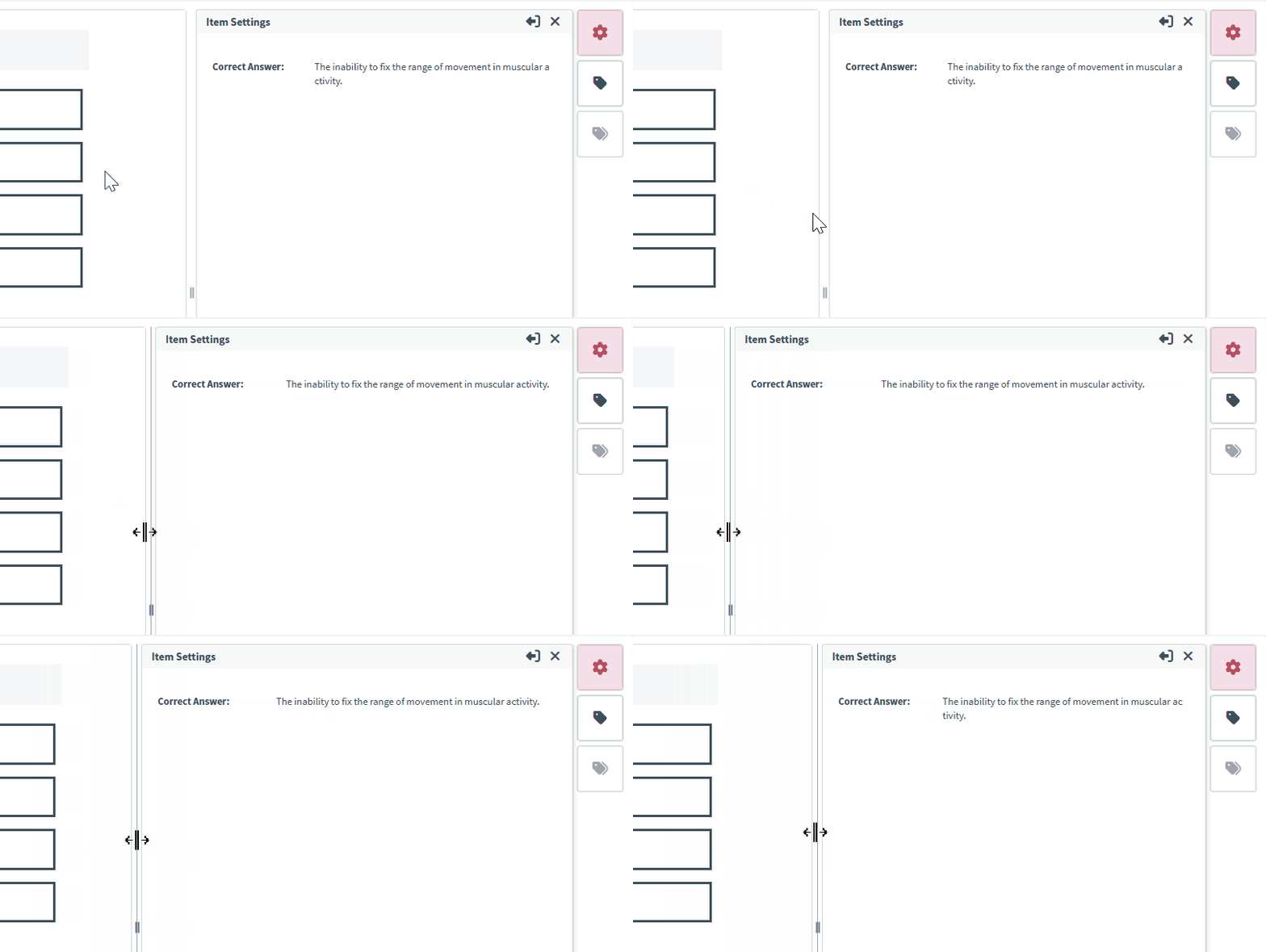
Use the resizer () to change the panel width.
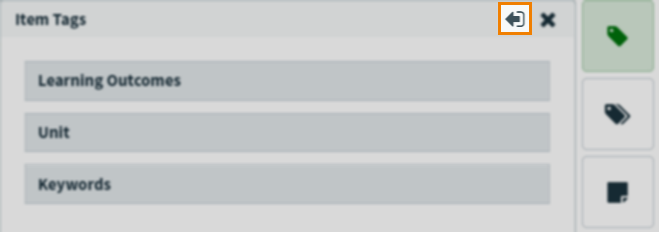
Select Undock to pop out the dialog windows for any information available in the panel. Select and drag the dialog window to move it around the screen.
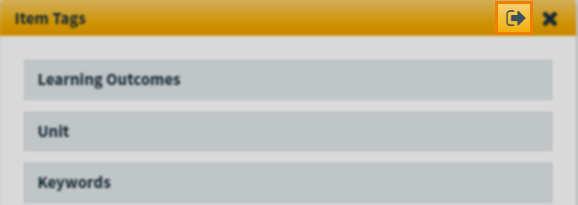
Select Dock to return the dialog window to the right-hand side panel.
Flagging items
You can flag items and leave a comment for lead assignees and task managers.
Select Flag when previewing an item to flag and leave a comment.

Input your comment and then select Confirm.
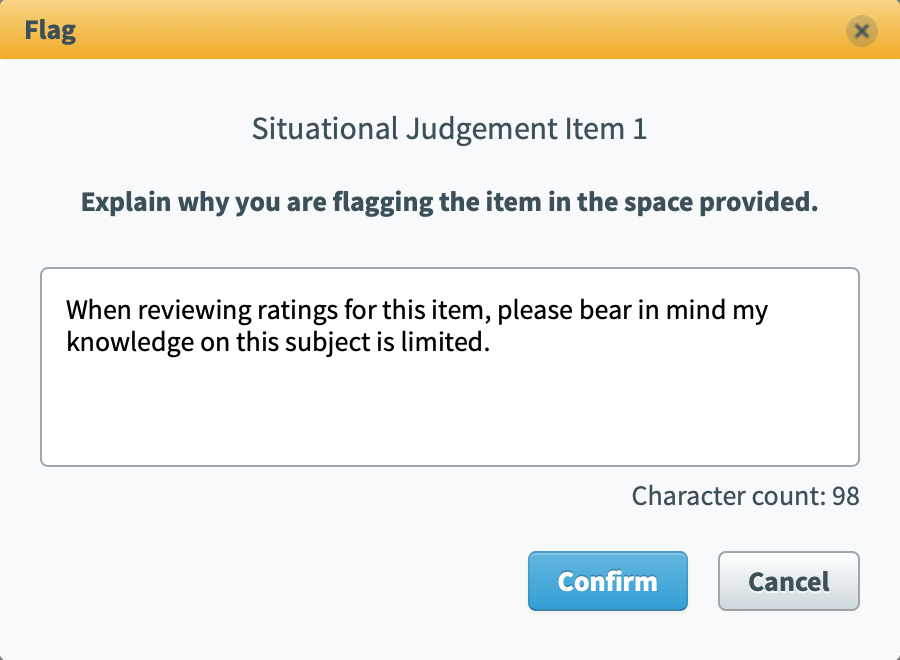
Flagged items are indicated by a flag () in the item navigation panel.

To remove a flag, select Unflag .

3. Rate your item
The Angoff rating method requires you to rate each item in the item list out of 100. Depending on the task’s navigation setting, you can either do this in any order or in a forward only manner.
Enter a rating between 1-100 in the Initial Angoff Rating field.

Select Submit Item to submit your rating.

Repeat the rating process until you have rated every item in the item list.
Giving revised Angoff ratings
If the Present revised Angoff rating setting is enabled, you must also enter a revised rating after submitting your initial rating.
The Revised Angoff Rating field is enabled after you have given your Initial Angoff Rating.
Enter a rating between 1-100 in the Initial Angoff Rating field.

Select Submit Item to submit your initial rating.

The Revised Angoff Rating field is then enabled. Enter a rating between 1-100.

Select Submit Item to submit your revised rating.

If the task is set to forward only, when you must enter your revised rating also depends on which of the following process settings are enabled:
- Sequential – You must give both the initial and revised Angoff ratings on an item-by-item basis.
- Repeated – You must give the initial Angoff rating for every item in the list before being able to input the revised Angoff ratings.
4. Close the task
After rating all items, your Standard Setting task closes.
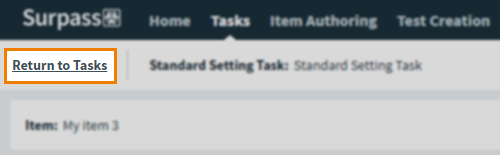
You can close the task manually at any time. Select Return to Tasks to close the task and return to the Tasks screen.
5. Complete the task
Select Complete Task in the task details panel once you have closed the task.
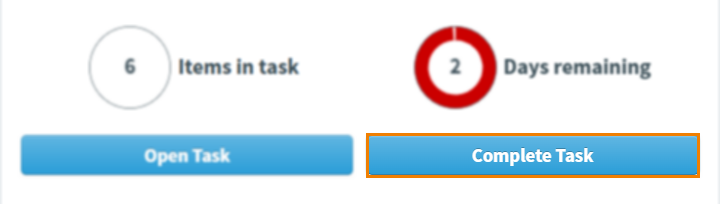
This changes the task’s status to Complete.
Marking a task as incomplete
You can mark a task as incomplete if you incorrectly select Complete Task or the task needs to be worked on again.
By default, completed tasks are not shown in the Tasks list. To display completed tasks on the Tasks list, open Filter and select Show Completed.

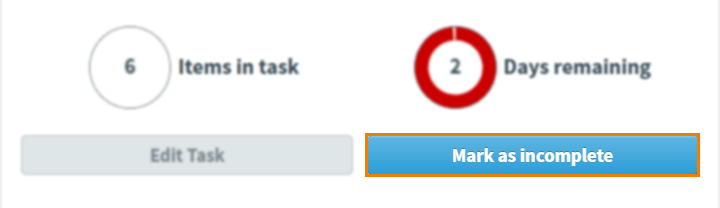
Find and select your completed task. Select Mark as incomplete to mark the task as incomplete. The task’s status reverts to In progress.
Further reading
For more information on Standard Setting tasks, or working in other task types as an assignee, read the following articles:
- About task types
- About the Tasks screen
- About task managers, assignees, and lead assignees
- Working in an Authoring (Edit Existing Items) task as an assignee
- Working in an Authoring (Create New Items) task as an assignee
- Working in an Individual Review task as an assignee
- Working in a Shared Review task as an assignee
- Working in an Item Analysis Review task as an assignee
- Working in a General task as an assignee