
Assigning users to a test in SecureMarker
Users with test-level roles in SecureMarker can assign marks to and interact with candidate responses. You can manage users with test-level roles and assign users to tests in the Examiners screen.
This article explains how to assign test-level roles to users in the Examiners screen, including how to remove users from a test.
In this article
1. Go to the Examiners screen
To view the Examiners screen, select Examiners on the navigation bar.

2. Select a subject and test
Select the Subject/Test menu on the navigation bar.

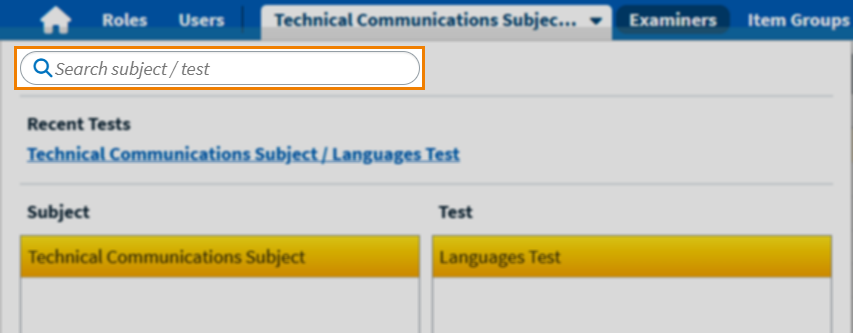
To find a new test, search for it in the Search subject/test search bar.
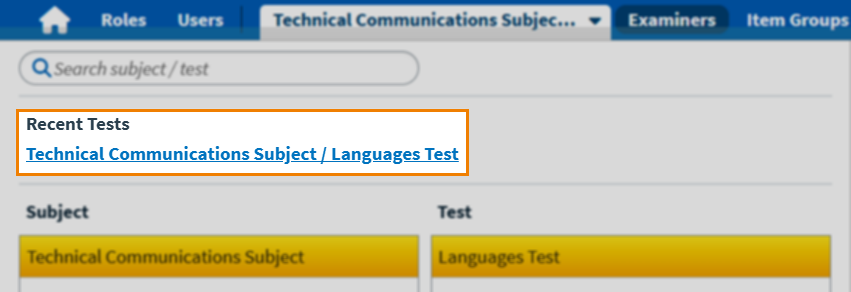
The most recently accessed tests are listed under Recent Tests.
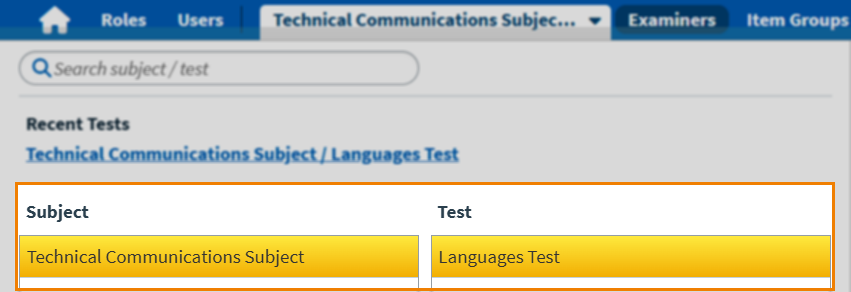
To select a particular test, first select the relevant subject in the Subject list and then choose the test from the Test list.
3. Choose a user
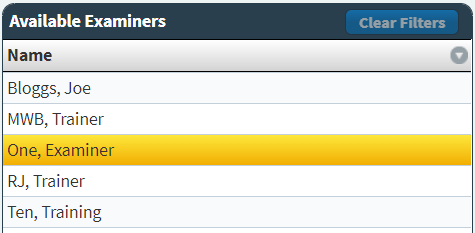
Choose a user to assign to your test in the Available Examiners panel. Select Control or Shift to assign multiple users to a test.
4. Select Assign
Select Assign to open the Assign Examiners dialog.
5. Define test-level roles
The Assign Examiners dialog displays your selected examiners and the roles you can assign to them. Select a user and choose the role you want to assign to that user for your chosen test. For more information, read Creating a role in SecureMarker.
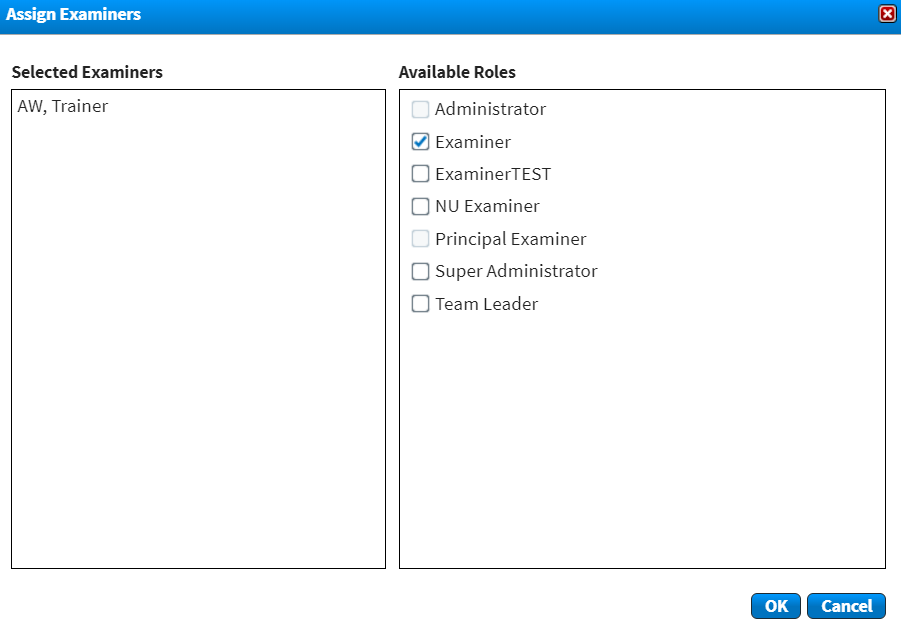
Select OK to confirm your changes.

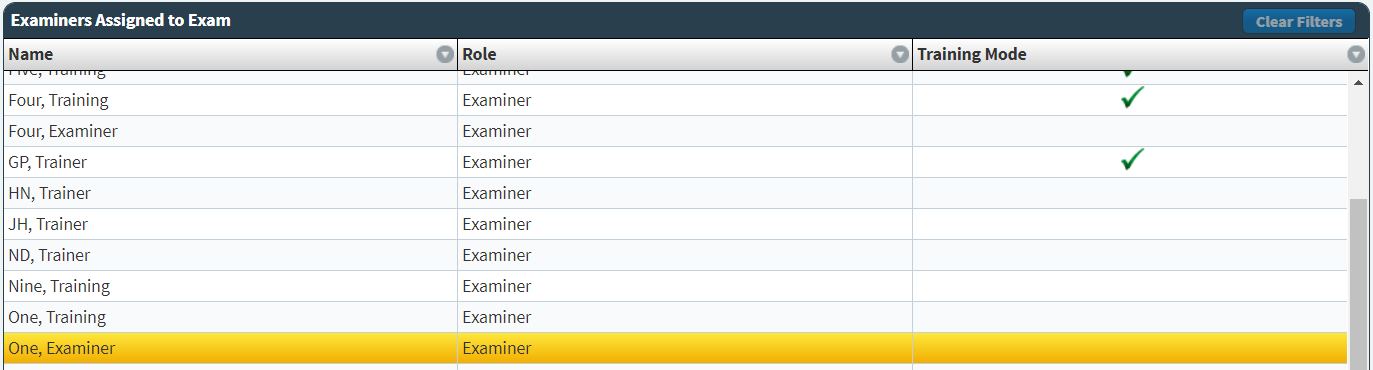
The assigned user appears in the Examiners Assigned to Test grid.
Removing users from a test
Select Unassign to remove a user from a test.
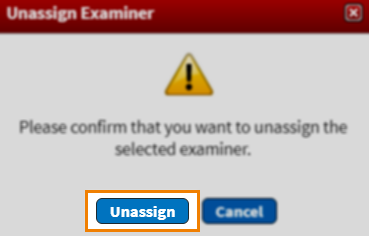
Select Unassign in the Unassign Examiner dialog to confirm you want to remove the user from the test. The unassigned user returns to the list of available users in the Available Examiners panel.
Further reading
To learn more about working in Examiners, read the following articles: