
About the Examiners screen in SecureMarker
Users with exam-level roles in SecureMarker can assign marks to and interact with candidate responses. You can manage users with exam-level roles and assign users to tests in the Examiners screen.
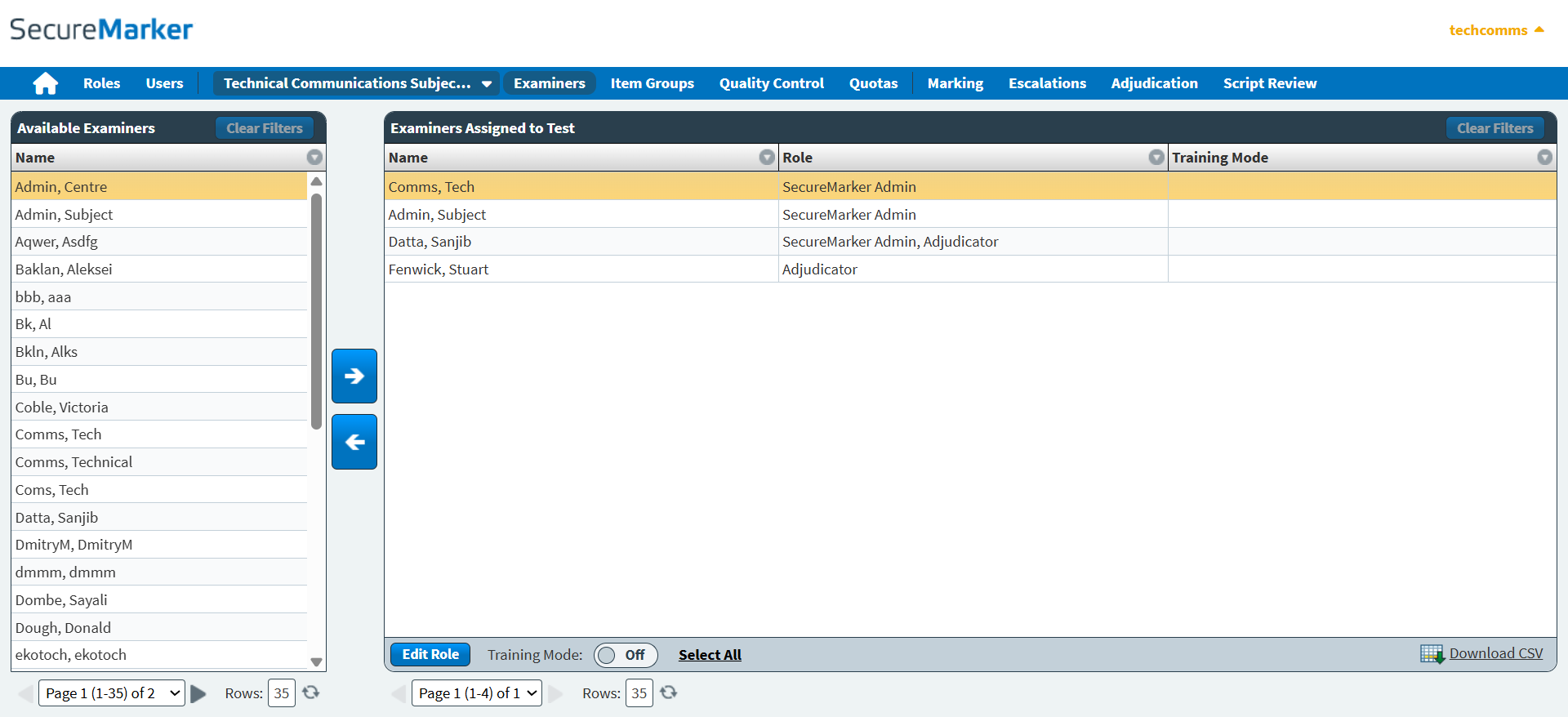
This article explains how to navigate the Examiners screen, including how to view a list of available users for your chosen exam.
In this article
Navigating to the Examiners screen
To view the Examiners screen, select Examiners on the navigation bar.

Selecting a subject and test
Select the Subject/Test menu on the navigation bar.

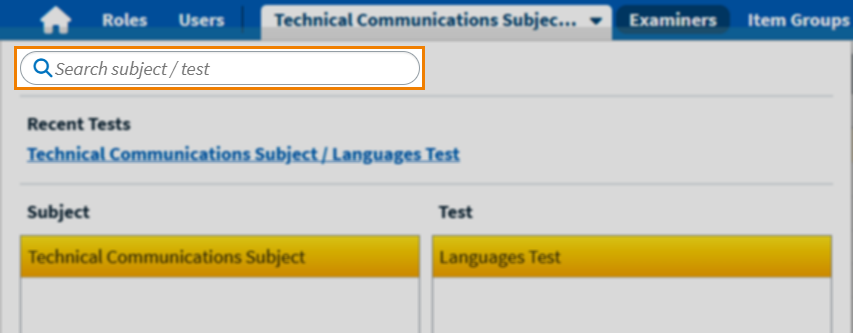
To find a new exam, search for it in the Search subject/test search bar.
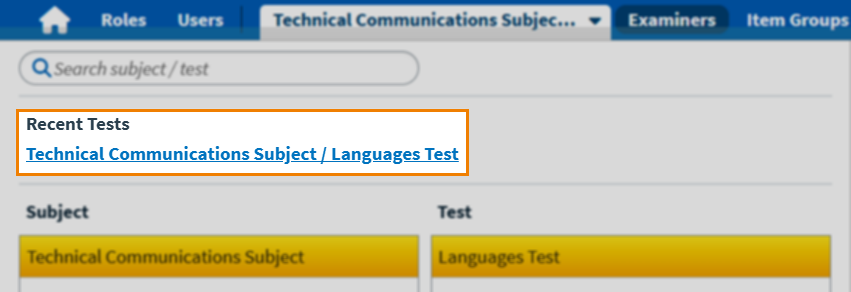
The most recently accessed tests are listed under Recent Tests.
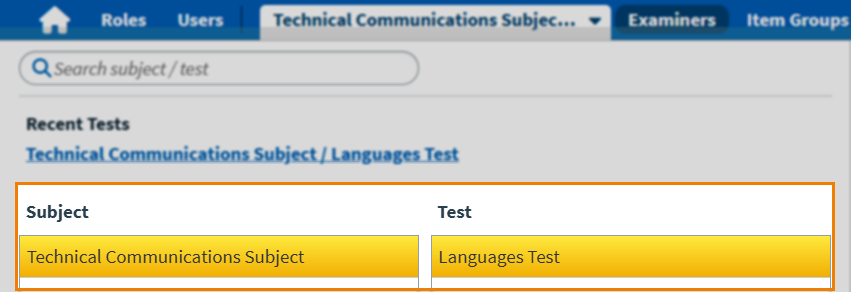
To select a particular exam, first select the relevant subject in the Subject list and then choose the test from the Test list.
About the Examiners grids
The Examiners screen contains two grids: the Available Examiners grid and the Examiners Assigned to Test grid.
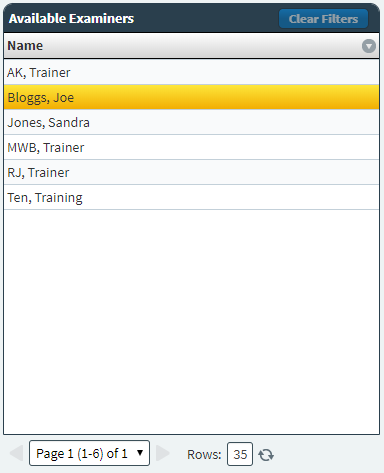
About the Available Examiners grid
The Available Examiners panel displays the names of all users in SecureMarker who are available to assign to the selected exam.
About the Examiners Assigned to Test grid
The Examiners Assigned to Test grid displays all users with exam-level roles for the selected test.
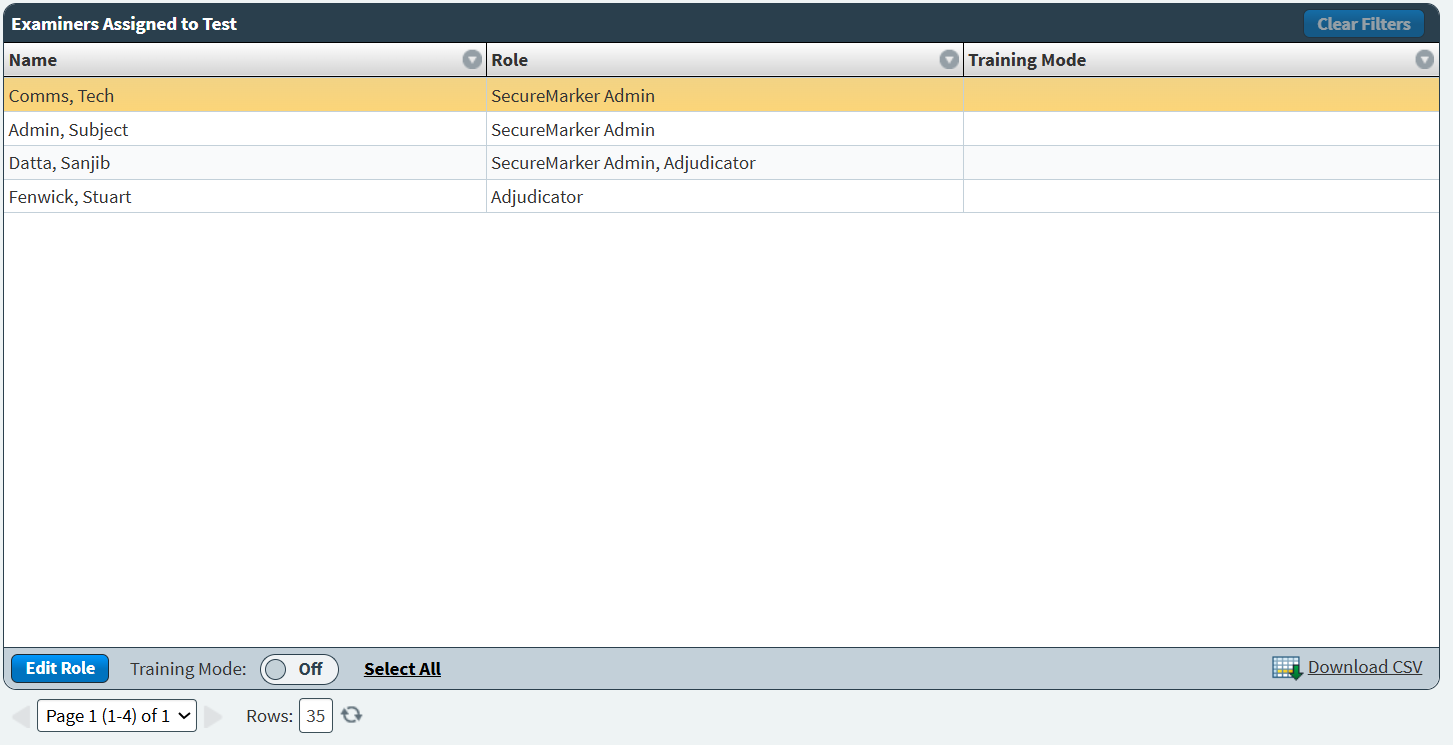
Refer to the following table for information on each column in the Examiners Assigned to Test grid.
| Column | Description |
|---|---|
| Name | Displays the user name of the user assigned to the selected test. |
| Role | Displays the test-level role assigned to the user for the selected test. |
| Training Mode | Displays a check () if the user is in training mode. For more information, read Putting users in training mode in SecureMarker. |
You can navigate through pages of data in both grids using the Page menu. Use the Rows entry field to define how many rows are displayed in the Available Examiners and Examiners Assigned to Test grids. Select Refresh to update the number of rows.

Assigning users to a test
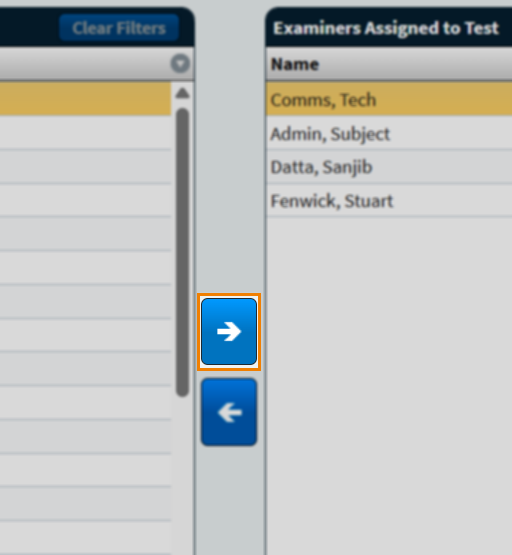
To assign a user to an exam, choose a user in the Available Examiners panel and select Assign . For more information, read Assigning users to a test in SecureMarker.
Finding users
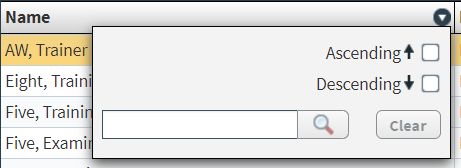
Select the expander () on a column header to open a filter menu. Columns with filters applied are indicated by the filter icon: . You can combine filters across multiple columns.
For Name, select Ascending to filter the column content in ascending order (A-Z). Select Descending to filter the column content in descending order (Z-A). Use the text field to filter column contents based on examiner name. Select Clear to reset the filter.
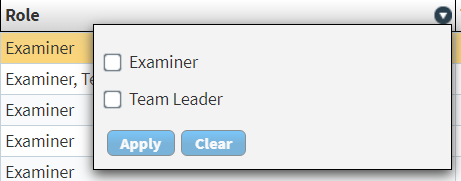
For Role, choose the role you want to view. Select Apply to save the filter. Select Clear to reset the filter.
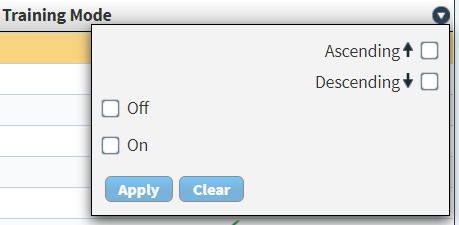
For Training Mode, select Ascending to filter the column content in ascending order (A-Z). Select Descending to filter the column content in descending order (Z-A). Choose whether you want to view all users in training mode (On) or users not in training mode (Off). Select Apply to save the filter. Select Clear to reset the filter.
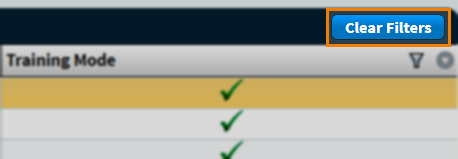
Select Clear Filters to reset all filters.
Actions on the Examiners screen
There are many actions you can take on the Examiners screen. These include editing exam-level roles and putting users in training mode.
Editing roles
To edit exam-level roles, choose a user in the Examiners Assigned to Test grid and select Edit Role.

The Edit Role dialog displays the Selected Examiners and Available Roles.
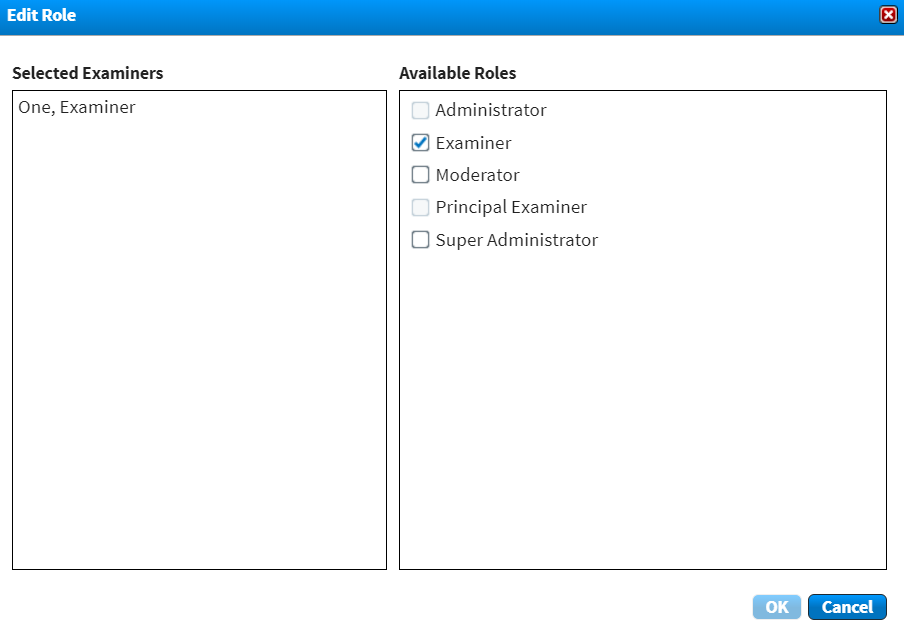
Edit the user’s assigned roles in the Available Roles list. Select OK to confirm your changes.
Putting examiners in training mode
Training mode in SecureMarker allows examiners to practice marking responses without affecting live results. This might be useful for new examiners. For more information, read Putting users in training mode in SecureMarker.

Exporting data to a spreadsheet
Select Download CSV to download the Examiners Assigned to Test grid data to a spreadsheet.
Further reading
To learn more about working in Examiners, read the following articles: