
Cardea Secure Browser
Cardea Secure Browser is a standalone test delivery app with offline test support and built-in protections against internet and device failure. If internet connection is lost, finished tests are uploaded to Surpass from Cardea once internet connection is restored. Cardea also features lockdown capabilities that prevent candidates from leaving the test session.
This article outlines how to access a test in Cardea Secure Browser.
support@surpass.com
In This Article
Getting Started
Install Cardea from the App store on iPad or Mac, or from the Microsoft Store on Windows.
Requirements for using Cardea Secure Browser
To use Cardea, you will need:
- An iPad, Mac or Windows PC
- An internet connection
- For exams with spoken responses, Microphone access
Candidate FAQs
There are some common questions candidates ask regarding sitting a test within Cardea.
Accessing a test in Cardea Secure Browser
1. Enter your keycode
Enter your unique alphanumeric keycode in the entry field. Your keycode must contain eight characters and be in upper case.
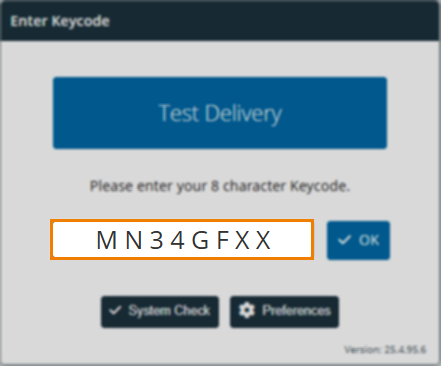
Select OK to confirm your keycode.
Configuring your preferences
If you have accessibility requirements, you can change the colour preferences of your test. This might be useful for candidates with visual impairments. Preferences can be changed at any point during a test. For more information, read About the Surpass test driver interface.
From the Enter Keycode screen, select Preferences to open the Preferences panel.

You can also change your preferences in the test driver during the test. Select Preferences to open the Preferences panel.

Choose your colour scheme in the Preferences panel.

Select More Options to view additional colour settings.

You can further customise your colour settings in Background Colour and Text Colour.

Use the slider to change the contrast of your screen.

In SecureClient, you can select Audio Settings to open your device’s audio settings. For more information, read Checking your system.

2. Confirm your details
Confirm your details in the Confirm Details dialog.

| Field | Description |
|---|---|
| Last name | Displays your last name. |
| First name | Displays your first name. |
| Test name | Displays the name of the test. |
| Language | Displays the test’s navigation language. |
Select Yes to confirm your details.

3. Agree to terms
Before you can start your test, you must agree to the terms. Select I accept these terms and choose Continue to start your test.

If your test contains Audio Capture questions, you must test your microphone by recording a short audio clip in the Sound Recording Test. For more information, read ‘Checking your microphone for Audio Capture questions’ in Checking your system.
4. Start your exam
After clicking Continue your exam will start.
To learn more about using the Surpass Test Driver, read About the Surpass test driver.
Privacy Policy
To view all Surpass website policies, including our privacy policy, read Website Policies