
Importing items into the Surpass Platform
The Surpass Publisher can be used to import items into the Surpass Platform from an XLSX file. Currently, only Multiple Choice question types can be imported into Surpass.
This article explains how to import items into the Surpass Platform from the Surpass Publisher.
In this section
1. Navigate to Import Items
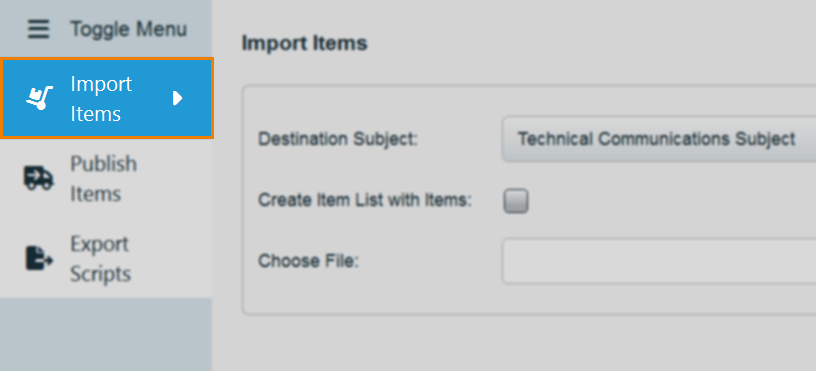
Select Import Items from the Surpass Publisher menu.
2. Select a destination subject
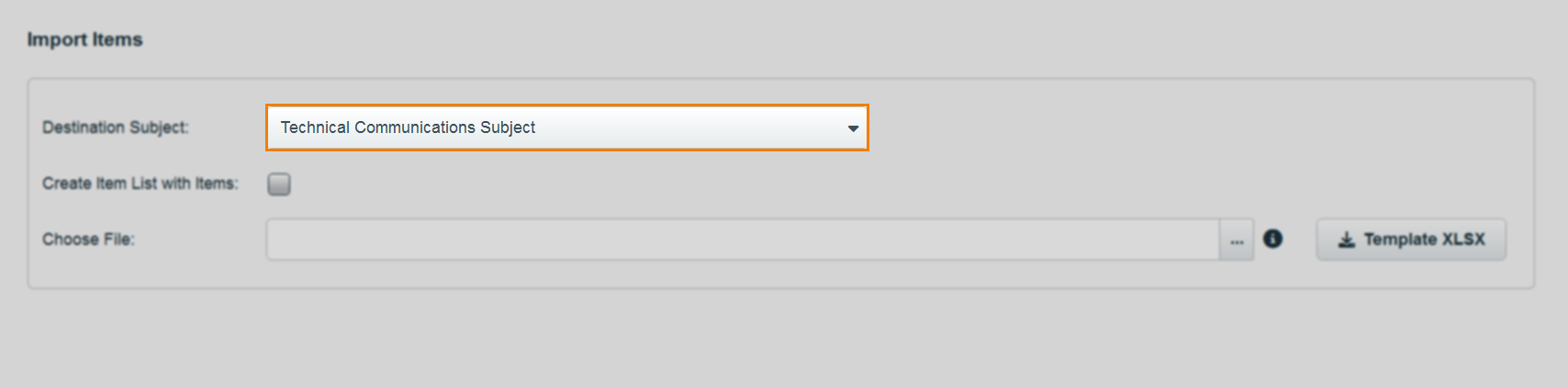
Select the subject you want to import items into from the Destination Subject drop-down menu. The available subjects are those for which you have any permissions.
3. Choose whether to create item list with items
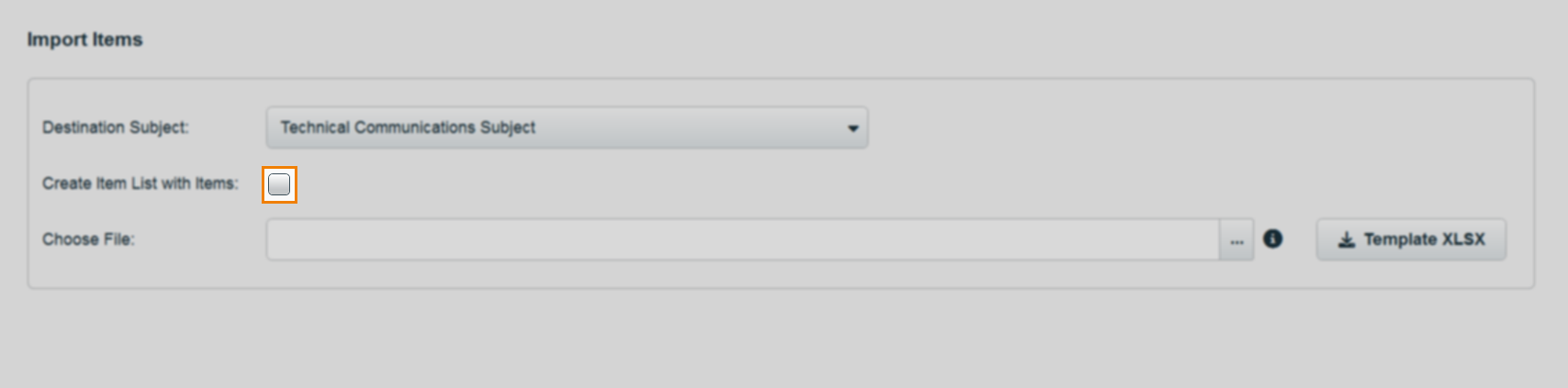
If you want to additionally create an item list from the imported items, select the Create Item List with Items checkbox.
4. Upload your import file
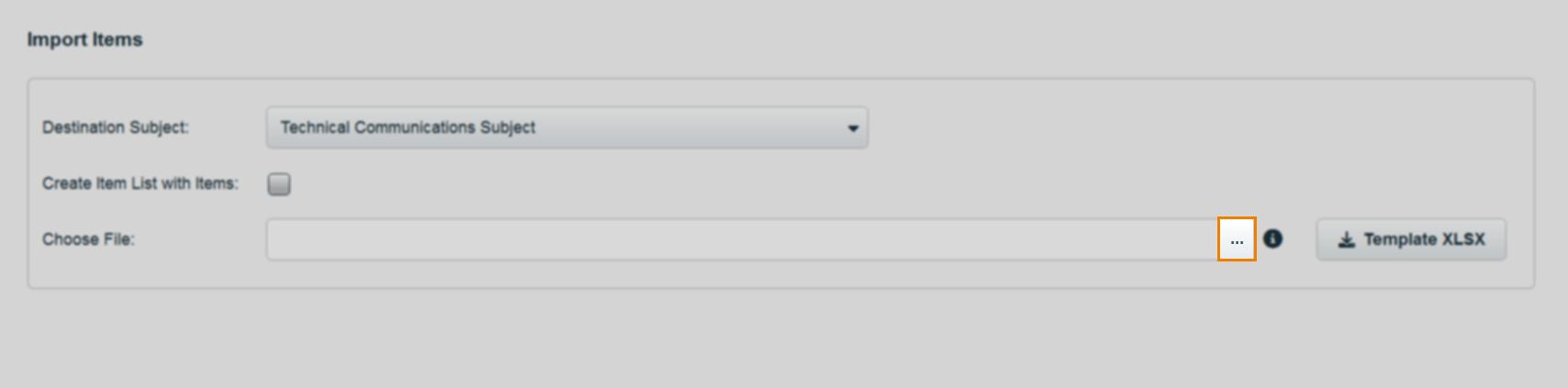
Select […] to choose a file, which must be an XLSX or ZIP file (containing media). Total file size cannot exceed 500MB.
Creating your spreadsheet
Spreadsheets must adhere to a strict format if they are to be imported into Surpass successfully. Select Template XLSX to get a pre-formatted empty spreadsheet.
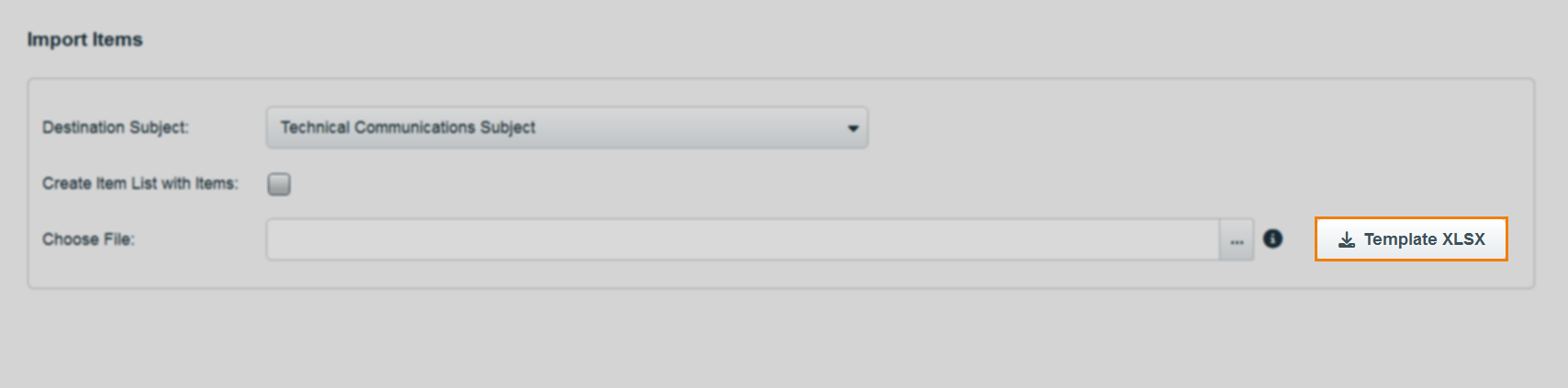
The spreadsheet contains different sheets for different question types, and details each column’s content requirements.
Expand the following section for information on how to input data in an import spreadsheet.
5. Select Import
Select Import.

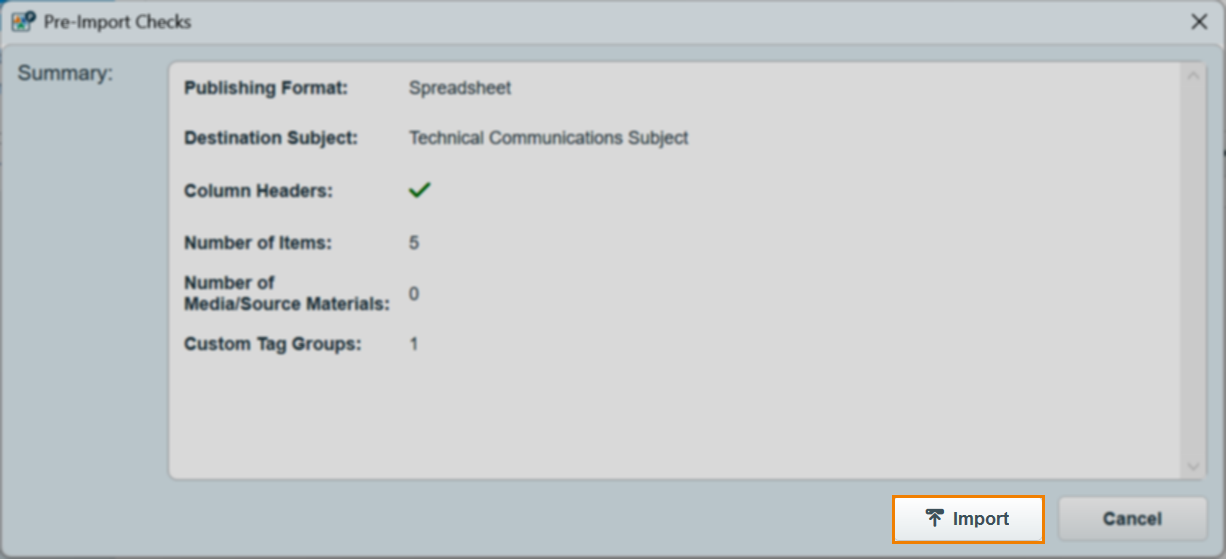
The Pre-Import Checks dialog provides a summary of your import file and confirms whether it is valid for import.
Select Import to import all items that passed the pre-import checks.
The Importing Items… dialog details the progress of your import.
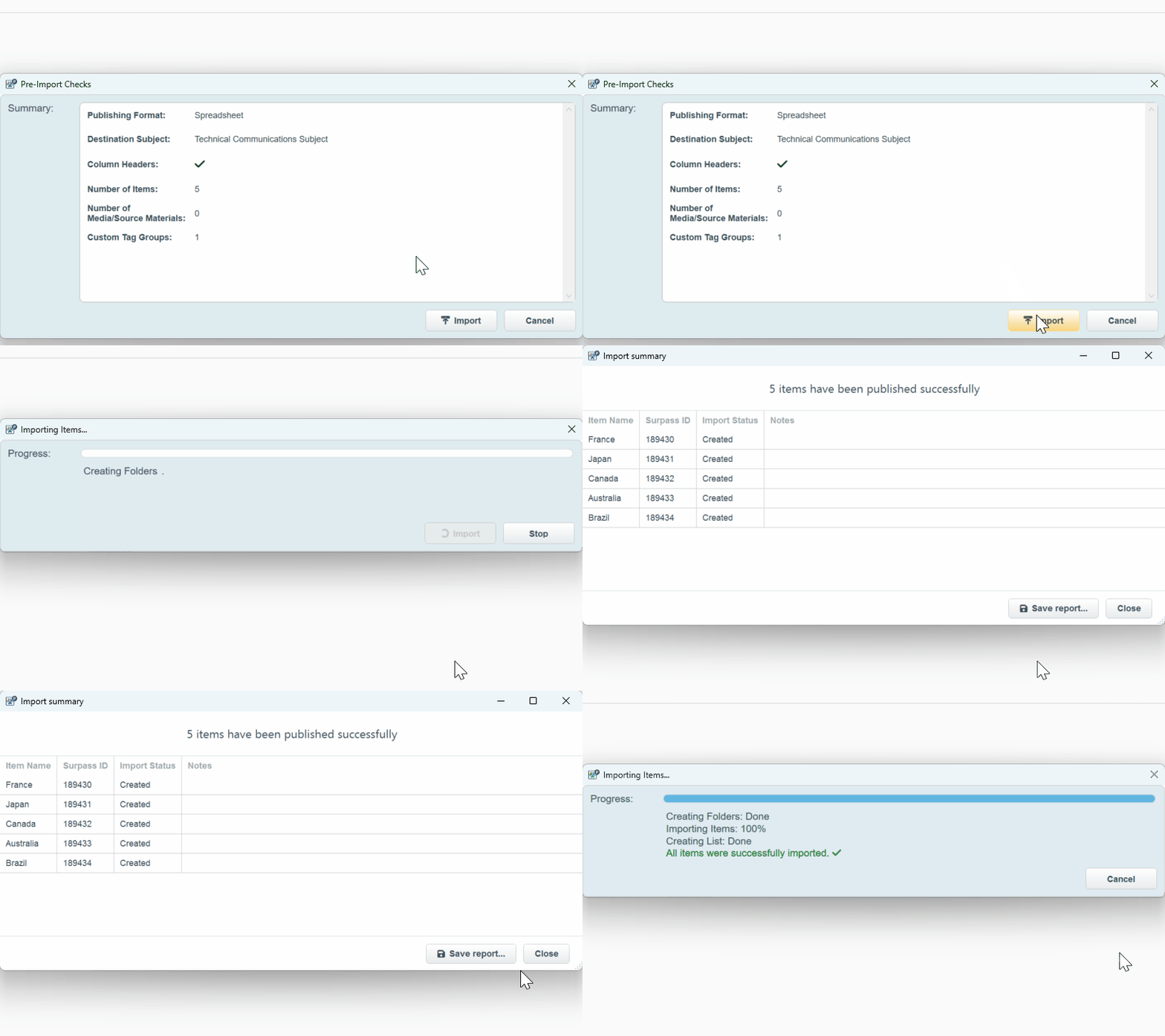
Your successfully published items are imported into the specified subject, at Draft status, in a folder with the following naming convention: {filename}.{filetype} DD/MM/YYYY MM:SS (date and time format is localised).

The user who imported the items becomes the item owner of each item.
If Create Item List with Items was enabled, an item list containing the successfully published items is created with the same name.
Downloading import report
After importing, you can download a report detailing the success or failure of each import attempt.
Select Save report….
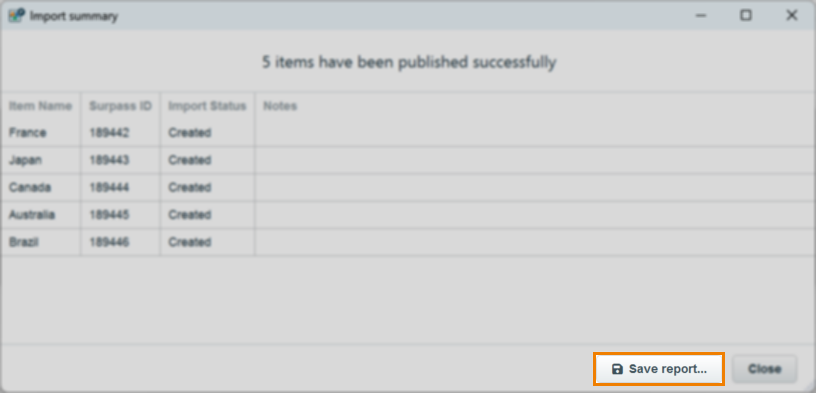
Choose a local save destination for the TXT file report.
Once downloaded, select Close.
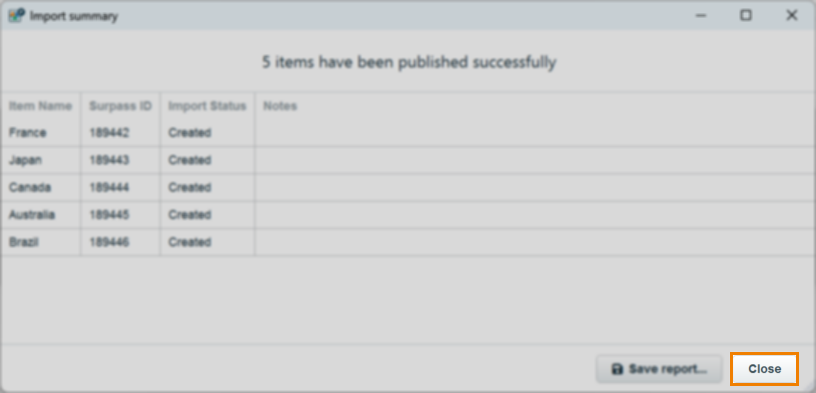
The report contains each item’s name, identifier, import status, and any notes.